Summary: OWA authentication is easier to troubleshoot once the frontend, Exchange authentication layer, HttpProxy, and backend are treated as separate parts of the same request. This first part sets the baseline, shows the main commands, and explains which settings matter before we start changing anything.
Exchange OWA authentication problems are easy to misdiagnose because the browser, frontend IIS, Exchange authentication layer, HttpProxy, and backend do not tell the same story. Before changing any setting, you need to know which layer actually owns the failure.
Version scope: The controlled tests in this series were performed on Exchange Server 2019 CU15 and Exchange Server Subscription Edition (SE) RTM. Microsoft states that SE RTM is code-equivalent to Exchange 2019 CU15 apart from the license agreement, product name, and build number. The OWA frontend/backend virtual directory, authentication, HttpProxy, and Managed Availability architecture covered here also applies to Exchange Server 2016. Exchange Server 2013 and earlier are outside the scope of this series. Microsoft Learn: Exchange Server SE release notes
This series grew out of the kind of questions I regularly see in my work as a Microsoft Cloud Solution Architect focused on Exchange and hybrid environments.
Customers may need to change an authentication method, respond to a security finding, apply a hardening recommendation, or troubleshoot an unexpected sign-in problem. The documented configuration is important, but in production the harder question is often:
What actually happens if I change this setting in production?
The real risk is changing a setting without fully understanding which Exchange component depends on it and what the expected result should be. That matters to both Exchange administrators and field engineers or consultants working across unfamiliar environments.
For that reason, throughout this series I take the documented configuration into a controlled lab, change one variable at a time, and observe the actual result. The lab is only the method. The goal is to reduce uncertainty before production changes and build a practical troubleshooting reference.
This is especially important with security and hardening recommendations. Exchange uses IIS, but its Front End and Back End proxy architecture means that a change that looks reasonable for a generic web application can have a very different effect on Exchange.
2. Why OWA Authentication Can Be Misleading
When OWA sign-in fails, the first instinct is often to check the IIS Authentication page and one or two Exchange properties. That is useful, but it does not show the whole flow.
An OWA request normally passes through the Client Access frontend, Exchange authentication logic, HttpProxy, and the backend OWA application. Those layers do not use identical authentication settings.
Browser
  |
  v
Default Web Site\owa        (frontend, HTTPS 443)
  |
  v
Exchange OWA authentication / Client Access
  |
  v
HttpProxy / routing
  |
  v
Exchange Back End\owa      (backend, HTTPS 444)
  |
  v
OWA application / mailbox services
Microsoft describes Client Access services as the front door for client connections. They authenticate incoming connections and normally proxy them to the backend service that owns the active mailbox database. Microsoft Learn: Client Access services
3. Start with the Exchange OWA Baseline
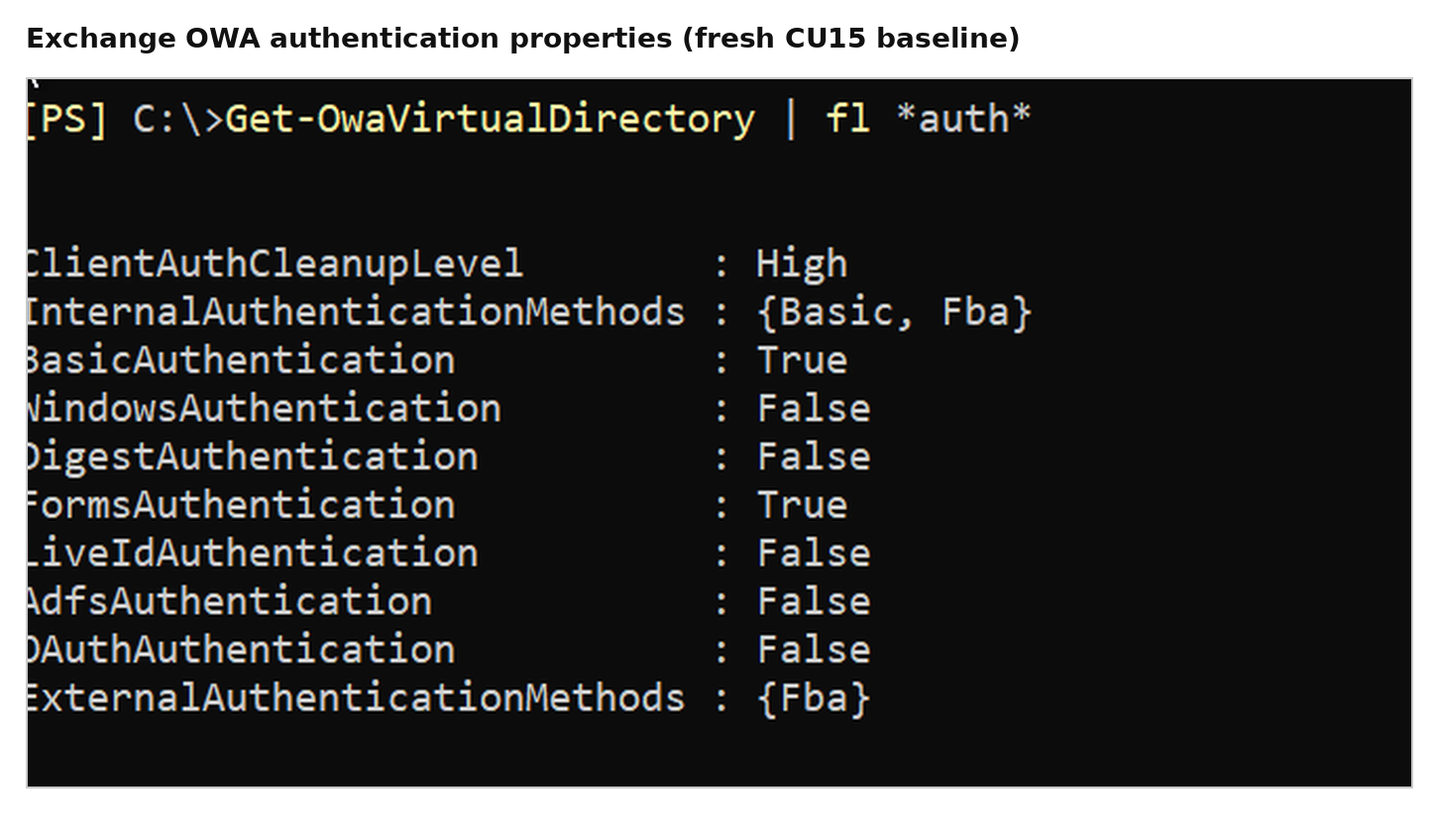
Before changing anything, I capture the OWA authentication settings that matter for troubleshooting.
I use the following command for the baseline:
PowerShell
Get-OwaVirtualDirectory-Identity "EX601\owa (Default Web Site)"|Format-List FormsAuthentication,BasicAuthentication,WindowsAuthentication,DigestAuthentication,InternalAuthenticationMethods,ExternalAuthenticationMethods,LogonFormat,DefaultDomain
The baseline used in this series showed the following authentication combination:
This is probably the most important distinction to get right before troubleshooting OWA.
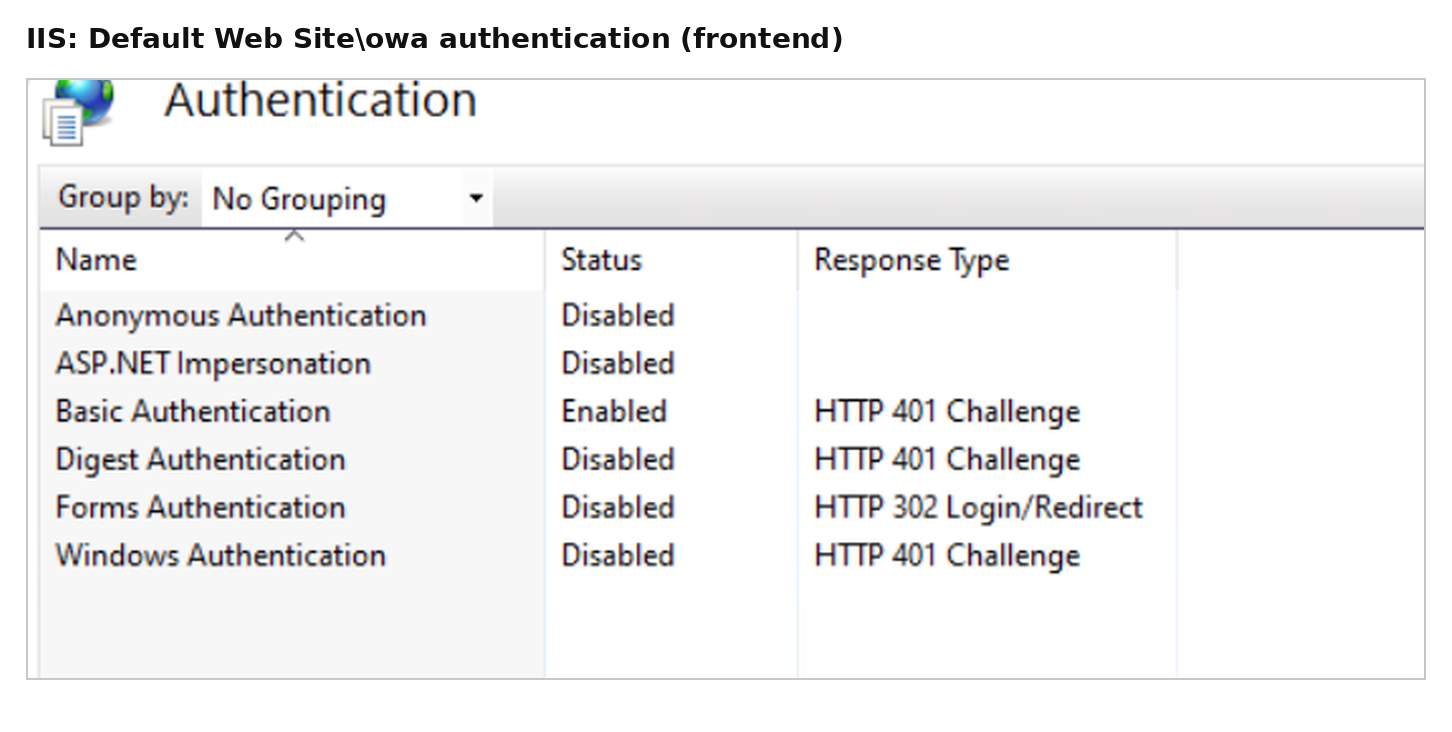
On the frontend OWA application, IIS shows a baseline similar to this:
Anonymous Authentication : Disabled
Basic Authentication     : Enabled
Digest Authentication    : Disabled
Forms Authentication     : Disabled
Windows Authentication   : Disabled
Figure 2 – IIS Default Web Site\owa authentication baseline.
At the same time, Exchange reports:
FormsAuthentication : True
Both are correct. The Forms Authentication feature shown in IIS Manager is the generic IIS/ASP.NET feature. Exchange OWA Forms-Based Authentication is Exchange functionality and is managed through Exchange configuration.
So seeing Forms Authentication = Disabled in IIS Manager does not mean OWA FBA is disabled.
5. Frontend and Backend OWA Use Different Authentication Settings
Exchange has two OWA applications involved in the request path:
Default Web Site\owa
Exchange Back End\owa
Microsoft documents different default authentication settings for them. On the frontend OWA virtual directory, IIS Basic authentication is enabled. On the backend OWA virtual directory, Anonymous and Windows Authentication are enabled. Microsoft also states that the backend virtual directories should not normally be configured by the user. Microsoft Learn: Default settings for Exchange virtual directories
That also explains why WindowsAuthentication=False on the OWA virtual directory does not mean Windows Authentication is absent from the entire OWA request path. The frontend and backend are separate authentication boundaries.
6. Check the Published OWA URLs Separately
I also capture the configured OWA URLs when taking a baseline:
InternalUrl and ExternalUrl are Exchange service configuration values. They are not an IIS hostname allow-list.
For example, a browser can still reach a different OWA hostname when DNS points that name to Exchange, IIS accepts the HTTPS request, the /owa application exists, and the certificate matches. An empty ExternalUrl by itself does not prove that OWA cannot be reached through an externally published namespace.
Also, manually browsing to an OWA URL does not require Autodiscover. The user already supplied the URL to the browser.
7. What InternalAuthenticationMethods Really Tells Us
The baseline in this series showed:
InternalAuthenticationMethods : {Basic, Fba}
This is useful configuration information, but it is not runtime proof of what happened in a specific request.
{Basic, Fba} does not mean every OWA login performs Basic authentication and then performs FBA as a second user authentication step. In the same way, later seeing {Ntlm, WindowsIntegrated} does not tell us whether a particular client used NTLM or Kerberos.
That difference between configured and actually used becomes important later in the series.
8. ExternalAuthenticationMethods Does Not Prove Internet Exposure
The baseline also showed:
ExternalAuthenticationMethods : {Fba}
This does not prove that OWA is reachable from the Internet. Actual reachability also depends on DNS, firewall rules, NAT, reverse proxy or WAF configuration, load balancers, certificates, and IIS bindings.
I treat this property as Exchange authentication configuration, not as evidence that the service is externally published.
9. The Three Logs I Want for OWA Authentication Troubleshooting
Once the configuration baseline is known, I normally follow the request through three log layers. In this lab, the frontend and backend IIS site IDs map to W3SVC1 and W3SVC2.
9.1 Frontend IIS – W3SVC1
C:\inetpub\logs\LogFiles\W3SVC1
This tells us what reached the frontend: client IP, URI, method, username visible to IIS, HTTP status, User-Agent, and timing information.
This is one of the most useful places to look because it can expose fields such as AuthenticationType, IsAuthenticated, AuthenticatedUser, HttpStatus, BackEndStatus, TargetServer, and routing information.
9.3 Backend IIS – W3SVC2
C:\inetpub\logs\LogFiles\W3SVC2
This shows what happened when Exchange reached the backend IIS application on the backend HTTPS site.
For a controlled test, I use the following PowerShell command to watch only new entries in the active backend IIS log and save them at the same time:
-Tail 0 skips the old lines, -Wait follows new requests, and Tee-Object lets me watch the traffic while also saving the capture. One small caveat: if IIS rolls over to a new log file during the test, Get-Content -Wait continues following the file it originally opened.
10. A Few Things I Do Not Assume from a Single Value
Several OWA troubleshooting clues look more definitive than they really are:
WindowsAuthentication=False does not mean Windows Authentication is absent from the backend path.
cs-username=- in an IIS log does not prove Anonymous Authentication was used.
An HTTP 401 is not always a failed login. It can be part of a Windows Integrated Authentication challenge.
An HTTP 302 from /owa/auth.owa does not prove the password was accepted.
Seamless browser SSO does not prove Kerberos was used. NTLM can also be transparent to the user.
Those points are easier to see when we start changing one setting at a time and compare the browser behavior with W3SVC1, HttpProxy, and W3SVC2.
11. Broader Authentication Inventory
The focused commands above are enough for this article. When I want a wider OWA authentication dump, I use the single command below. For a broader Client Access URL and authentication inventory, I use GetExchangeURLs-v2.ps1.
PowerShell
Get-OwaVirtualDirectory|Format-List*auth*
12. Key Takeaways
OWA authentication is not a single IIS setting. The frontend, Exchange authentication layer, HttpProxy, and backend need to be evaluated together.
Exchange OWA Forms-Based Authentication and IIS Forms Authentication are different mechanisms.
Frontend and backend OWA authentication settings are intentionally different and should be treated as separate authentication boundaries.
InternalAuthenticationMethods and ExternalAuthenticationMethods do not, by themselves, describe the complete authentication path.
For reliable troubleshooting, correlate frontend IIS logs, Exchange HttpProxy OWA logs, and backend IIS logs instead of relying on a single value or HTTP status.
Next: Forms-Based and Basic Authentication
Part 2, Forms-Based and Basic Authentication – What Really Changes?, moves from observation to controlled frontend changes. It shows what happens when FBA is disabled, when Basic Authentication is used on its own, and when the normal FBA configuration is restored.
Exchange Server OWA Authentication Deep Dive Series
Part 1: How OWA Authentication Really Works — current
I’m a Cloud Solution Architect – Global Delivery at Microsoft, working within the Modern Work team. My areas of expertise include Exchange Server (on-premises), Exchange Hybrid, Exchange Online, Microsoft 365, security, identity, and enterprise infrastructure.