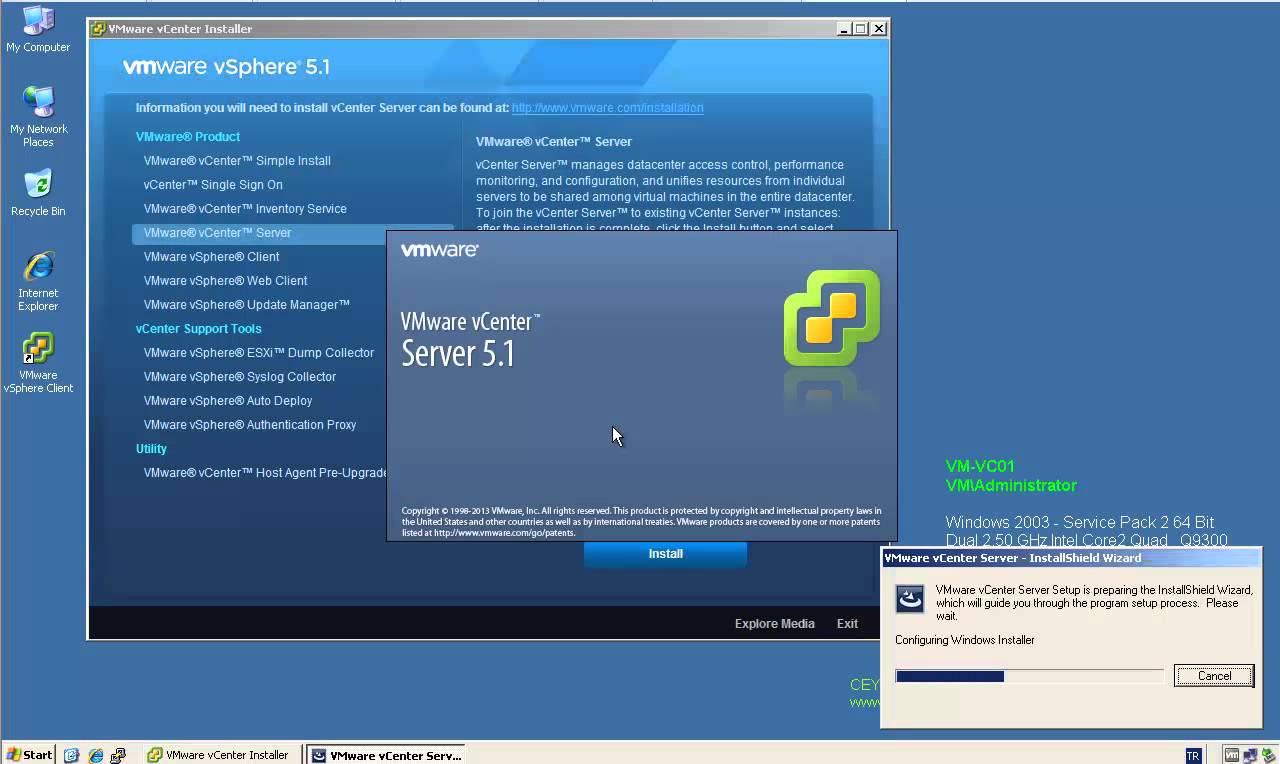
Applies to: VMware vCenter Server 5.1 → 5.1 Update 1 Historical: This article covers the Windows-based vCenter Server 5.1 architecture and its upgrade to vCenter Server 5.1 Update 1. This release is no longer supported and the component-by-component upgrade model described here does not apply to current vCenter Server releases. vCenter Server 5.1 separated several core services into individual components, including Single Sign-On (SSO), Inventory Service, vCenter Server, and the vSphere Web Client. Because of that architecture, upgrading to 5.1 Update 1 required the components to be updated in the correct order. In This Article 1. Before the Upgrade 2. Recommended Upgrade Sequence 3. Verify the Upgrade 4. Key Takeaways 1. Before the Upgrade Before upgrading a vSphere 5.1 environment, verify interoperability with any VMware products and plug-ins that depend…
Applies to: System Center Data Protection Manager 2010 | Windows Server 2008 R2 SP1 Historical: System Center Data Protection Manager (DPM) 2010 reached the end of extended support on October 14, 2020. This article is preserved as a reference for older environments. A DPM 2010 installation includes two main parts: installing the required prerequisite components and installing the DPM application itself. The DPM Setup Wizard performs most of this work as part of the integrated installation process. In This Article 1. Before You Start 2. Language Support 3. Install DPM 2010 4. After Installation 5. Key Takeaways 1. Before You Start Before starting the installation, confirm that the DPM server meets the hardware and software requirements for DPM 2010 and Windows Server 2008 R2 SP1. Verify the operating system and…
Applies to: VMware ESX / ESXi 4.x | IBM System x3850 X5 | Intel 82576 / 82580 Gigabit Ethernet Controllers Historical: This article covers a legacy ESX/ESXi 4.x driver installation scenario for Intel 82576 and 82580 Gigabit Ethernet controllers, including the IBM I340-T4 adapter used in IBM System x servers such as the x3850 X5. In this configuration, the network adapter could be supported by VMware but the required igb driver was not included in the ESX/ESXi installation media. The driver therefore had to be installed separately from an offline bundle. In This Article 1. Driver Package 2. Prepare the ESX Host 3. Install the Driver 4. Reboot and Verify 5. Important Version Note 6. Key Takeaways 1. Driver Package The original installation used the Intel igb 2.1.10.2 offline bundle:…
Applies to: VMware ESX / ESXi 4.1 / 4.0 | MSCS or WSFC with shared RDM LUNs Historical: This article covers a legacy ESX/ESXi 4.x boot-delay issue seen on hosts that could access shared Raw Device Mapping (RDM) LUNs used by Microsoft Cluster Service (MSCS) nodes. The host could appear to stop for a long time around messages such as multiextent loaded successfully while storage devices were being discovered. The delay was caused by SCSI reservation conflicts on shared RDM LUNs owned by the active cluster node. In This Article 1. Why the Host Boots Slowly 2. ESX / ESXi 4.1 Workaround 3. ESX / ESXi 4.0 Workaround 4. Current ESXi Behavior 5. Key Takeaways 1. Why the Host Boots Slowly When clustered virtual machines use shared RDM disks, the…
Applies to: Exchange Server 2010 Historical: This article covers the Exchange Server 2010 Client Access Server (CAS) proxy architecture. Exchange 2013 and later use a different Client Access / proxy model, so this specific troubleshooting flow should not be applied to current Exchange Server releases. In a multi-site Exchange 2010 environment, an Internet-facing Client Access Server could proxy Exchange Web Services (EWS) requests to a Client Access Server in the Active Directory site that hosted the mailbox. If Exchange could not identify a suitable Client Access Server in the destination site, the Application log could contain MSExchange Web Services Event ID 16 with a message similar to: Client Access server failed to proxy Exchange Web Services to Active Directory site because there are no applicable Client Access servers in the…
Applies to: VMware ESXi 4.1 → 4.1 Update 1 Historical: This article covers the legacy VMware vSphere CLI vihostupdate.pl workflow for updating ESXi 4.1 to ESXi 4.1 Update 1 without VMware Update Manager. This method does not apply to current ESXi releases. ESXi 4.1 Update 1 was released on February 10, 2011. The original procedure used VMware vSphere CLI (vCLI) from a Windows management workstation and an offline update bundle. In This Article 1. Before You Start 2. Place the Host in Maintenance Mode 3. Install the Offline Update Bundle 4. Reboot and Verify 5. Key Takeaways 1. Before You Start Download the correct ESXi 4.1 Update 1 offline bundle for the host. Install VMware vSphere CLI (vCLI) on the management workstation. Verify network connectivity from the management workstation to…
Applies to: Exchange Server 2007 Historical: Local Continuous Replication (LCR) was an Exchange Server 2007 high-availability feature. It was removed in Exchange Server 2010 and replaced by the Database Availability Group (DAG) and mailbox database copy model. LCR creates a second copy of an Exchange 2007 storage group on the same Mailbox server. Transaction logs are copied and replayed into the replica database, providing a local recovery copy if the active database or storage fails. In This Article 1. What LCR Does 2. Configure Local Continuous Replication 3. Important Storage Considerations 4. What Replaced LCR 5. Key Takeaways 1. What LCR Does LCR is a single-server replication technology. It is enabled per storage group and uses Exchange log shipping to maintain a passive local copy of the databases in that…
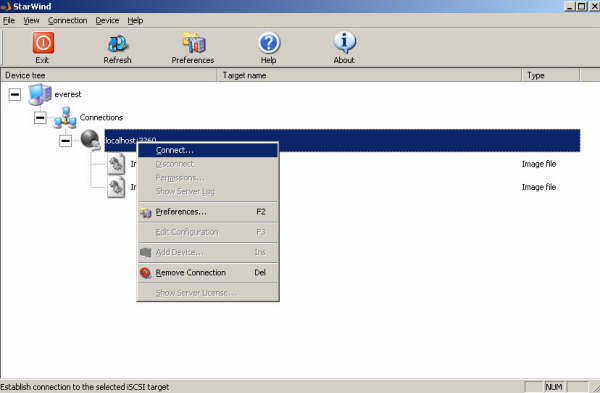
Applies to: Windows Server 2003 | VMware Workstation 7.x / 6.x | legacy StarWind iSCSI Target Historical: This article documents an older shared-storage clustering setup using Windows Server 2003 virtual machines, VMware Workstation, Microsoft iSCSI Initiator, and the legacy StarWind iSCSI Target interface. The exact StarWind screens and Windows Server clustering workflow shown here are no longer current, but the underlying storage model is still useful: both cluster nodes connect to the same shared iSCSI LUNs, which are then presented to Windows Failover Clustering. In This Article 1. Original Design 2. Configure StarWind Storage 3. Configure the Networks 4. Connect the First Cluster Node 5. Connect the Second Cluster Node 6. Current Windows Server Guidance 7. Key Takeaways 1. Original Design The original setup used three components: iSCSI target: StarWind…