Applies to: VMware ESXi 4.1 → 4.1 Update 1
Historical: This article covers the legacy VMware vSphere CLI vihostupdate.pl workflow for updating ESXi 4.1 to ESXi 4.1 Update 1 without VMware Update Manager. This method does not apply to current ESXi releases.
ESXi 4.1 Update 1 was released on February 10, 2011. The original procedure used VMware vSphere CLI (vCLI) from a Windows management workstation and an offline update bundle.
In This Article
- 1. Before You Start
- 2. Place the Host in Maintenance Mode
- 3. Install the Offline Update Bundle
- 4. Reboot and Verify
- 5. Key Takeaways
1. Before You Start
- Download the correct ESXi 4.1 Update 1 offline bundle for the host.
- Install VMware vSphere CLI (vCLI) on the management workstation.
- Verify network connectivity from the management workstation to the ESXi host.
- Confirm that you have a current backup of the ESXi host configuration and any required VM data.
The original ESXi 4.1 GA build was 260247. ESXi 4.1 Update 1 is listed with build numbers 351620 / 348481, depending on the package context.
2. Place the Host in Maintenance Mode
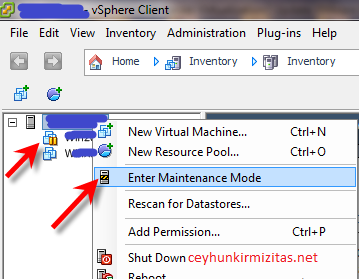
Shut down or migrate virtual machines from the host, then place the ESXi host into Maintenance Mode before installing the update.
3. Install the Offline Update Bundle
From the VMware vSphere CLI environment, run the legacy vihostupdate.pl command against the ESXi host and point it to the downloaded offline bundle:
vihostupdate.pl --server 172.19.23.97 --install --bundle update-from-esxi4.1-4.1_update01.zipReplace the example server address and bundle filename with the values from your environment.
4. Reboot and Verify
After the update completes, reboot the ESXi host. Reconnect using the vSphere Client and verify that the host reports the expected ESXi 4.1 Update 1 build.

5. Key Takeaways
- This procedure applies specifically to ESXi 4.1 and the legacy vSphere CLI tooling.
- Place the host in Maintenance Mode before applying the offline bundle.
- Use the correct offline update package for the target release.
- Reboot and verify the ESXi build after the update.
- Current ESXi releases use different lifecycle and update tooling.
References

Cloud and infrastructure professional with nearly two decades of experience in enterprise IT environments, spanning public cloud, private cloud, and hybrid architectures.