Organizations may need to keep all their Exchange mailboxes on-premises for business, technical, or regulatory reasons, but still want to enable Modern Authentication and use Microsoft Entra ID features such as MFA.
Hybrid Modern Authentication (HMA) makes this possible without moving mailboxes to Exchange Online. Supported Exchange clients can authenticate through Microsoft Entra ID while their mailboxes remain on-premises.
In this Field Guide, I show how I configured HMA on Exchange Server SE using Microsoft Entra Connect, the Hybrid Configuration Wizard (HCW), and Exchange PowerShell. The configuration covers Classic Outlook, OWA, and ECP, with both Password Hash Synchronization (PHS) and Pass-through Authentication (PTA).
The guide also covers configuration issues, troubleshooting steps, and how to verify that Modern Authentication is working.
Before starting the configuration, let’s look at the environment and what we want to achieve.
All user mailboxes are hosted on Exchange Server. Users will sign in through Microsoft Entra ID using Modern Authentication, but their mailboxes will remain on-premises.
Here is the environment I used:
Exchange Server: Exchange Server SE (EX2501), build 15.2.2562.53 (September 2026 SU v2).
Active Directory:lab25.local.
Mailbox location: All user mailboxes are on-premises. There are no Exchange Online user mailboxes.
Identity sync: Microsoft Entra Connect Sync with Password Hash Synchronization (PHS) or Pass-through Authentication (PTA).
Namespaces:mail.onpremx.cloud and autodiscover.onpremx.cloud.
Clients: Classic Outlook LTSC 2024 on Windows 11, Outlook on the web (OWA), and the Exchange admin center (ECP).
For this setup, three components have different roles:
Microsoft Entra Connect synchronizes the user identities to Microsoft Entra ID.
Hybrid Configuration Wizard (HCW) sets up the OAuth configuration between Exchange Server and Microsoft 365.
Exchange Server HMA settings enable supported clients to use Microsoft Entra ID for authentication.
I used Classic Full Hybrid in HCW because the Minimal Hybrid Configuration option does not configure OAuth.
Within Full Hybrid, I selected only OAuth and Update Coexistence Domain. The coexistence-domain option was needed because my first HCW attempt failed with HCW8064 due to a missing Hybrid Remote Domain.
These HCW options can also create an IntraOrganizationConnector and OrganizationRelationship, and update accepted domains, remote domains, and email address policies. I’ll show what HCW changed in Section 3.
Out of scope: Mailbox migration, hybrid mail flow, and Exchange Online coexistence features such as cross-premises Free/Busy, MailTips, and Photos. I did not deploy a dedicated Exchange Hybrid Application because these features were not needed.
The result we want is simple: Classic Outlook, OWA, and ECP use Modern Authentication through Microsoft Entra ID, while all mailboxes stay on Exchange Server.
2. Prerequisites and Pre-Checks
Before configuring HMA, I checked the existing Exchange and Microsoft Entra Connect settings.
There are two important parts to this configuration. Microsoft Entra ID authenticates the users, while Exchange Server continues to host their mailboxes. Both sides must be configured correctly.
I started by checking the following requirements:
Exchange Server: A supported Exchange build with the required updates. HMA must be configured across all Exchange servers in the organization.
Classic Outlook: MAPI over HTTP is required. HMA does not support RPC over HTTP (Outlook Anywhere).
OWA and ECP: Supported Exchange versions can use Microsoft Entra ID for browser authentication. ECP administrators must also have synchronized Microsoft Entra identities.
Certificates: Exchange HTTPS namespaces must use trusted certificates. The Exchange Auth certificate must also be valid.
Connectivity: Clients and Exchange servers must be able to reach the required Microsoft Entra endpoints.
There are also two limits to remember for OWA and ECP. Microsoft Entra Application Proxy is not supported for HMA, and SSL offloading is not supported. SSL bridging can be used.
2.1 Confirm Entra Connect configuration
I started with Microsoft Entra Connect because the on-premises Active Directory users must also exist in Microsoft Entra ID.
Microsoft Entra Connect synchronizes these identities. Password Hash Synchronization (PHS) and Pass-through Authentication (PTA) provide different ways to validate user credentials, but the Exchange-side HMA configuration is the same.
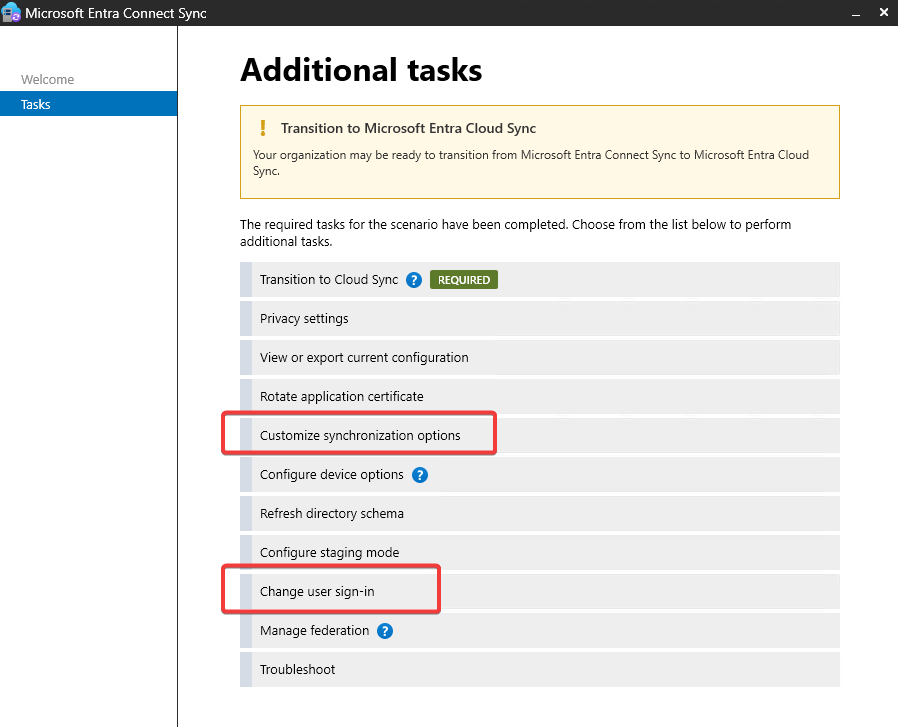
On the Microsoft Entra Connect server, open Microsoft Entra Connect Sync → Configure.
The Additional tasks page includes the options to review synchronization settings and the user sign-in method.
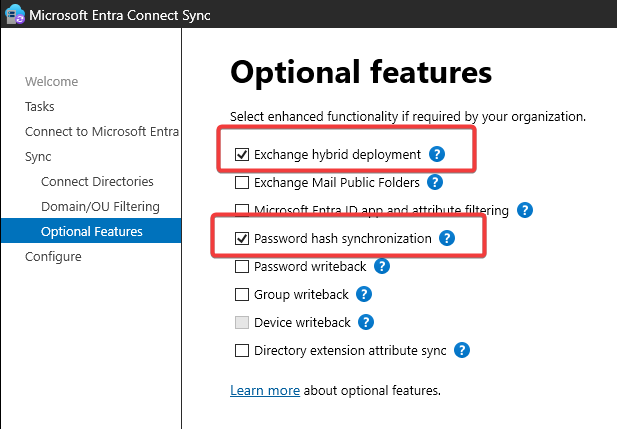
I opened Customize synchronization options and checked the optional features.
In my configuration, Exchange hybrid deployment and Password hash synchronization were enabled.
The Exchange hybrid deployment option writes selected Exchange Online attributes back to on-premises Active Directory. It does not enable HMA.
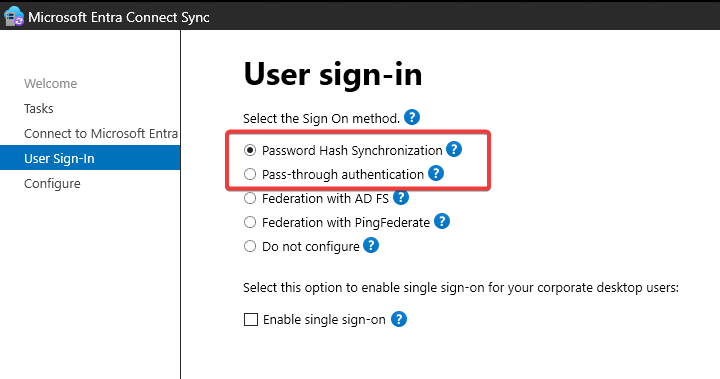
Next, I opened Change user sign-in to check the primary authentication method.
Password Hash Synchronization was selected in this configuration.
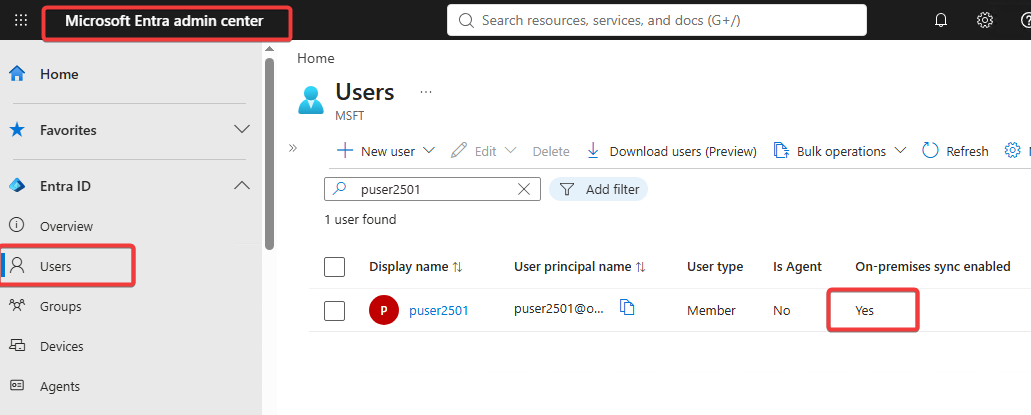
After checking the synchronization settings, I wanted to confirm that the user was actually available in Microsoft Entra ID.
I opened Microsoft Entra admin center → Entra ID → Users and checked puser2501.
The account showed:
On-premises sync enabled: Yes
This is important because Exchange mailbox users need matching Microsoft Entra identities to sign in through HMA.
Before enabling HMA for the organization, make sure all mailbox users are synchronized. The same applies to Exchange administrators who need access to ECP.
2.2 Record Exchange state and endpoint URLs
Next, I checked the Exchange configuration before running HCW.
I wanted to know which OAuth and Hybrid settings already existed. This also gave me a way to see what HCW changed later.
Exchange version: The installed Exchange build must support the HMA features we plan to use. I checked the ExSetup.exe file version because AdminDisplayVersion does not show the exact Security Update level.
Organization settings:MapiHttpEnabled helps us check MAPI over HTTP, which Classic Outlook needs for HMA. OAuth2ClientProfileEnabled tells us whether organization-level Modern Authentication is enabled.
AuthServer: This shows the OAuth authorization servers known to Exchange. HCW will create the required entries, including EvoSTS, which we will configure later.
Exchange Auth certificate: I checked the certificate thumbprint, expiration date, status, and private key. The Exchange Auth certificate is used for Exchange OAuth trust and must remain valid.
In my environment, there was no existing AuthServer or HybridConfiguration. The Exchange Auth certificate was valid and had its private key.
I saved these results before making any changes.
Next, I checked the Exchange virtual directories and namespaces.
Microsoft Entra ID needs to recognize the Exchange HTTPS namespaces used by clients. Later, we will register the required resource SPNs for Exchange and reply URLs for OWA and ECP.
In my environment, the main namespaces were:
https://mail.onpremx.cloud
https://autodiscover.onpremx.cloud
For reviewing and backing up Exchange Client Access URLs, you can also use my ExchangeURLManager.ps1 script. It does not manage the Microsoft Entra or OAuth settings used by HMA.
I also reviewed the protocol authentication settings, including OAuth where required. These settings help us identify anything that needs attention before enabling HMA.
I left the existing Kerberos and Alternate Service Account (ASA) configuration unchanged. HMA does not require removing Kerberos.
Finally, I checked the existing Hybrid-related objects.
HCW can create or update some of these objects, even when we select only a few Hybrid features.
By recording them first, I could compare the configuration before and after HCW. This was especially useful when investigating the missing Hybrid Remote Domain and the HCW8064 error.
With these checks completed, I moved to the Hybrid Configuration Wizard.
3. Hybrid Configuration Wizard
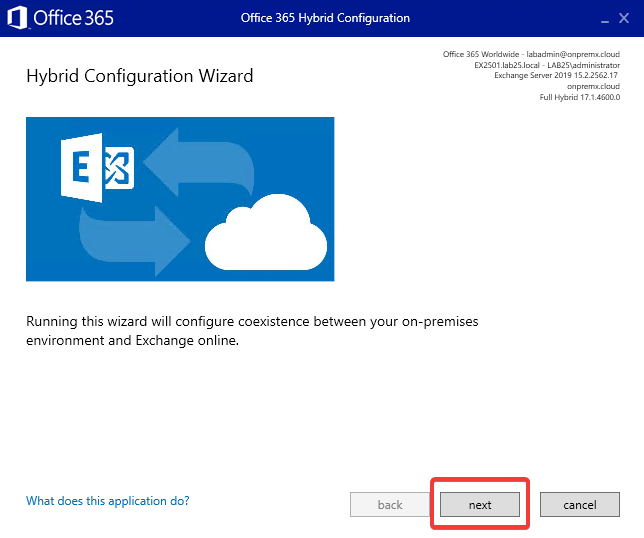
I used the Hybrid Configuration Wizard (HCW) to configure OAuth between Exchange Server and Microsoft 365.
HCW prepares the OAuth trust and creates the required Exchange objects. However, HCW does not enable Hybrid Modern Authentication (HMA). We will do that later using Exchange PowerShell.
HCW also supports mail flow, mailbox migration, and other coexistence features. Since all mailboxes remain on-premises, I did not need those features.
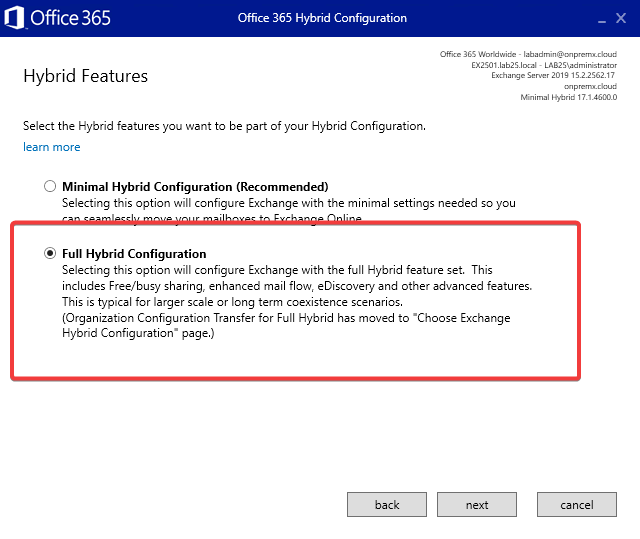
I selected Full Hybrid Configuration, but chose only the features needed for this setup.
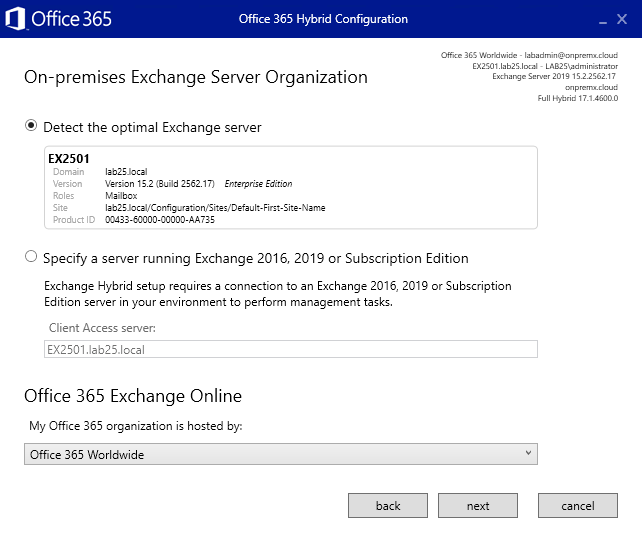
HCW detected my Exchange server, EX2501, and the Microsoft 365 environment.
This confirms that HCW can identify the two organizations it will use for the Hybrid configuration.
3. Account selection
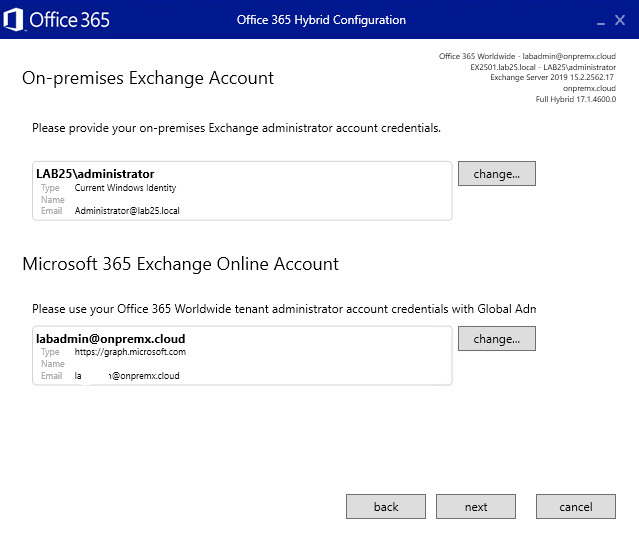
I provided the required Exchange Server and Microsoft 365 administrator credentials.
HCW needs these permissions to read the existing settings and make the selected configuration changes.
4. Gathering configuration information
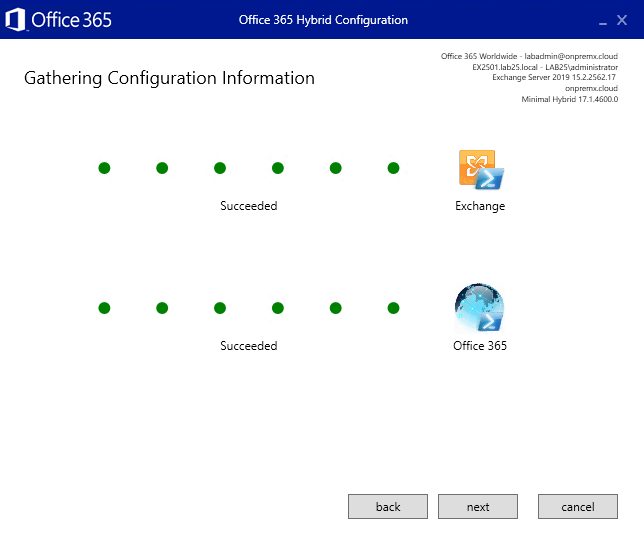
HCW collected information from both organizations.
Both checks completed with Succeeded, so I continued.
5. Hybrid configuration
I selected Full Hybrid Configuration.
This is an important choice. HCW has a separate Minimal Hybrid Configuration option, but that option does not configure OAuth.
Full Hybrid allows us to select the features we need without enabling every Hybrid feature.
6. Hybrid topology
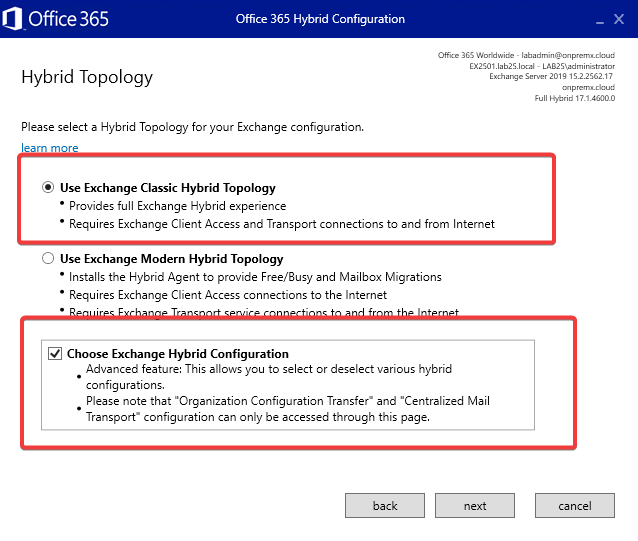
I selected:
Use Exchange Classic Hybrid Topology
Choose Exchange Hybrid Configuration
I used Classic Hybrid because this setup does not need a dedicated Exchange Hybrid Application for cross-premises coexistence features.
The second option allows me to choose which Hybrid features HCW will configure.
7. Choose Exchange Hybrid Configuration
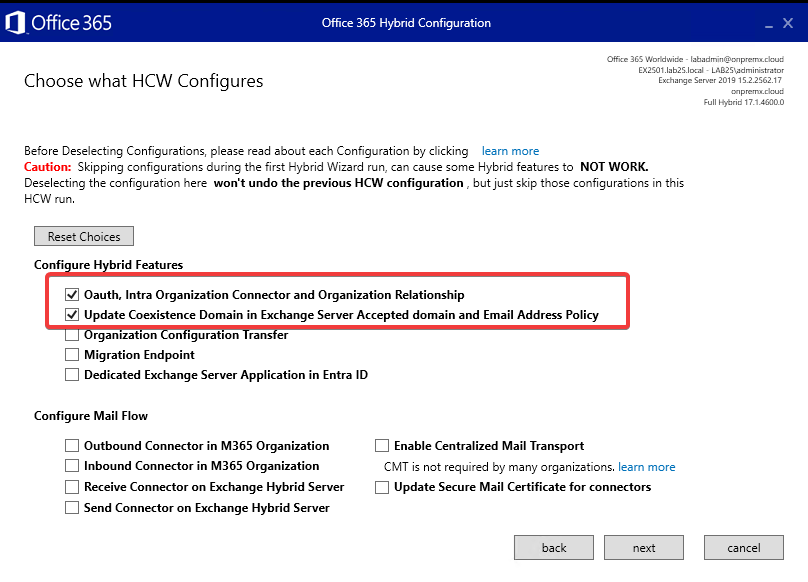
I selected two features:
OAuth, Intra Organization Connector and Organization Relationship
Update Coexistence Domain in Exchange Server Accepted domain and Email Address Policy
Why these two?
OAuth creates the Exchange-side configuration needed for OAuth trust with Microsoft 365, including the AuthServer objects. HCW also creates or updates the IntraOrganizationConnector and OrganizationRelationship.
Update Coexistence Domain updates the Hybrid domain settings, including accepted domains, remote domains, and email address policies.
I left mailbox migration, Hybrid mail flow, and dedicated Hybrid Application options unselected.
For HMA, we use the shared Exchange Online service principal in Microsoft Entra ID. A dedicated Hybrid Application is not needed for the features covered in this guide.
8. Ready for Update
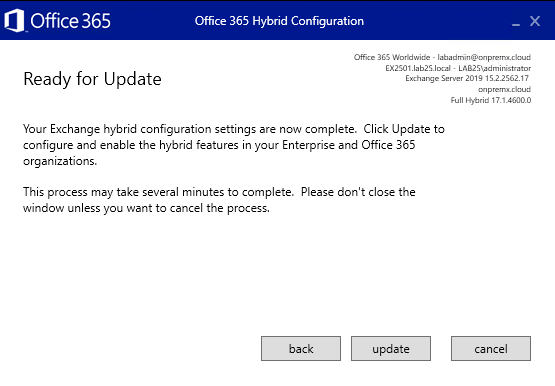
Before applying the configuration, I checked the selected features once more.
This matters because HCW can change Exchange settings beyond OAuth, including accepted domains, remote domains, and email address policies.
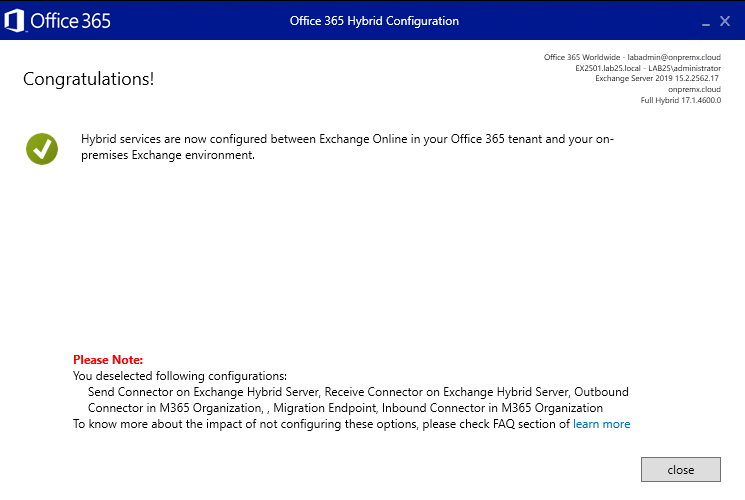
9. Configuration complete
HCW completed successfully.
The OAuth configuration was now in place, but HMA was not yet enabled. We still needed to configure Microsoft Entra ID resources and the Exchange HMA settings.
3.2 Confirm HCW results
After HCW finished, I checked what had changed.
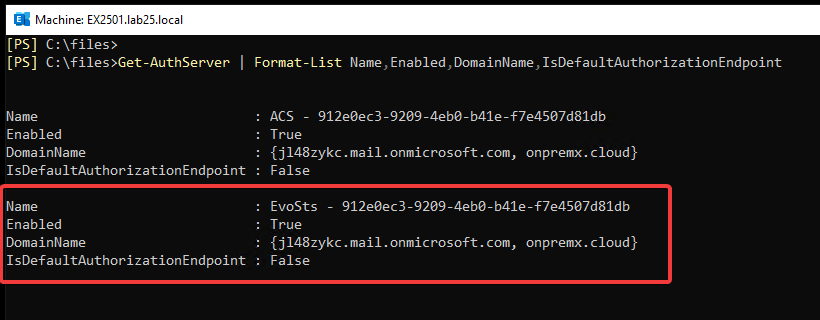
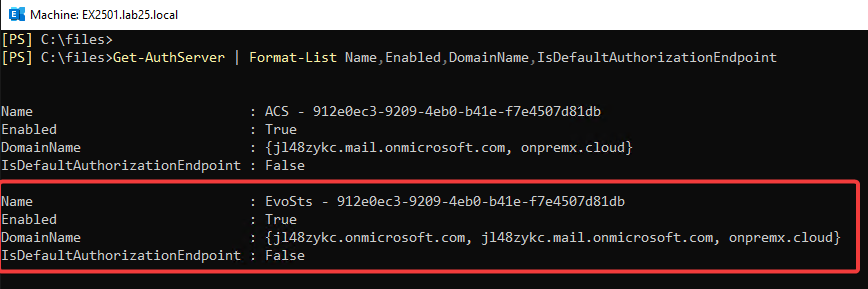
First, I looked at the AuthServer objects in Exchange Management Shell.
HCW had created the ACS and EvoSTS AuthServer objects.
Why are these important?
Exchange uses AuthServer objects to recognize OAuth authorization servers and their token-signing information.
EvoSTS represents the Microsoft Entra authentication service used by HMA. Exchange needs this configuration to work with tokens issued through Microsoft Entra ID.
Both AuthServer objects were enabled, but EvoSTS was not yet the default authorization endpoint. I left that change for Section 5, where we enable HMA.
I compared these results with the settings recorded before running HCW.
This helped me confirm which objects HCW had created or updated. It was especially useful for checking the coexistence domain and the Remote Domain related to HCW8064.
Check the Exchange Online PartnerApplication
There is another setting worth checking before enabling OWA and ECP Modern Authentication.
Exchange uses the Exchange Online PartnerApplication as part of its OAuth configuration. The LinkedAccount property connects the application to its local security identity.
If this association is missing, browser authentication can fail even after Microsoft Entra ID has successfully signed in the user.
Use the correct application account from your own environment. An existing and valid LinkedAccount does not need to be changed.
I originally found this issue while troubleshooting an OWA sign-in loop. I have placed the check here because it is better to identify the missing association before changing OWA and ECP authentication.
I’ll explain the symptoms and the investigation in Section 8.3.
With HCW completed and the Exchange-side objects checked, the next step was to configure the required Microsoft Entra service principal settings.
4. Configure Microsoft Entra HMA Resources
After HCW completed, I moved to Microsoft Entra ID.
HCW created the Exchange OAuth configuration, but I still needed to check the Microsoft Entra service principal settings.
For HMA, we use the existing Office 365 Exchange Online service principal. There is no need to create a new application for this configuration.
I checked three things:
Service Principal Names (SPNs): Microsoft Entra ID must recognize the HTTPS names used by Exchange clients.
Reply URLs: Microsoft Entra ID needs the correct URLs to return users to OWA and ECP after sign-in.
Certificate credentials: I also reviewed the Exchange Auth certificate entries on the shared service principal as a separate security check.
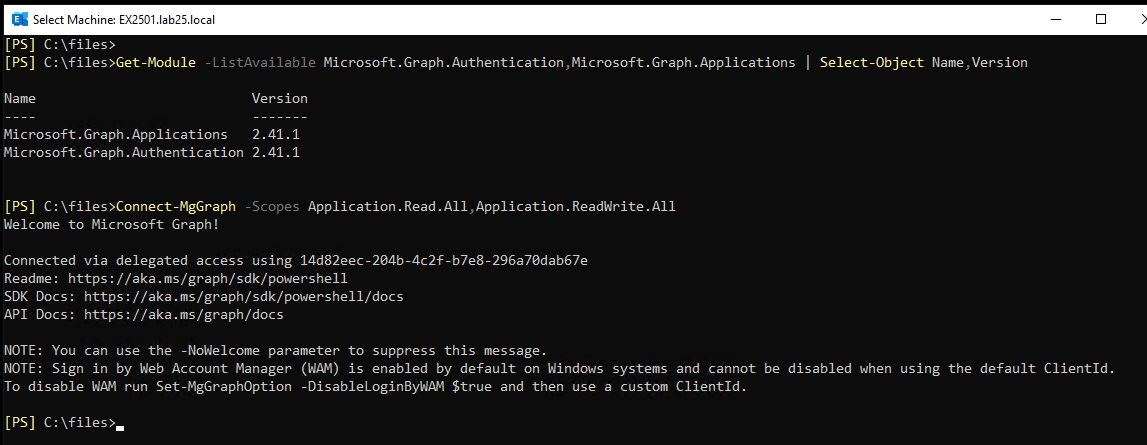
I used Microsoft Graph PowerShell for these steps.
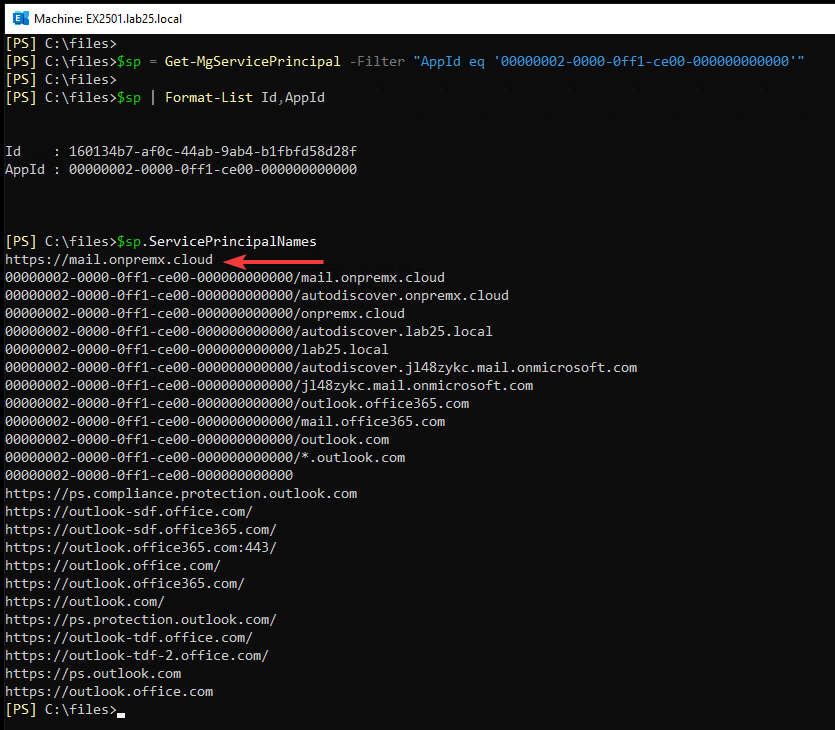
When a client requests an OAuth token for Exchange, Microsoft Entra ID needs to recognize the Exchange resource. The SPNs identify the HTTPS namespaces associated with that resource.
I compared the existing SPNs with the Exchange URLs recorded in Section 2.2.
The https://mail.onpremx.cloud SPN was already present. I also found an Autodiscover entry using the application-prefixed format.
However, the HTTPS resource SPN for https://autodiscover.onpremx.cloud/ was missing.
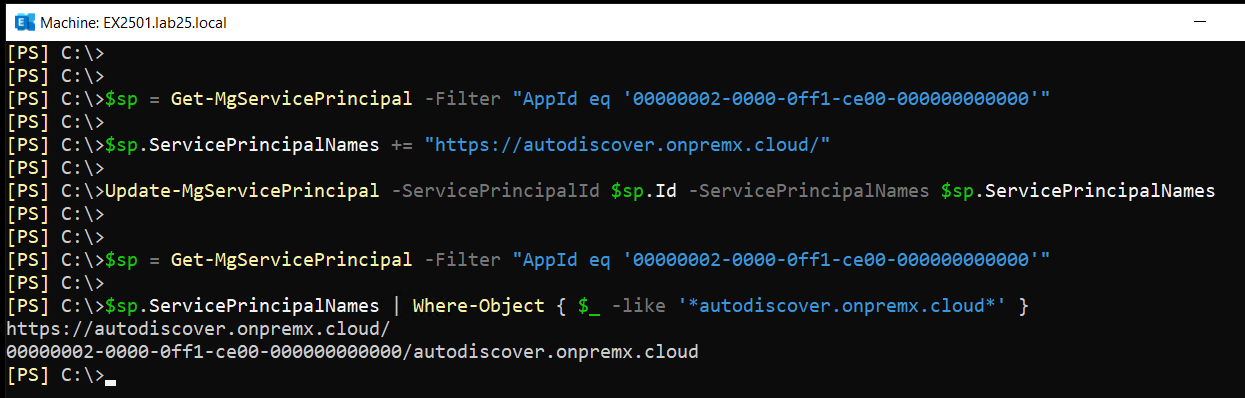
I added the missing SPN without removing the existing entries.
The new Graph query confirmed that the HTTPS Autodiscover SPN was registered.
This is why I recommend checking the actual Exchange namespaces instead of assuming HCW registered every required SPN.
The same check applies if your Exchange environment uses different internal or external HTTPS names.
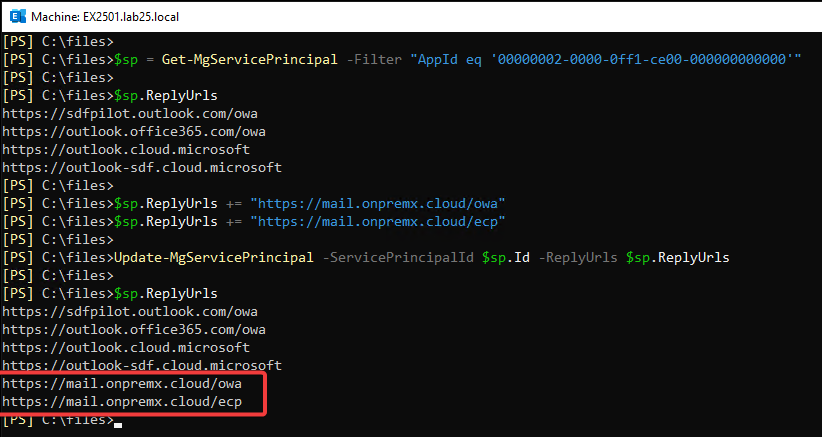
4.2 Register OWA and ECP reply URLs
Next, I configured the reply URLs for OWA and ECP.
These URLs have a different purpose from SPNs.
An SPN identifies the Exchange resource. A Reply URL tells Microsoft Entra ID where to return the browser after authentication.
For example, when a user opens OWA, the browser is redirected to Microsoft Entra ID for sign-in. After authentication, Microsoft Entra ID must redirect the browser back to the correct OWA URL.
If the reply URL is missing or does not match, the sign-in cannot complete correctly.
I used the same Microsoft Graph connection to add the OWA and ECP URLs.
The command keeps the existing URLs and adds only the missing ones.
I confirmed that both URLs were registered:
https://mail.onpremx.cloud/owa
https://mail.onpremx.cloud/ecp
At this stage, the Microsoft Entra settings needed for the Exchange namespaces and browser redirects were in place.
We will enable OAuth on the OWA and ECP virtual directories later in Section 7.
4.3 Clean up Exchange certificates on the shared service principal
During the security review, I also checked the certificate credentials on the shared Office 365 Exchange Online service principal.
This was not an authentication problem. Outlook, OWA, and ECP did not fail because of these certificate entries.
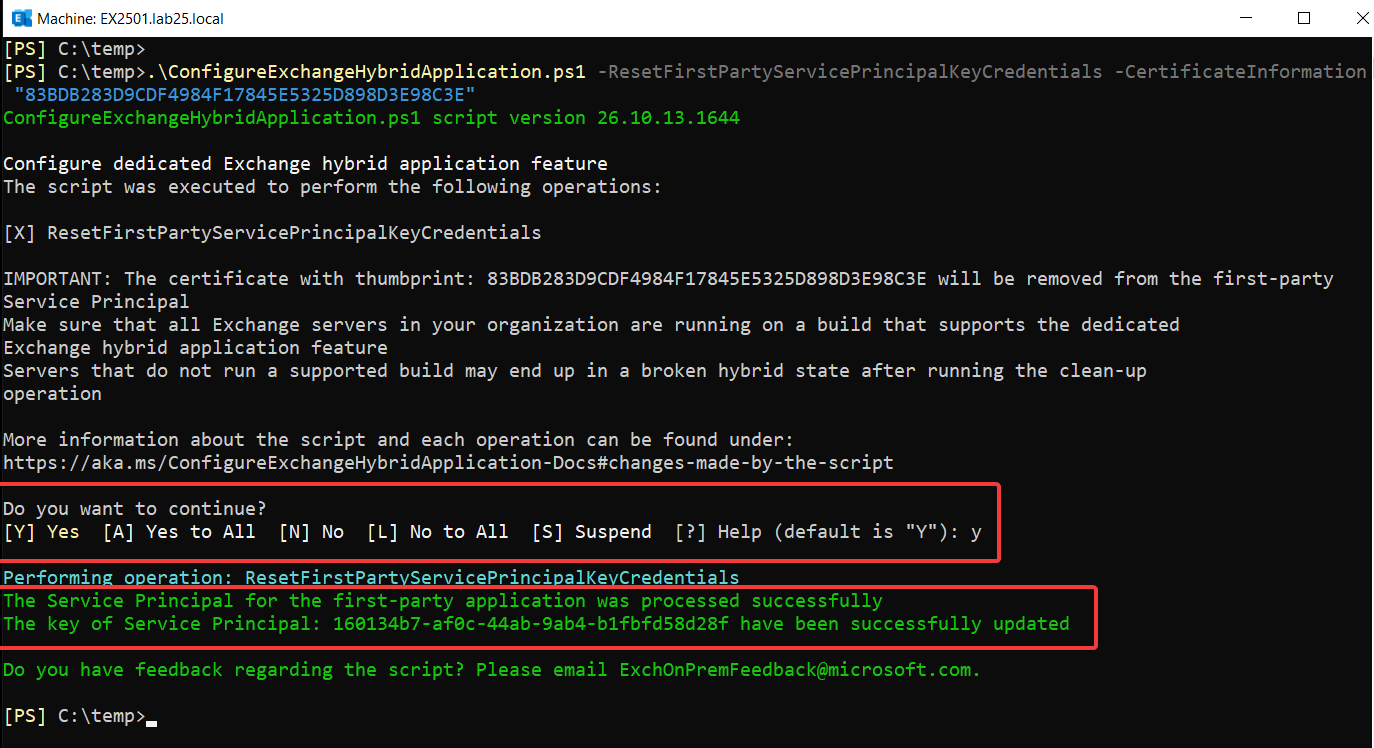
HCW can upload the on-premises Exchange Auth certificate to the shared service principal when configuring OAuth. Microsoft provides guidance for cleaning up these credentials as part of the security work related to CVE-2025-53786. See Microsoft Learn – Service Principal Clean-Up Mode.
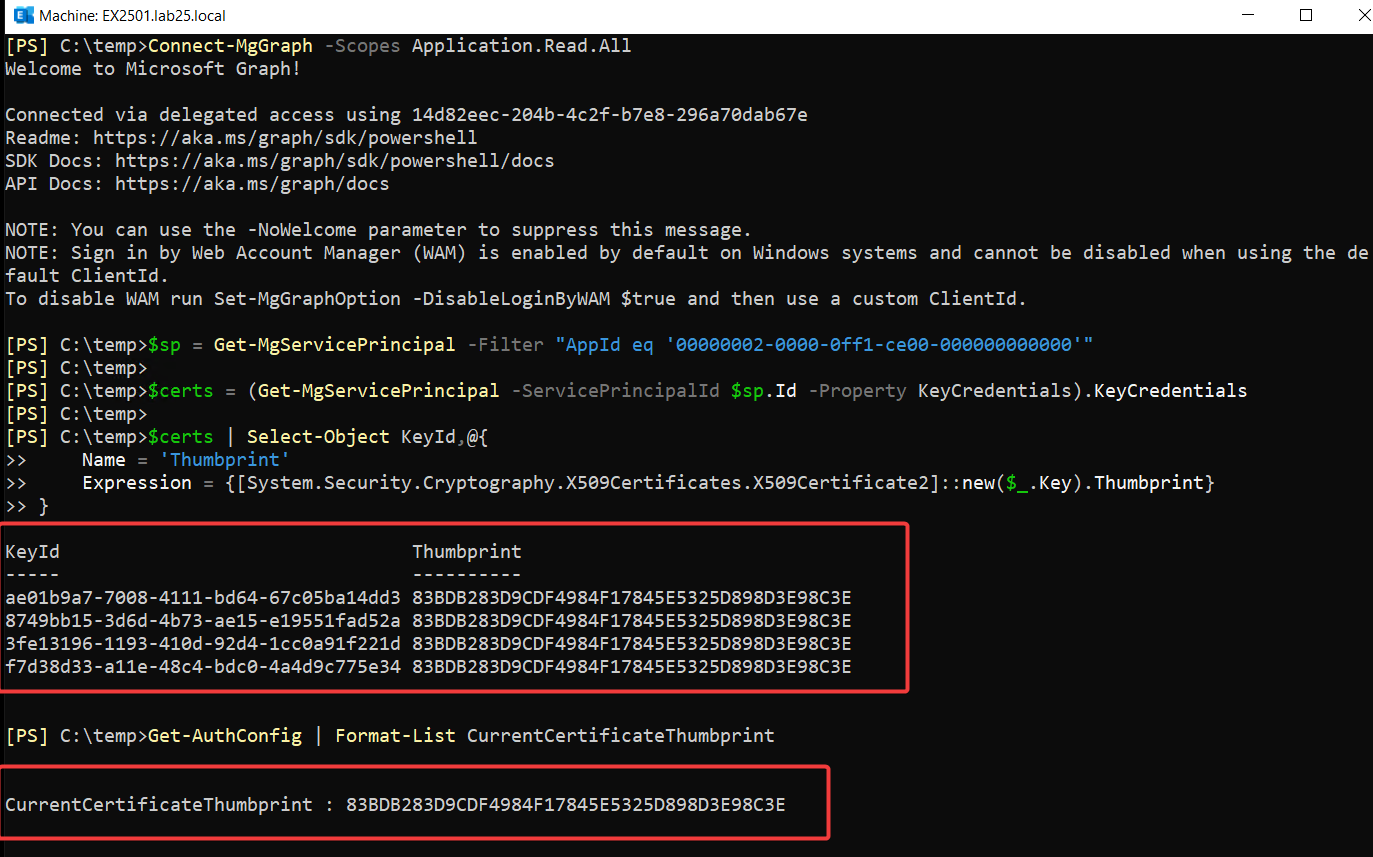
First, I checked the certificates stored in Microsoft Entra ID.
I wanted to identify whether the certificates registered in Microsoft Entra ID matched the Exchange Auth certificate used by the on-premises organization.
The Key property contains the certificate data. I used it to calculate the X.509 thumbprint instead of treating CustomKeyIdentifier as the certificate thumbprint.
I found four KeyCredential entries on the shared service principal.
All four matched the Exchange Auth certificate thumbprint:
83BDB283D9CDF4984F17845E5325D898D3E98C3E
The same thumbprint appeared in the Exchange Get-AuthConfig output.
The Exchange Auth certificate thumbprint was unchanged.
This is an important difference: I removed the uploaded certificate credentials from Microsoft Entra ID. I did not delete the Exchange Auth certificate from the Exchange server.
I completed this security cleanup after the HMA configuration was working. Classic Outlook, OWA, and ECP continued to work afterward.
I placed the security review here in the guide because this is where we are working with the shared service principal. It is a separate security task, not a requirement to fix the SPN or Reply URL configuration.
One thing to remember: HCW can upload certificate credentials again when its OAuth configuration is rerun. Check the shared service principal after HCW changes or Exchange Auth certificate updates.
5. Enable HMA in Exchange
The Microsoft Entra configuration is ready. Now we need to enable HMA in Exchange Server.
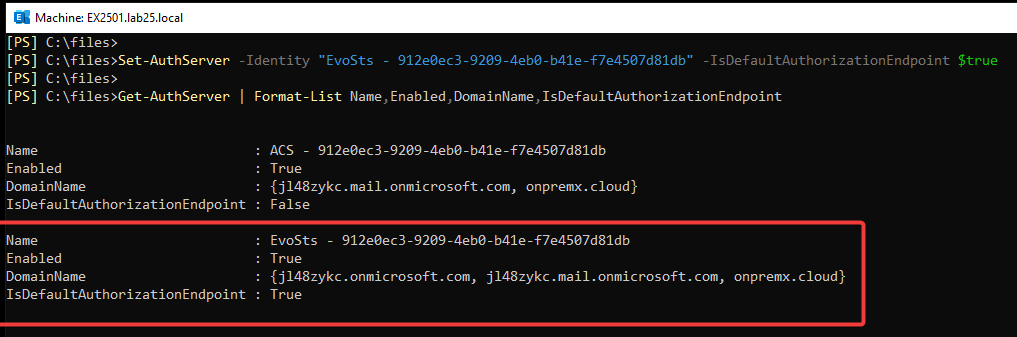
There are two important settings. First, we configure EvoSTS as the default authorization endpoint. Then, we enable Modern Authentication for the Exchange organization.
5.1 Configure EvoSTS
EvoSTS is the AuthServer object Exchange uses for Microsoft Entra ID authentication.
HCW created this object earlier, but we still need to check its settings. Exchange must know which Microsoft Entra tenant the AuthServer belongs to and which authorization endpoint clients should use.
I started by checking the existing AuthServer configuration.
In my environment, EvoSTS was enabled, but the tenant domain jl48zykc.onmicrosoft.com was missing from DomainName.
Also, no AuthServer was configured as the default authorization endpoint.
Add the Microsoft Entra tenant domain
The DomainName property associates the EvoSTS AuthServer with the correct Microsoft Entra tenant. This is important for Exchange to identify the tenant used for HMA.
I added the tenant domain without removing the existing values.
EvoSTS was now the default authorization endpoint.
5.2 Capture Outlook baseline and enable organization HMA
Before enabling HMA, I checked how Classic Outlook was connecting to Exchange.
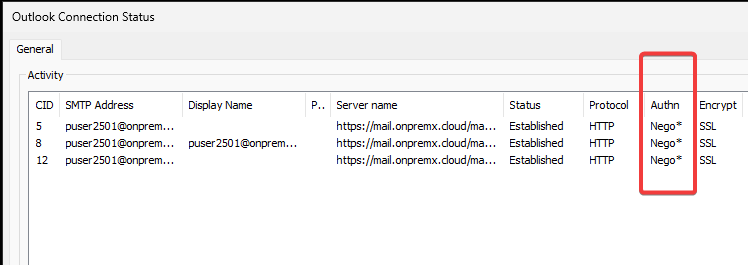
On the Windows client, I opened Classic Outlook and used Ctrl + right-click on the Outlook icon in the notification area. Then I selected Connection Status.
In the Authn column, the connections showed Nego*.
This means Outlook was using Negotiate authentication, which can use Kerberos or NTLM. It was not yet using OAuth Bearer authentication for these connections.
Enable HMA for the Exchange organization
Before making this change, make sure all mailbox users and ECP administrators who need HMA have synchronized Microsoft Entra identities. The required Microsoft Entra endpoints must also be reachable.
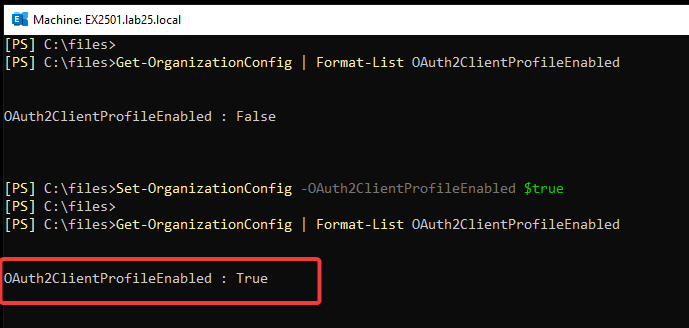
The OAuth2ClientProfileEnabled setting controls whether Exchange enables OAuth-based Modern Authentication for supported clients.
HCW does not turn this setting on. We must enable it manually.
On EX2501, I checked the existing value, enabled it, and verified the result.
At this point, HMA was enabled at the Exchange organization level.
However, an enabled setting does not prove that Outlook is using Modern Authentication. Outlook may continue using an existing connection until it authenticates again.
In the next section, I’ll show the Microsoft Entra sign-in and how I confirmed that Outlook changed from Nego* to Bearer*.
6. Verify HMA in Classic Outlook
After enabling HMA in Exchange, I wanted to confirm that Outlook was actually using Modern Authentication.
Before the change, Outlook Connection Status showed Nego*. This meant Outlook was using Negotiate authentication instead of OAuth Bearer.
Now I needed to check two things: whether Outlook would sign in through Microsoft Entra ID and whether its Exchange connections would use Bearer authentication.
Sign in through Microsoft Entra ID
I restarted Classic Outlook LTSC 2024 on Windows 11.
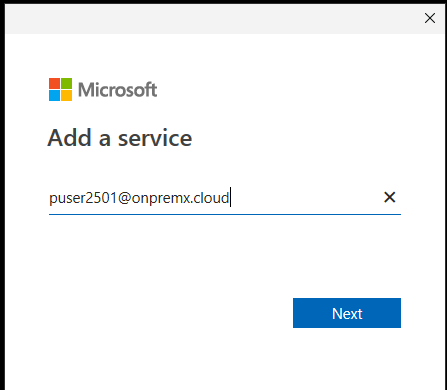
Outlook displayed the Microsoft Entra sign-in window. I signed in with the synchronized account puser2501@onpremx.cloud.
The mailbox remained on Exchange Server. Microsoft Entra ID handled the user authentication.
Check Outlook Connection Status
After Outlook connected, I opened Connection Status again using Ctrl + right-click on the Outlook icon in the notification area.
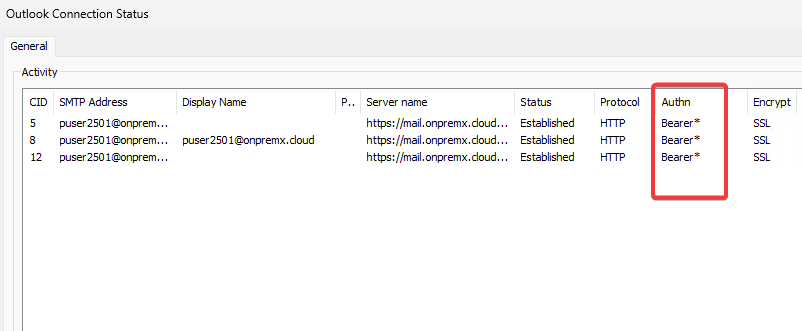
This time, I saw three established connections with Bearer* in the Authn column.
This was the result I wanted to see:
Before HMA:Nego*
After HMA:Bearer*
Connection: Established over MAPI/HTTP
Mailbox: Still hosted on Exchange Server
Why is Bearer* important?
It shows that Outlook is using OAuth Bearer authentication instead of the previous Negotiate method. Together with the Microsoft Entra sign-in, this confirms that HMA is working for the Outlook connection.
Simply opening a mailbox would not be enough to prove that. Outlook could still connect using another authentication method.
Classic Outlook was now working with HMA. Next, I moved to OWA and ECP, which require additional configuration on their Exchange virtual directories.
7. Configure and Verify HMA for OWA and ECP
Classic Outlook was now using HMA, but OWA and ECP still needed their own authentication settings.
Outlook uses MAPI over HTTP, while OWA and ECP are browser-based applications. For browser sign-in, Microsoft Entra ID must redirect users back to the correct Exchange URL after authentication.
We already registered the OWA and ECP reply URLs in Section 4.2. We also checked the Exchange Online PartnerApplication in Section 3.2.
Now we can enable OAuth on the OWA and ECP virtual directories.
7.1 Record the OWA and ECP FBA baseline
Before making changes, I opened both URLs:
https://mail.onpremx.cloud/owa
https://mail.onpremx.cloud/ecp
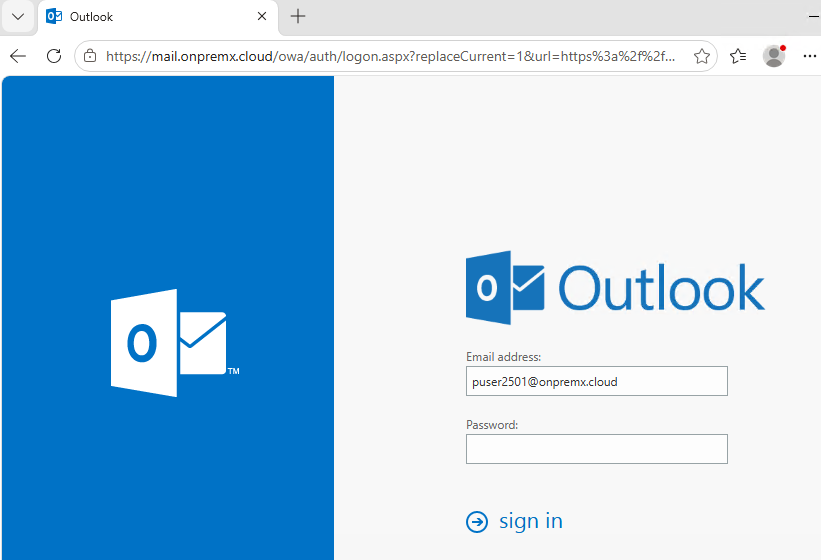
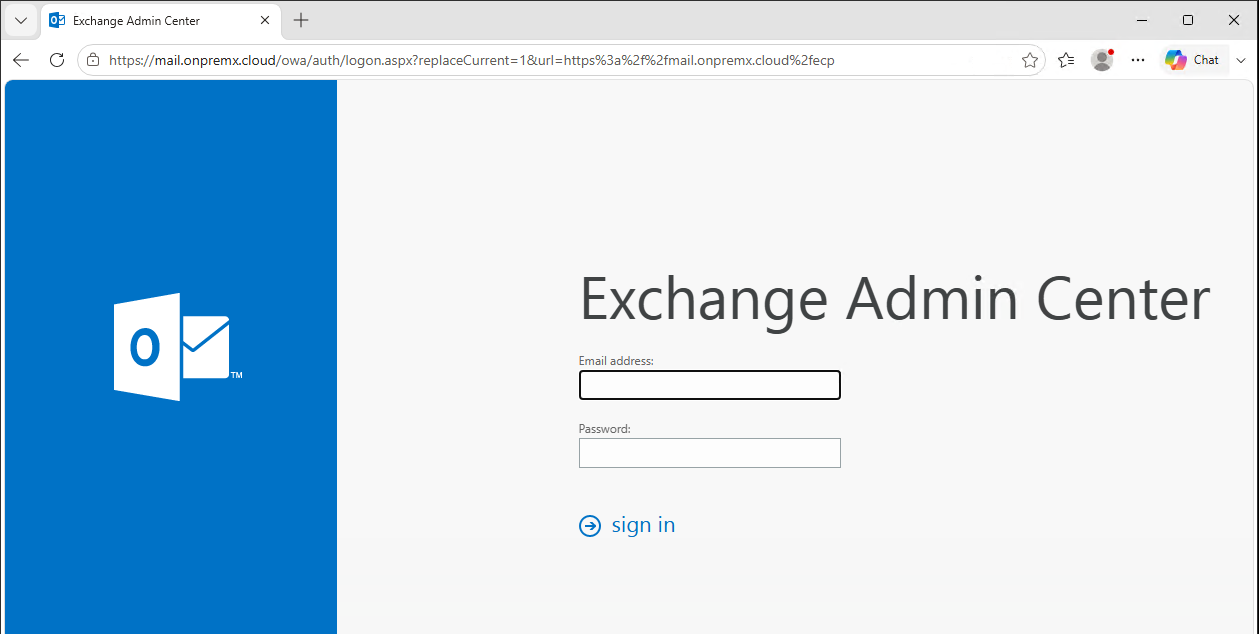
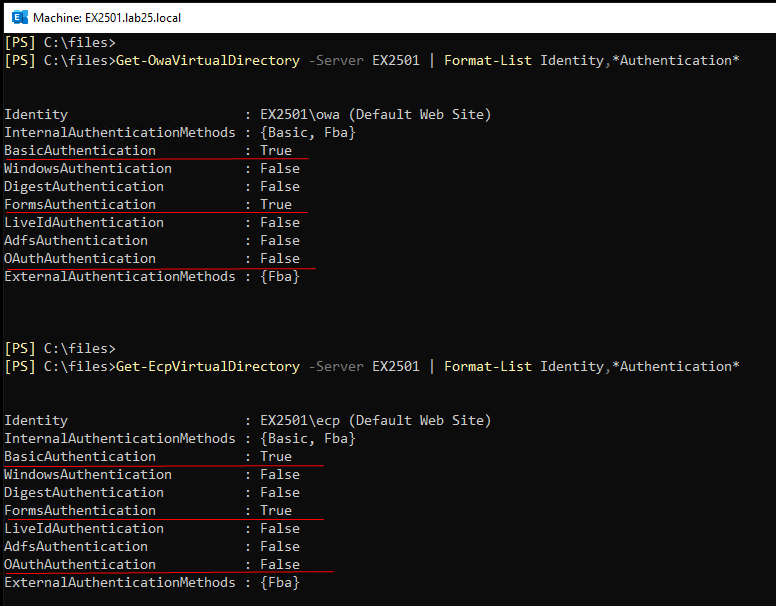
Both displayed the Exchange Forms-Based Authentication (FBA) sign-in page.
I also checked the authentication settings in Exchange Management Shell.
Both virtual directories had FormsAuthentication = True and OAuthAuthentication = False.
This explains why users still saw the Exchange sign-in page. HMA was enabled for the organization, but OAuth was not yet enabled for these browser applications.
I saved the original settings before making changes. They would also be useful if I needed to roll back.
7.2 Configure ECP and OWA, then restart IIS
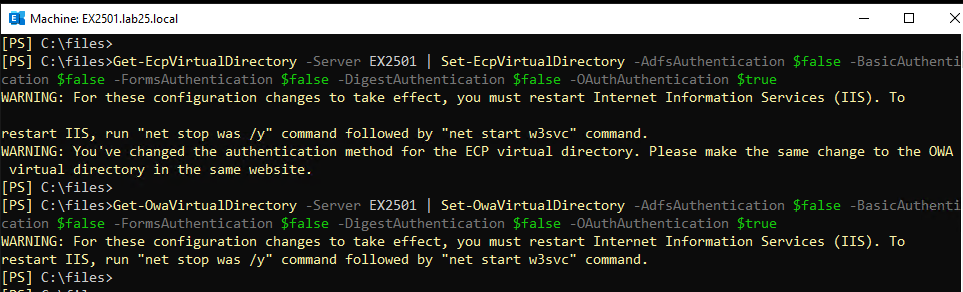
Next, I changed the authentication settings.
For HMA, both OWA and ECP must use OAuth authentication. When enabling OAuth, Microsoft documents ECP before OWA.
I disabled the previous authentication methods and enabled OAuth on both virtual directories.
These commands change how users authenticate to OWA and ECP. Instead of showing the Exchange FBA sign-in page, the applications can use Microsoft Entra ID for authentication.
These are the commands I used on EX2501. Microsoft’s published procedure separates the changes into two stages: disable the previous authentication methods on OWA and ECP, then enable OAuth on ECP followed by OWA. In an organization with multiple Exchange servers, apply the configuration consistently on all servers.
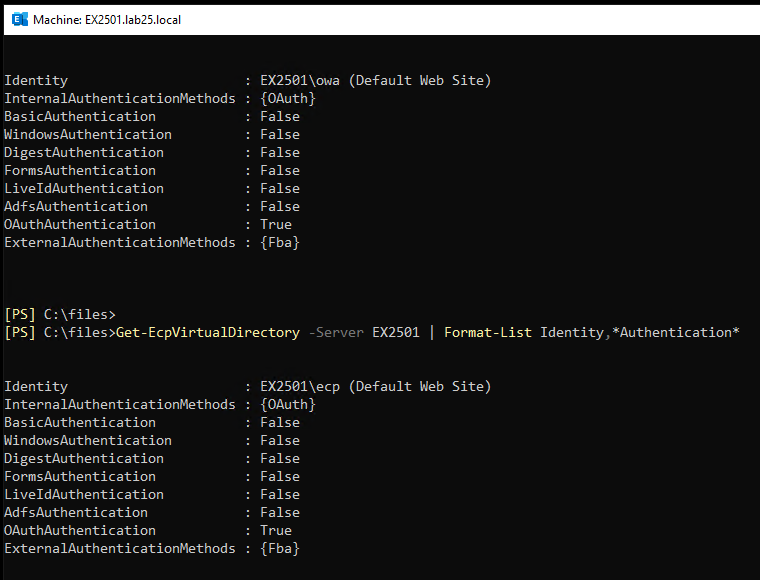
After applying the changes, I checked both virtual directories again.
An IIS restart briefly interrupts Exchange web access, so this change should be planned accordingly.
7.3 Validate OWA, then ECP
Verify OWA
I opened a new InPrivate browser session and went to:
https://mail.onpremx.cloud/owa
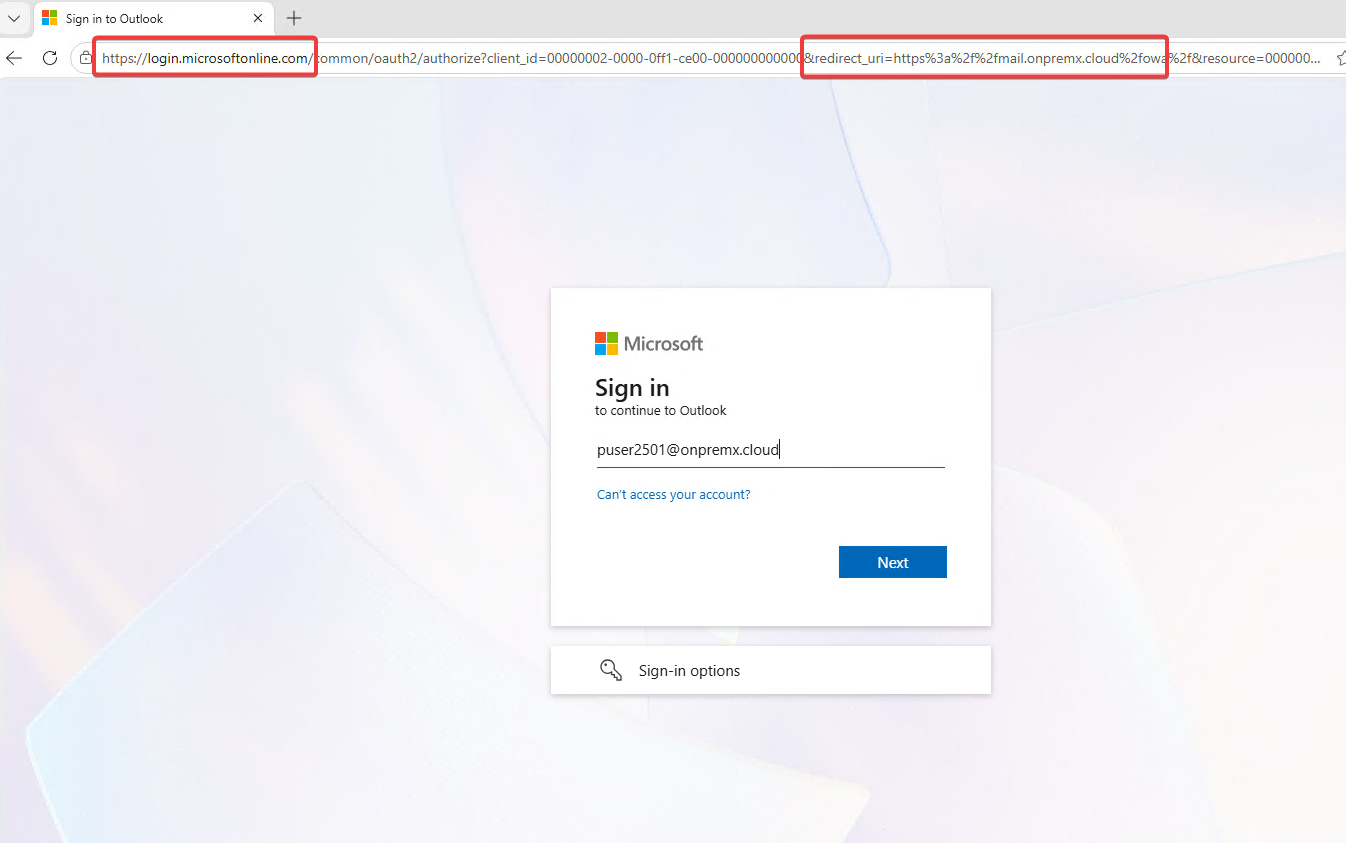
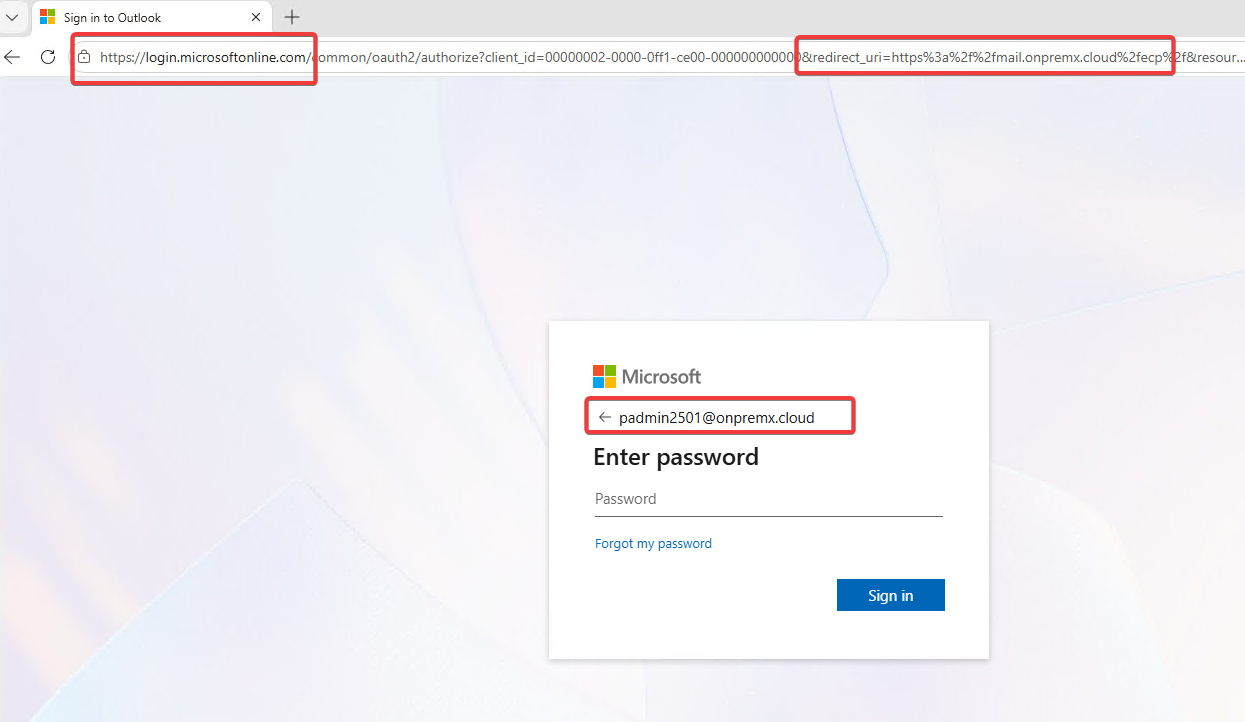
This time, the browser redirected me to Microsoft Entra ID instead of showing the Exchange FBA page.
The authentication request included the OWA reply URL that I had registered earlier.
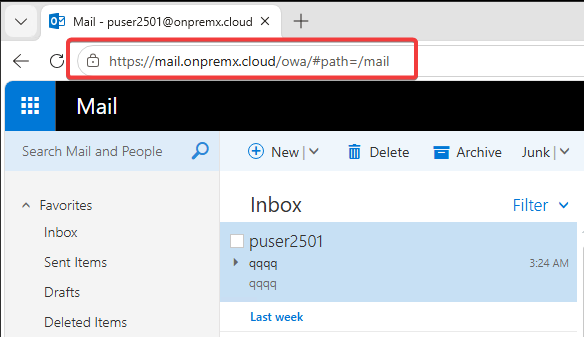
After signing in with puser2501@onpremx.cloud, I could open the on-premises OWA mailbox.
During the initial configuration, I encountered a sign-in loop after Microsoft Entra authentication. The cause was a missing LinkedAccount on the Exchange Online PartnerApplication.
I covered the configuration check in Section 3.2 and will explain the troubleshooting in Section 8.3.
Verify ECP
Next, I opened:
https://mail.onpremx.cloud/ecp
I used the synchronized Exchange administrator account padmin2501@onpremx.cloud.
The browser redirected to Microsoft Entra ID for authentication.
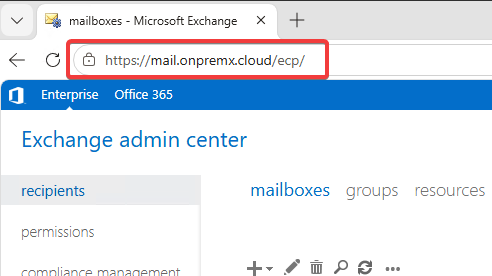
After resolving the PartnerApplication issue and restarting IIS, the on-premises Exchange admin center opened successfully.
Final result
OWA and ECP were now using Microsoft Entra sign-in, and both applications were accessible.
Together with the Bearer* result in Classic Outlook, this confirmed that HMA was working for the three applications covered in this guide.
All user mailboxes remained on Exchange Server on-premises.
8. Troubleshooting and Lessons Learned
During the HMA configuration, I ran into a few issues with HCW, Microsoft Entra ID, and Exchange authentication.
Some errors appeared during configuration. Others appeared only when I tried to sign in.
Here are the issues I encountered, how I found the cause, and what fixed them.
8.1 HCW8064 when the expected coexistence domain is missing
My first HCW run failed with HCW8064.
I had selected only OAuth, Intra Organization Connector and Organization Relationship. HCW could not complete the OAuth configuration.
In the HCW log, ConfigureOAuth failed with:
Sequence contains no elements
The expected Hybrid Remote Domain was missing.
I ran HCW again and also selected Update Coexistence Domain in Exchange Server Accepted domain and Email Address Policy.
This time, HCW completed successfully. I checked the Remote Domains and the other Hybrid objects afterward.
This does not mean every HMA deployment needs the same change. In my environment, the missing coexistence-domain configuration was the reason HCW could not finish.
8.2 Missing Autodiscover HTTPS resource SPN
A missing Exchange resource SPN can cause Microsoft Entra ID to reject an OAuth token request.
In an earlier Outlook case, Outlook showed Need Password. The Windows AAD Operational log showed Event ID 1098 with:
AADSTS500011
The error referred to:
https://autodiscover.onpremx.cloud/
This error means Microsoft Entra ID could not find the requested resource in the tenant.
In the configuration covered by this guide, I also found that the HTTPS Autodiscover SPN was missing.
The Exchange Online service principal already had other SPN entries, but the exact HTTPS Autodiscover resource was not registered.
I added it and checked the service principal again using Microsoft Graph.
The result confirmed that https://autodiscover.onpremx.cloud/ was registered.
The commands and screenshots are in Section 4.1.
When troubleshooting this error, check the resource URL in the event. Compare it with the SPNs registered in Microsoft Entra ID. The names must match the resource requested by the client.
This was one of the more interesting issues I encountered.
After configuring OAuth for OWA and ECP, the browser redirected to Microsoft Entra ID as expected.
I entered the credentials and completed the sign-in. But instead of opening OWA, the browser returned to the sign-in process.
Microsoft Entra sign-in was successful, but Exchange did not accept the authentication.
That distinction was important. A successful Microsoft Entra sign-in does not guarantee that Exchange has accepted the token and authorized the user.
Check the Exchange logs
I checked the OWA and ECP HttpProxy logs:
%ExchangeInstallPath%\Logging\HttpProxy\Owa
%ExchangeInstallPath%\Logging\HttpProxy\Ecp
The requests reached Exchange, but authentication failed.
The logs showed errors including:
OAuthErrorCategory=InvalidGrant
ErrorCode=NoAuthorizationValuePresent

InvalidOAuthTokenException:
The token should have valid permissions or linked account
associated with partner application
'00000002-0000-0ff1-ce00-000000000000'.
This is a shortened summary of the errors, not a complete log entry.
I also saw repeated HTTP 302 redirects. The browser kept moving between Exchange and Microsoft Entra ID.
Find the cause
The error pointed me to the Exchange Online PartnerApplication.
I checked its configuration and found that LinkedAccount was empty.
The local Exchange Online-ApplicationAccount existed, but it was not linked to the PartnerApplication.
This association is important because Exchange uses it when processing authorization for the partner application.
Fix and verify
I configured LinkedAccount using the existing application account.
The command is already included in Section 3.2, along with the verification step.
After the correction, OWA opened the on-premises mailbox successfully.
ECP initially continued to return to the sign-in process. After another IIS restart, I signed in with the synchronized administrator account and the Exchange admin center opened.
This is why I placed the PartnerApplication check in Section 3.2, before enabling OAuth for OWA and ECP.
If you encounter a similar loop, start with the Microsoft Entra sign-in result and Exchange HttpProxy logs. Do not assume every redirect loop is caused by an incorrect Reply URL.
I also changed ExternalAuthenticationMethods during troubleshooting. That change did not resolve the issue. It is not included as a required HMA configuration step.
8.4 Reply URI mismatch is a different error
Another error worth separating from the missing resource SPN is:
AADSTS50011
This error means the reply URL in the authentication request does not match a registered Reply URL.
It is different from AADSTS500011, which indicates that the requested resource was not found.
For OWA and ECP, I registered these reply URLs:
https://mail.onpremx.cloud/owa
https://mail.onpremx.cloud/ecp
If you see AADSTS50011, check the Reply URLs on the Exchange Online service principal.
If you see AADSTS500011, check the resource SPNs instead.
The exact URL matters, including its path and trailing slash.
8.5 Authentication boundaries and evidence
There are a few important points to remember after enabling HMA.
HMA does not automatically block legacy authentication.
Classic Outlook using Bearer* confirms OAuth authentication for those connections. It does not mean every Exchange client or protocol has stopped using NTLM or Negotiate.
Existing authentication methods and client dependencies must be reviewed separately.
Modern Authentication does not automatically mean MFA.
The Microsoft Entra sign-in and Outlook Bearer* results confirm that the clients are using Modern Authentication. They do not, by themselves, prove that MFA or a Conditional Access policy was enforced.
Keep authentication logs secure.
HttpProxy logs and browser traces can contain sensitive authentication information. Avoid sharing access tokens, authorization codes, cookies, or raw authentication traces in public troubleshooting posts.
Finally, OWA and ECP now depend on Microsoft Entra ID for sign-in. Plan administrative access and recovery procedures before changing authentication settings in a production environment.
9. Final Validation and Operational Notes
After completing the configuration and resolving the authentication issues, I checked the final result.
The important point was not just that users could open their mailboxes. I wanted to confirm that the clients were using HMA and that the Exchange configuration was correct.
9.1 Final Verification
Here is what I confirmed:
Component
Result
Microsoft Entra Connect
On-premises users synchronized
HCW
OAuth configuration completed
EvoSTS
Enabled and set as the default authorization endpoint
Exchange organization
OAuth2ClientProfileEnabled = True
HTTPS resource SPNs
Required Exchange namespaces registered
Classic Outlook
Connections established using Bearer*
OWA
Microsoft Entra sign-in and mailbox access successful
ECP
Microsoft Entra sign-in and admin center access successful
Shared service principal
Exchange Auth certificate entries removed (4 → 0)
Exchange Auth certificate
Original certificate remained in place
The Outlook result is especially useful. Bearer* in Connection Status confirms that Outlook is using OAuth instead of the previous Negotiate authentication.
For OWA and ECP, I confirmed the Microsoft Entra sign-in and successful access to the on-premises applications.
After the shared service principal certificate cleanup, I checked all three applications again. Classic Outlook, OWA, and ECP continued to work.
All user mailboxes remained on Exchange Server.
9.2 Operations and Lifecycle
HMA does not need daily configuration changes, but some Exchange and Microsoft Entra changes can affect it.
Adding or replacing Exchange servers
When adding another Exchange server, check its HTTPS certificate, virtual directories, OAuth settings, and connectivity to Microsoft Entra ID.
If the server will handle the same client namespaces, it must be ready to accept HMA connections before receiving client traffic.
Changing Exchange namespaces
If an Exchange URL changes, review the Service Principal Names (SPNs) registered in Microsoft Entra ID.
For OWA and ECP, also check the Reply URLs. The new browser URLs must match the registered redirect destinations.
Otherwise, users may see authentication errors even when the Exchange virtual directories are configured correctly.
Renewing the Exchange Auth certificate
The Exchange Auth certificate is part of the OAuth configuration.
After renewing or replacing it, check the Exchange AuthConfig settings and verify that OAuth authentication still works.
Also review the shared Exchange Online service principal. Certificate changes or later HCW operations may require another security check of its KeyCredentials.
Running HCW again
HCW can update OAuth and other Hybrid objects. Depending on the selected features, it may also upload Exchange Auth certificate credentials to the shared service principal again.
After running HCW, check the AuthServer configuration, Hybrid objects, and shared service principal credentials.
These commands confirm the main Exchange settings, but they do not prove that clients are using HMA.
For that, check Outlook Connection Status and perform an OWA/ECP sign-in when needed.
9.3 Rollback and Recovery
Before changing authentication settings, keep a record of the original Exchange configuration. We captured these settings in Section 2.
For OWA and ECP, this includes the authentication methods that were enabled before HMA.
If browser authentication fails and you need to roll back, restore the original virtual directory authentication settings and restart IIS. Then confirm that users and administrators can sign in again.
For organization-level HMA, also record the original OAuth2ClientProfileEnabled value and EvoSTS settings. Restoring these settings affects client authentication across the organization, so plan the change carefully.
Keep Exchange Management Shell access available. It provides a way to manage Exchange authentication when ECP cannot be opened.
Do not remove SPNs, Reply URLs, or PartnerApplication links without checking what was present before the change. Other services may depend on these entries.
The main lesson is simple: Keep the original configuration, change only what is needed, and verify the client authentication method after each change.
10. Key Takeaways
HMA supports both PHS and PTA, using the same Exchange-side steps while all mailboxes remain on-premises.
Check all required namespaces, OAuth-enabled endpoints, synchronized identities and EvoSTS before turning on organization-wide HMA. Hybrid migration and mail-flow features are outside this procedure.
A clear before/after check matters: Classic Outlook changed from Nego* to Bearer*, while OWA and ECP required their own browser sign-in validation.
A successful Microsoft Entra sign-in does not guarantee on-premises Exchange authorization. Investigate PartnerApplication, HttpProxy logs and redirects when browser access loops.
Shared service principal certificate cleanup removed four uploaded Exchange Auth certificate entries (KeyCredentials: 4 → 0). The Exchange Auth certificate stayed in place, and Outlook, OWA, and ECP continued working.
Cloud and infrastructure professional with nearly two decades of experience in enterprise IT environments, spanning public cloud, private cloud, and hybrid architectures.