Configuring Exchange Server Client Access URLs is rarely a one-time task.
The URLs are set after a new installation, checked again during migrations, changed when a server is replaced or the namespace design changes, and compared when a new server needs to match the existing ones.
The Exchange commands themselves are not complicated. The harder part is everything around those commands: checking the current configuration, deciding what should be carried over, seeing exactly what will change, keeping a backup, and verifying the result afterward.
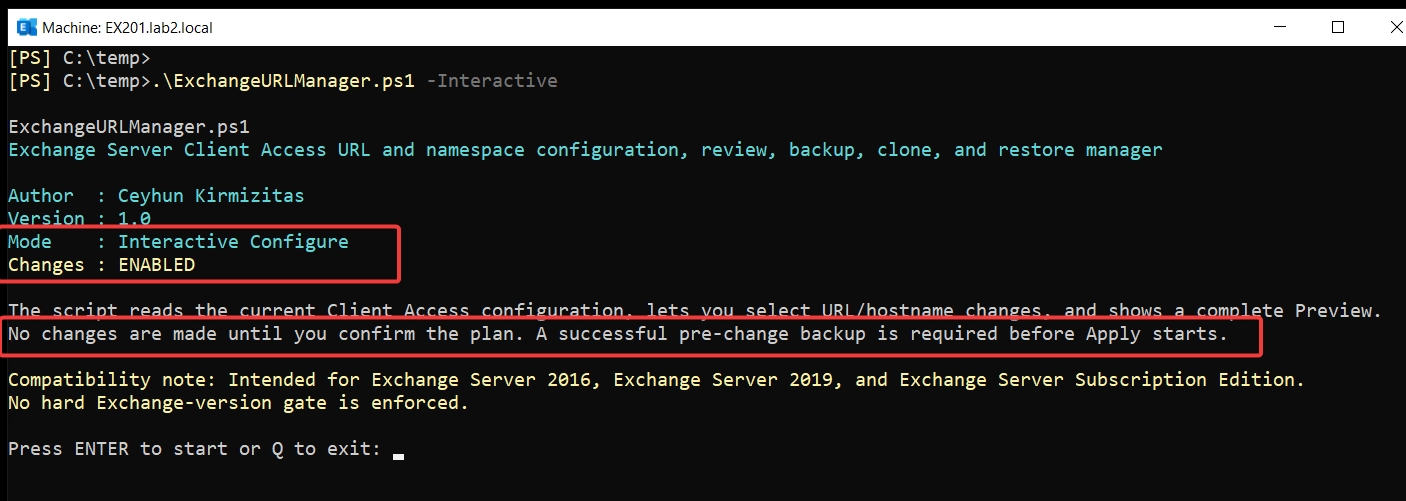
That was the main reason I created ExchangeURLManager.ps1.
The goal was not only to set Exchange URLs. I wanted one tool that could review the current configuration, compare Exchange servers, configure namespaces, clone the required settings, create backups, restore supported settings, and verify the configuration after changes.
The script also keeps migration-sensitive or source-server-specific settings visible as Review Only instead of copying them automatically.
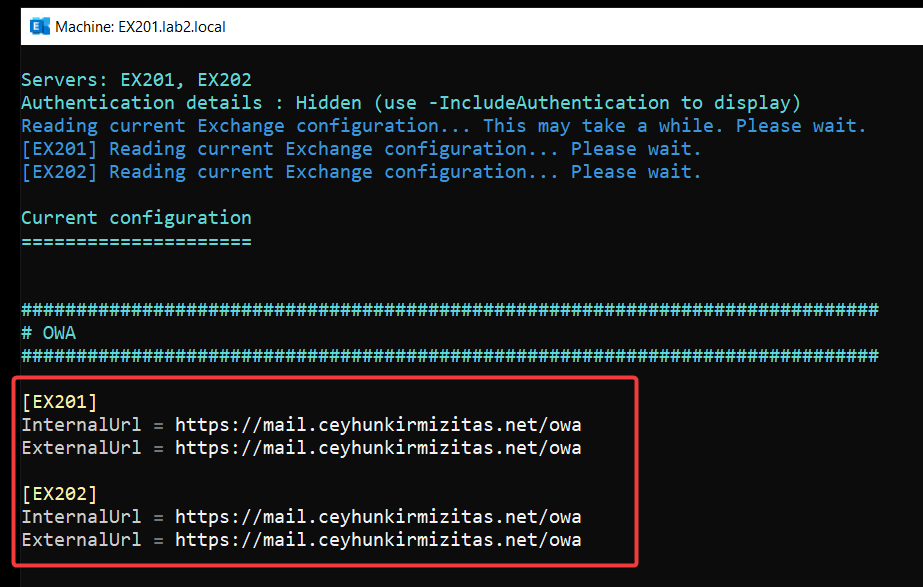
When I prepare a new Exchange Server, one of the first things I check is the existing Client Access configuration.
This is not only for upgrades. The same work comes up when adding a new server, replacing a server, moving to a new Exchange version, or changing the Client Access namespace.
The configuration is spread across several Exchange cmdlets. OWA, ECP, EWS, MAPI, ActiveSync, OAB, Autodiscover, and Outlook Anywhere all need to be checked separately.
Normally I need to:
Check the current configuration on the existing servers
Check the new servers
Compare the values
Decide which settings should be carried over
Apply the required changes
Verify the result
The important part is that not every value should be copied directly from the old server to the new one.
A shared namespace such as mail.contoso.com may be correct for every Exchange server. A value such as https://EX201.contoso.com/EWS/Exchange.asmx is different because it points directly to the source server.
I created ExchangeURLManager.ps1 to make this work easier to review and repeat instead of collecting and changing everything manually each time.
2. What the Script Manages
ExchangeURLManager.ps1 focuses on Exchange Server Client Access URL and namespace configuration.
The main URL and hostname settings are:
Component
Managed values
OWA
InternalUrl, ExternalUrl
ECP
InternalUrl, ExternalUrl
EWS
InternalUrl, ExternalUrl
MAPI
InternalUrl, ExternalUrl
ActiveSync
InternalUrl, ExternalUrl
OAB
InternalUrl, ExternalUrl
Autodiscover SCP
AutoDiscoverServiceInternalUri
Outlook Anywhere
InternalHostname, ExternalHostname
PowerShell
InternalUrl, ExternalUrl when explicitly included
The script also supports selected authentication settings when they are explicitly requested.
Some settings are intentionally shown as Review Only instead of being changed automatically. These include:
Alternate Service Account / Kerberos
EWS MRSProxyEnabled
Outlook Anywhere SSLOffloading
PowerShell authentication
PowerShell RequireSSL
Extended Protection
PowerShell URLs are also opt-in. The script does not include them in a change plan unless I explicitly request them.
The script does not manage certificates or private keys, IIS bindings, DNS records, firewall or NAT rules, load balancer configuration, Alternate Service Account credential deployment, SPNs, or Extended Protection changes.
The scope is intentionally focused on Client Access configuration and the settings directly related to that workflow.
The script uses a simple safety model. Settings that can be changed automatically are shown as Apply, migration-sensitive settings stay Review Only, settings outside the automatic change scope are Skip, and conditions that must stop the operation are reported as BLOCKER.
3. Running the Script
ExchangeURLManager.ps1 is designed for Windows PowerShell 5.1 and Exchange Management Shell.
If I start it from Windows PowerShell on a server where the Exchange Management Tools are installed, the script can load the Exchange Management Shell automatically.
Parameters
I also keep the parameter list here as a quick reference when I come back to the script later.
Parameter
Used with
Description / Notes
-Interactive
Interactive Configure
Starts the guided configuration mode. I can use common namespaces, select components, or configure components separately.
-Review
Review
Displays the current supported Client Access configuration. Requires -Server. No Exchange changes are made.
-Backup
Backup
Creates a versioned JSON backup and TXT companion. Requires -Server.
-Restore
Restore
Builds a same-server restore plan from an ExchangeURLManager JSON backup. Requires -BackupFile.
-SourceServer
Clone
Defines the reference Exchange server used for comparison or Clone Apply.
-Server
Review, Backup, Configure, Interactive
One or more Exchange servers. Required for Review and Backup. Optional for Configure and Interactive; if omitted, the local computer is used.
-TargetServer
Clone
One or more target Exchange servers. Duplicate targets, or a target resolving to the source server, are blocked.
-BackupFile
Restore
JSON backup used for Restore. The server identity in the backup must match the live Exchange server.
-BackupPath
Backup
Optional backup location. For multiple servers, use a directory. For one server, I can use a directory or a .json filename. Existing files are not overwritten.
-IncludeAuthentication
Review, Clone, Restore
Shows or includes supported authentication settings. In Review it displays authentication values. In Clone and Restore it explicitly includes supported authentication settings. PowerShell authentication remains Review Only.
-CompareOnly
Clone
Explicitly requests comparison only. Optional because Clone is already comparison-only unless -ApplyChanges is used. Cannot be combined with -ApplyChanges.
-ApplyChanges
Clone
Explicitly enables Clone Apply. Without it, Clone does not change the target. With -OutputFile, commands are exported instead of applied.
-InternalNamespace
Configure
Internal Client Access namespace, for example mail.contoso.com. If omitted, the script prompts for it.
-ExternalNamespace
Configure
External Client Access namespace. If omitted, the script prompts and defaults to the internal namespace.
-ClearExternalUrls
Configure
Clears supported ExternalUrl values and Outlook Anywhere ExternalHostname. Cannot be used together with -ExternalNamespace.
-IncludePowerShellUrls
Configure, Clone, Restore
Explicitly includes PowerShell InternalUrl and ExternalUrl. PowerShell authentication, RequireSSL, and Extended Protection remain Review Only.
-IncludeOutlookAnywhereSslRequirements
Clone, Restore
Includes Outlook Anywhere InternalClientsRequireSsl and ExternalClientsRequireSsl. If omitted, the target values are preserved.
-OutlookAnywhereInternalClientsRequireSsl
Configure
Sets Outlook Anywhere InternalClientsRequireSsl to $true or $false. If omitted, the current value is preserved.
-OutlookAnywhereExternalClientsRequireSsl
Configure
Sets Outlook Anywhere ExternalClientsRequireSsl to $true or $false. If omitted, the current value is preserved.
-OutlookAnywhereDefaultAuthenticationMethod
Configure
Sets Outlook Anywhere DefaultAuthenticationMethod. Valid values are Basic, Ntlm, or Negotiate.
-AutodiscoverSCPNamespace
Configure
Sets the Autodiscover SCP namespace. If omitted, the script prompts with a suggested value.
-OutputFile
Review, Configure, Interactive, Clone, Restore
Writes output to TXT. Review and default Clone write reports. Configure, Interactive, Clone Apply, and Restore export required Set-* commands without applying Exchange changes.
-Help
Help
Shows the short built-in usage guide and exits without initializing Exchange Management Shell or making changes.
For the short built-in help:
PowerShell
.\ExchangeURLManager.ps1 -Help
For the full comment-based PowerShell help:
PowerShell
Get-Help .\ExchangeURLManager.ps1 -Full
The v1.0 validation was performed on Exchange Server 2019 CU15, build 15.2.1748.10, Mailbox role, using Windows PowerShell 5.1.
4. Review and Compare Exchange Configuration
Before changing anything, I normally want to see the current configuration first.
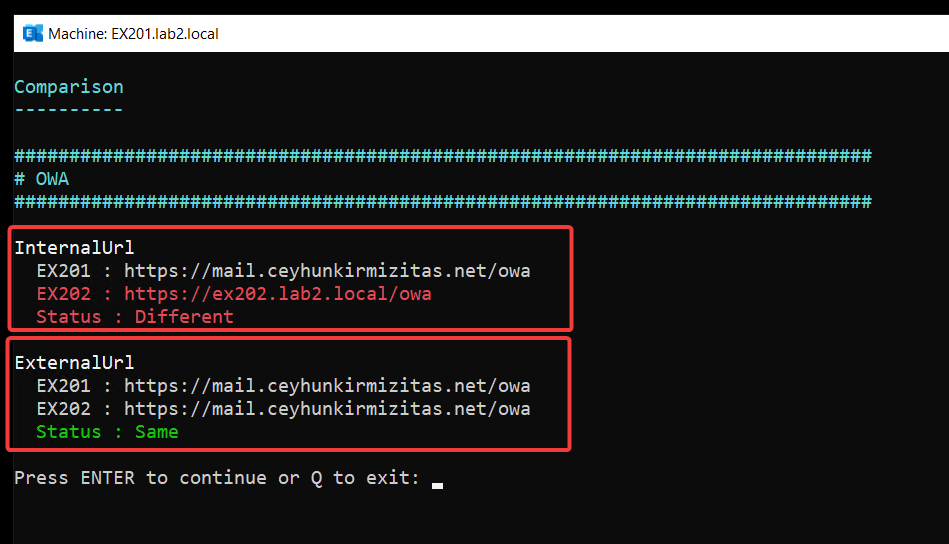
The script first compares the source and target and shows the exact values that would change.
A shared namespace can be carried over, but source-server-specific values are treated differently.
For example, if EX201 has:
https://EX201.contoso.com/EWS/Exchange.asmx
copying that value directly to EX202 would make EX202’s EWS URL point to EX201.
For this reason, URL, hostname, or Autodiscover SCP values that directly reference the source Exchange server name or FQDN stay Review Only instead of being copied automatically.
Short name and FQDN forms of the same Exchange server are also treated as the same server during source and target validation.
For Clone Apply, supported authentication settings enter the Apply plan only when the source and target run the same Exchange build and the current Exchange Management Shell exposes the required setting.
When I use Clone Apply with -IncludeAuthentication, I run the script from Exchange Management Shell on a server that matches the target Exchange build.
6. Backup and Restore
Backup is useful even when I am not moving configuration to another server.
Before planned work, I can save the current supported Client Access configuration:
Clone is for carrying configuration from one Exchange server to another. Restore is for returning the same server to a configuration saved in its own backup.
Cross-server Restore is blocked.
Authentication, PowerShell URLs, and Outlook Anywhere SSL requirements require their explicit opt-in switches during Restore.
The same ConfigBackups folder is also used for the automatic pre-change backup created before Apply. If I need to go back, I can use that JSON file with -Restore -BackupFile, adding the same opt-in switches, such as -IncludeAuthentication, if the original change included those settings.
7. Preview, Apply, and Verification
This is the part I wanted to be very clear when I built the script.
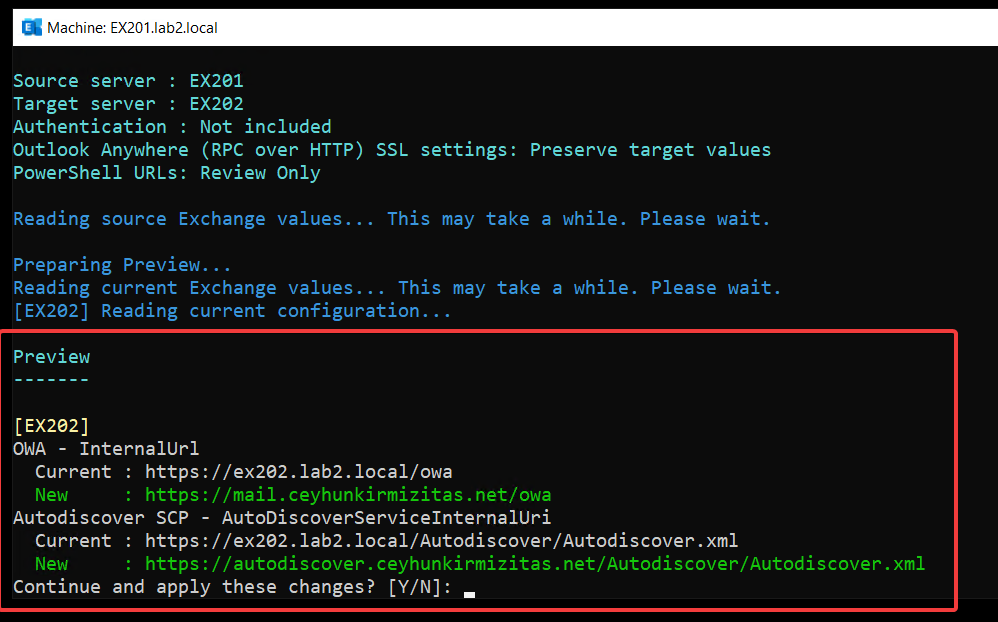
Configure, Interactive Configure, Clone Apply, and Restore use the same basic workflow:
DiscoverSnapshot current stateBuild desired stateComparePreviewConfirmFresh pre-change JSON backupApplyVerify
Before anything is changed, the script shows the current value and the new value.
After I confirm the plan, the script reads the configuration again and creates a fresh pre-change JSON backup.
If that backup cannot be created, Apply does not start.
The script then rebuilds the required Set-* commands from the fresh read. If those commands differ from the commands used for the Preview, Apply is blocked and I need to run the script again.
This is useful in a real change window because I do not want to apply a plan built from stale values.
Before export or Apply, the generated Exchange Set-* commands and the required parameters are also checked against the current Exchange Management Shell. If a required cmdlet or parameter is not available, the operation is blocked.
There are two other details I added because they can matter during real changes.
Companion parameters: Some Exchange cmdlets need additional values when another setting is changed. The script shows unchanged current values that will also be sent with the Set-* command, instead of sending them silently.
EWS hostname check: Before automatic Apply, the script checks DNS resolution for proposed EWS URL hostnames. If the hostname cannot be resolved, automatic Apply is blocked. This avoids running into the additional native confirmation behavior from Set-WebServicesVirtualDirectory in the middle of the plan.
After Apply, the script reads the target again and verifies the result. Verification reports Verified when no planned changes remain, Mismatch when a planned value is still different, or Verification failed when the server cannot be read for verification.
In the final v1.0 test, the successful Apply and Verify result was:
Apply summary-------------Server Status Detail------ ------ ------EX202 AppliedVerification summary--------------------Server Status RemainingChanges Detail------ ------ ---------------- ------EX202 Verified 0Configuration completed and verified.
For me, this is one of the main points of the script. It does not stop after sending the Set-* commands. It checks the result as well.
8. Export Commands Instead of Applying Changes
Sometimes I do not want the script to make the changes directly.
I may want to review the commands first, attach them to a change record, or run them manually during a change window.
Cloud and infrastructure professional with nearly two decades of experience in enterprise IT environments, spanning public cloud, private cloud, and hybrid architectures.