Applies to: Windows 11 26H2; upgrade from Windows 11 25H2
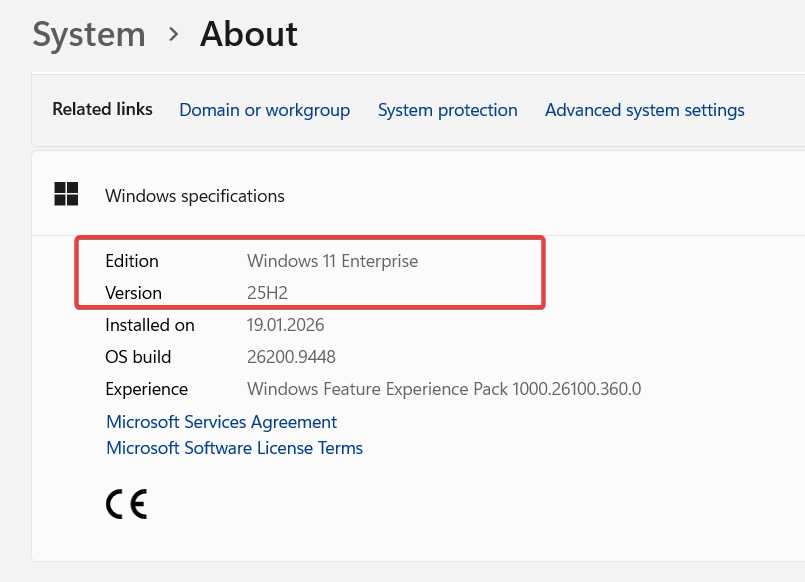
On September 23, 2026, Windows 11 version 26H2 appeared in Windows Update on my Windows 11 Enterprise laptop. I decided to upgrade from Windows 11 25H2, OS Build 26200.9448, to 26H2 and document the process.
After the upgrade, I also checked some of the newer Windows features to see what had actually changed and how they worked in daily use.
This article is based on my experience with Windows 11 Enterprise. Some features or options may be different on other editions or device configurations, and Windows features can change with future updates. I may update this article as I continue using 26H2.
In This Article
- 1. Upgrading from Windows 11 25H2 to 26H2
- 2. Upgrade Experience
- 3. Taskbar Position and Size
- 4. File Explorer Middle-Click Tabs
- 5. Copilot Key Customization
- 6. First Impressions
1. Upgrading from Windows 11 25H2 to 26H2
Before the upgrade, the laptop was running Windows 11 Enterprise 25H2, OS Build 26200.9448.
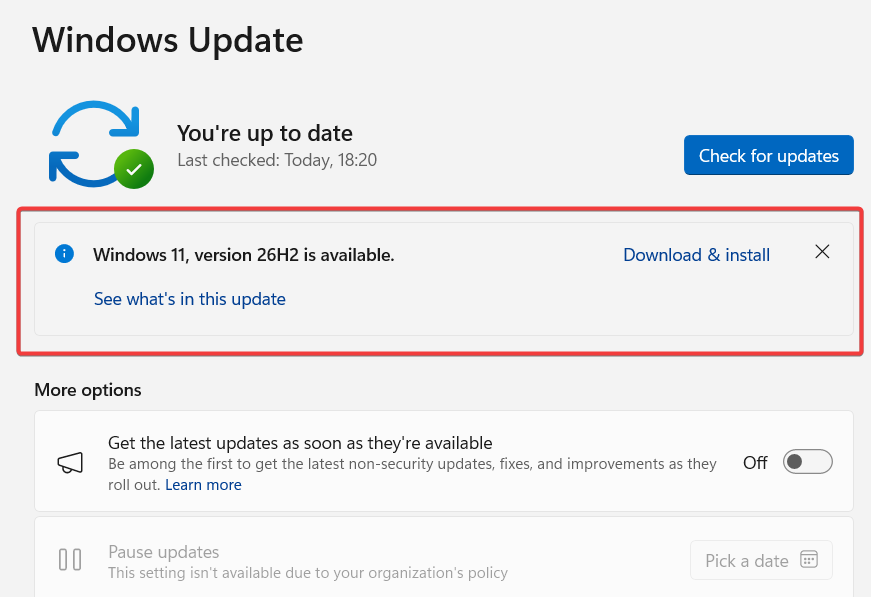
Windows Update showed Windows 11, version 26H2 with the Download & install option.
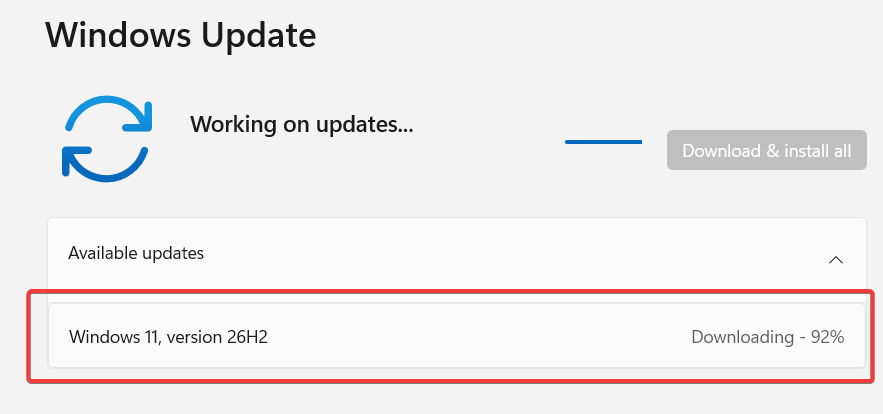
I started the upgrade directly from Windows Update.
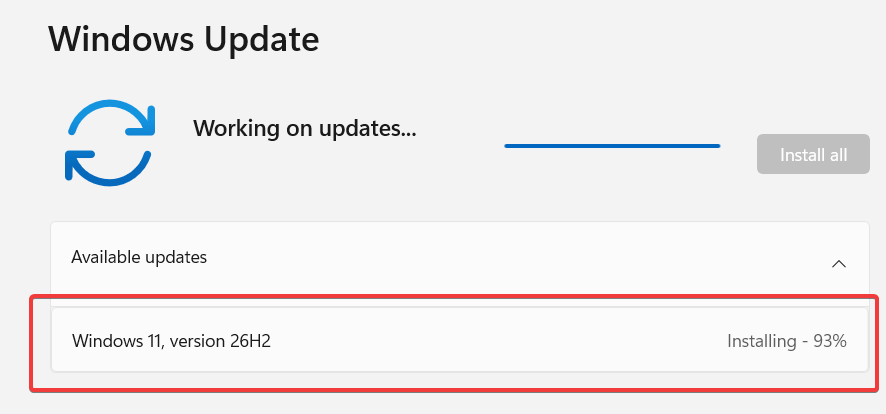
After the download completed, Windows moved to the installation phase.
Once the installation finished, Windows asked for a restart.
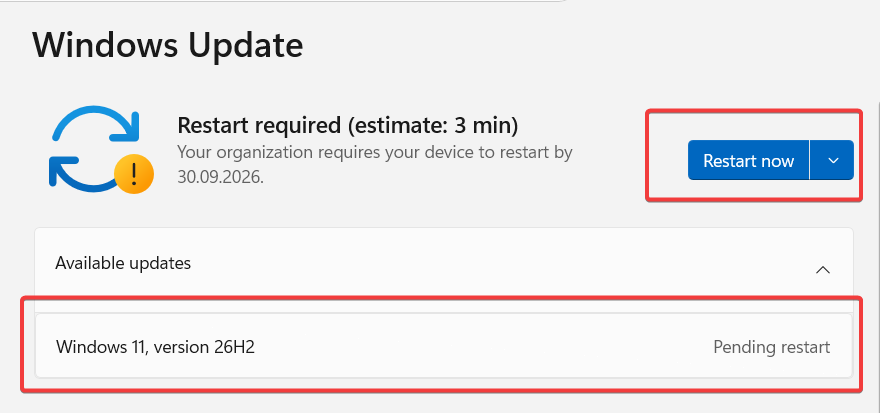
Microsoft is delivering 26H2 as an enablement package. Windows 11 versions 24H2, 25H2, and 26H2 share the same servicing branch, which also helps explain why the upgrade felt much lighter than a traditional feature upgrade.
2. Upgrade Experience
I did not measure the download time because that mainly depends on the network connection.
From the installation phase until the laptop was available again after the restart, the process took around 10 minutes.
The whole process felt much closer to installing a normal monthly Windows update than performing a traditional Windows feature upgrade. Windows showed the usual update progress screens, restarted a few times, and then returned to the normal sign-in screen.
There was no extra first-run or post-upgrade setup screen.
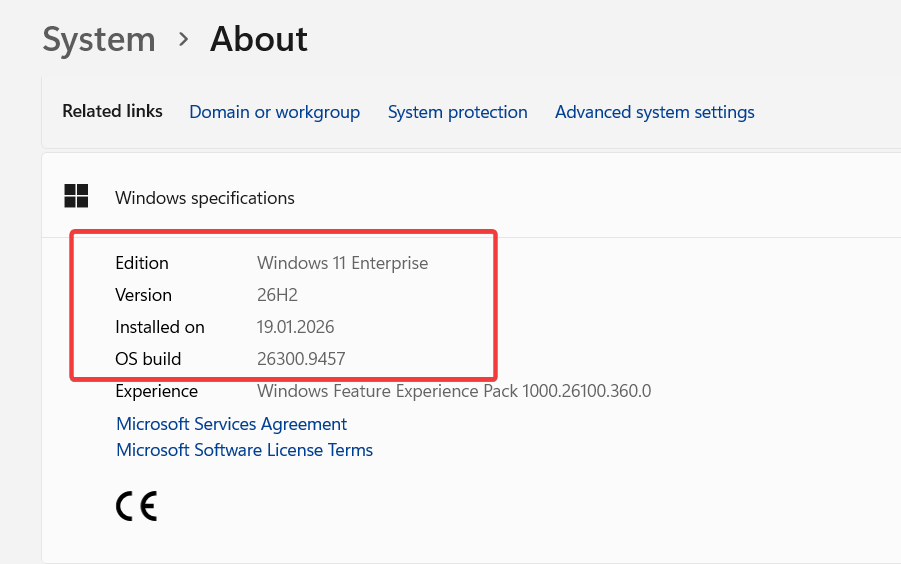
After the upgrade, the laptop was running Windows 11 Enterprise 26H2, OS Build 26300.9457.
3. Taskbar Position and Size
One of the first things I tested after the upgrade was the taskbar.
On this build, the taskbar can be moved to the top, bottom, left, or right side of the screen. A Small taskbar size option is also available.
I tested both together by moving the taskbar to the top and selecting the Small size.
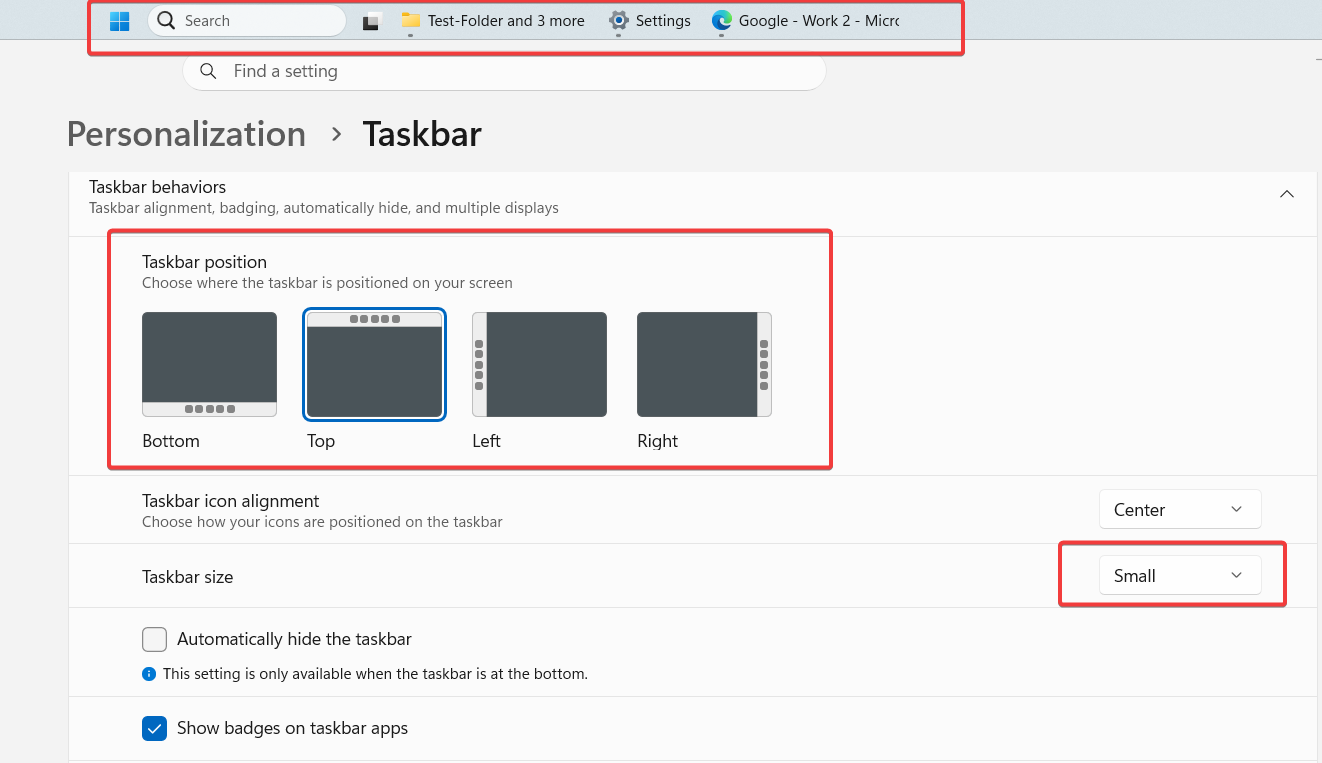
This is one of the Windows changes I tested on 26H2, but I would not consider it exclusive to 26H2 because Microsoft also delivers new features through monthly updates.
4. File Explorer Middle-Click Tabs
I also tested the middle mouse button in File Explorer.
Middle-click opens folders in new File Explorer tabs.
I created three test folders and middle-clicked each one. All three opened directly in separate tabs.
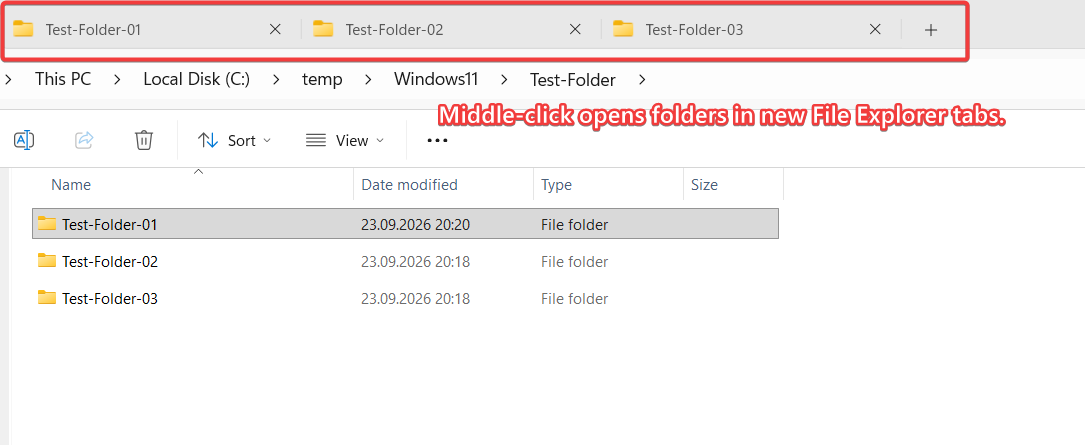
Simple, but useful.
5. Copilot Key Customization
I normally use PowerToys to disable the Copilot key on this laptop.
After the upgrade, I temporarily removed that remapping and checked the native Windows setting under Settings > Bluetooth & devices > Keyboard.
On my current build, I only see Search and Copilot as options.
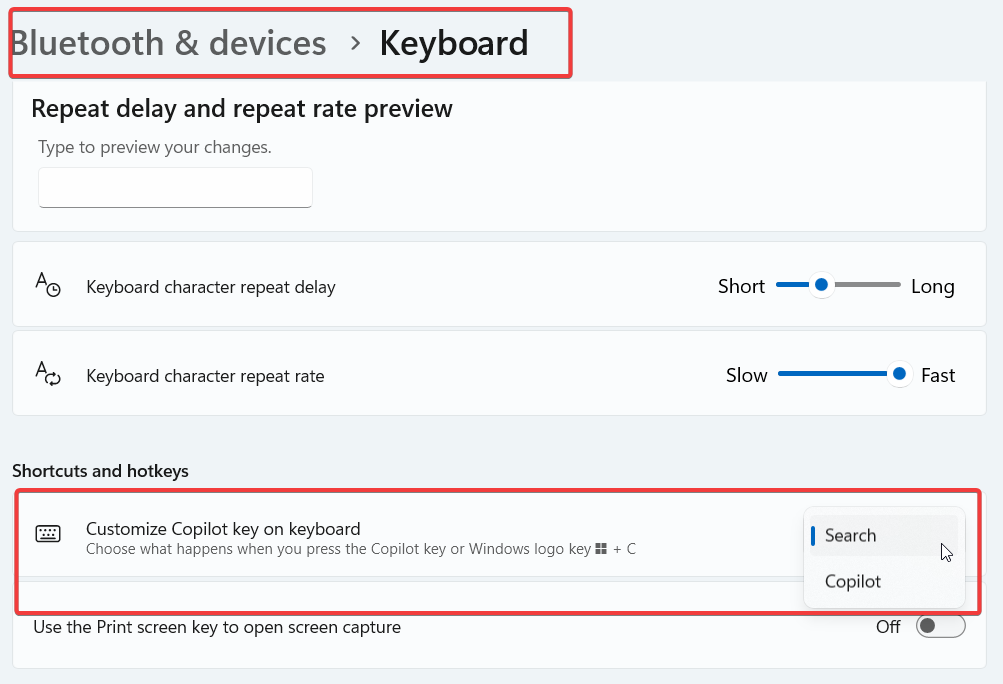
For now, I will continue using PowerToys and check this setting again after future Windows updates.
6. First Impressions
My first impression is simple: the upgrade was very fast.
File Explorer also feels more responsive, and opening Start with the Windows key feels faster on this laptop. I did not run any formal benchmarks, so this is only my first-use impression.
- Installation and restart took around 10 minutes, excluding download time.
- There was no additional setup after the upgrade.
- The laptop came back normally after the restart.
- File Explorer feels more responsive.
- Start feels quicker to open.
- I have not noticed any stability problems so far.
I have only started using Windows 11 26H2, so there will probably be more to test. If I notice new features, changes, or anything important in daily use, I will update this article.
References

Cloud and infrastructure professional with nearly two decades of experience in enterprise IT environments, spanning public cloud, private cloud, and hybrid architectures.