Troubleshooting Microsoft Entra Pass-through Authentication in Multi-Forest Environments

Troubleshooting Microsoft Entra Pass-through Authentication in Multi-Forest Environments

Hybrid Identity, Identity, Microsoft Entra ID
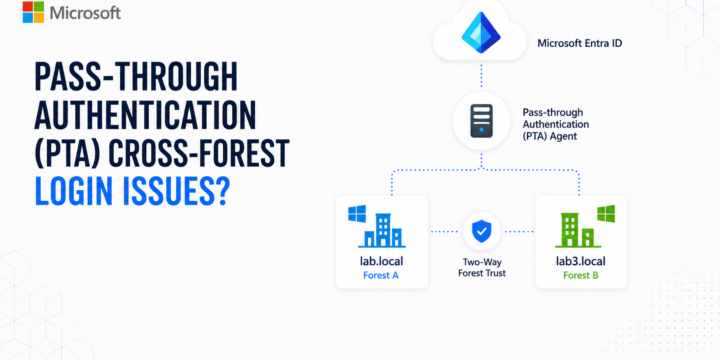
Microsoft Entra Pass-through Authentication (PTA) allows users to sign in to Microsoft Entra ID using passwords that are validated directly against on-premises Active Directory. In a single Active Directory forest, this password validation path is usually straightforward. In a multi-forest environment, however, the PTA agent may need to validate users located in another forest through an Active Directory forest trust. In this scenario, the PTA agent itself can be healthy and successfully validate users in one forest, while Microsoft Entra sign-ins for users in another forest fail through the same agent. In this article, we will look at how Forest Trust and Name Suffix Routing can affect cross-forest password validation with Microsoft Entra Pass-through Authentication. Scenario The lab contains two Active Directory forests: lab.local lab3.local A two-way forest trust is…
Read More
How to Configure Windows 2008 Fine-Grained Password Policy

How to Configure Windows 2008 Fine-Grained Password Policy

Active Directory, Identity, Video Tutorials
In previous versions of Active Directory, we had only one password policy for the entire domain. Some companies had to use multiple domains to place different password policies on different users or buy third party solutions. In Windows Server 2008, you can use fine-grained password policies to specify multiple password policies and apply different password restrictions and account lockout policies to different sets of users within a single domain. Password polices are designed to control what kind of password a user can have and how often the user needs to change it. Strong password policies are important to help protect your system and data.
Read More
How to Perform Windows Server 2008 DC Deployment from IFM Media

How to Perform Windows Server 2008 DC Deployment from IFM Media

Active Directory, Identity, Video Tutorials
Install from media (IFM) was first introduced in Windows Server 2003. We can use the Install from media (IFM) option to install an Additional Domain Controller in an existing domain is the best option such as a branch office scenario. IFM option is the best for deployment Additional Domain Controller at the branch office which will minimize replication traffic during the Installation. Using the IFM method, you can dramatically reduce the amount of replication traffic that is introduced during the installation of an additional DC. Only objects that were modified, added, or deleted since the installation media was created will be replicated.
Read More
How to Perform SYSVOL Migration from FRS to DFRS Replication

How to Perform SYSVOL Migration from FRS to DFRS Replication

Active Directory, Identity, Video Tutorials
Domain controllers use a special shared folder named SYSVOL to replicate logon scripts and Group Policy object files to other domain controllers. Windows 2000 Server and Windows Server 2003 use File Replication Service (FRS) to replicate SYSVOL, whereas Windows Server 2008 uses the newer DFS Replication service when in domains that use the Windows Server 2008 domain functional level, and FRS for domains that run older domain functional levels. To use DFS Replication to replicate the SYSVOL folder, you can use the procedure that is discussed in this video tutorial to migrate replication to DFS Replication. Pre-Requisites: Check Active Directory health using DCDiag and Repadmin and make sure there are not errors. Use net share from elevated command prompt on all DCs to check Netlogon and SYSVOL share status. Change…
Read More
How to Join VMware ESXi 5.1 to Active Directory Domain

How to Join VMware ESXi 5.1 to Active Directory Domain

Active Directory, Identity, Video Tutorials, VMware, vSphere
It’s important to join your ESXi host to a Windows domain if there is one present in your architecture. By allowing AD to authenticate, you can simply delegate permissions based on your AD groups such as the Domain Admins’ group. Steps to enable Active Directory authentication: Log in to your ESXi hosts locally and click on Configuration. On the left side of the dialog, select Authentication Services and then click Properties. From the Select Directory Services Type drop-down, choose Active Directory. In the domain settings, you can add your domain in one of two ways: Simply add mydomain.local; this will add the computer account for ESXi in the default Computers OU. To specify a different OU where you want the ESXi computer account to be located, use this format: mydomain.local/vsphere.…
Read More

How to Perform Authoritative DC Restore for Windows Server 2008

Active Directory, Identity, Video Tutorials
When a domain contains more than one domain controller, Active Directory replicates directory objects, such as users, groups, organizational units, and computers, to all the domain controllers in that domain. Authoritative restore is a method to recover objects and containers that have been deleted for AD DS. An authoritative restore marks specific data as current and prevents the replication from overwriting that data. The authoritative data is then replicated throughout the domain. The process for performing an authoritative restore of AD is the same as a Non-authoritative restore except for one step. After the restore of AD is complete in DSRM and then, before restarting, you manually run Ntdsutil, and the mark the object that you want to restore as Authoritative.
Read More