Applies to: Exchange Server SE RTM | Windows Server 2025 / 2022 / 2019
Over the years, I have seen many Exchange Server installations take longer than expected because of Windows Server, Active Directory, DNS, network, storage, or prerequisite problems.
Even when Exchange Setup completes successfully, configuration differences can still cause unexpected behavior afterward. In some cases, recommended settings may also need to be reviewed and applied later.
Many of these issues can be identified before Exchange Setup starts.
That was the idea behind ExchangeServerReadinessCheck.ps1.
I first created these checks for my own Exchange upgrade and migration work. Later, I added more checks based on different environments and real cases.
This can be especially useful for Field Engineers, Consultants, and administrators who perform Exchange deployments, upgrades, or migrations periodically and want a repeatable pre-installation readiness check.
The script now performs role-aware readiness checks for Exchange Server SE Mailbox, Management Tools, and Edge Transport deployments. It can check one or multiple Windows Servers and reports the results as PASS, BLOCKER, REVIEW, or INFO.
The script performs read-only checks and does not modify Windows or Exchange configuration.
The main question is simple: Is this Windows Server ready for Exchange Server SE installation?
Before installing Exchange Server, I normally check much more than only Windows Features.
For example:
Is the Primary DNS Suffix correct?
Can the server find a writable domain controller and Global Catalog?
Are the required DNS SRV records available?
Is the server using the expected DNS servers?
Is there a pending reboot?
Are the required Windows Features and Exchange prerequisites installed?
Is the page file configured as expected?
Are the data volumes using the expected allocation unit size?
Are regional and time zone settings consistent between servers?
Microsoft also requires the Exchange server and Active Directory environment to meet specific operating system, Active Directory, software, and prerequisite requirements before installation.
I wanted one script that could collect these checks before Exchange Setup starts.
2. What the Script Checks
The script currently checks these main areas:
Windows Server version, edition, installation type, Windows PowerShell version, time service, and pending reboot
Active Directory domain, forest functional level, AD site, writable domain controller, and Global Catalog
Primary DNS Suffix, FQDN, SRV records, DNS resolution, and configured DNS servers
Network adapters, IPv4/IPv6 bindings, IPv6 registry policy, Receive Side Scaling (RSS), NIC power settings, DNS registration, and NIC teaming
CPU, memory, page file, and Windows power plan
File system, disk information, partition style, and allocation unit size on non-system fixed volumes. The script does not assume every non-system volume is an Exchange data volume; 64 KB is treated as the recommended baseline when a volume will host Exchange database or transaction log files.
Role-aware prerequisites including .NET Framework, required Windows Features, Visual C++, UCMA and IIS URL Rewrite for Mailbox, and AD LDS for Edge Transport
TLS 1.2, .NET 4.x TLS settings, SCHANNEL visibility, and selected Windows security settings
Regional settings and time zone as environment-specific review items, including cross-server consistency checks
Current user effective access-token membership for Exchange Organization Management, Domain Admins, Enterprise Admins, and Schema Admins
FSMO role holders and Schema Master site visibility for Active Directory preparation planning
Microsoft Defender status and exclusions, third-party antivirus/EDR exclusion reminders, Credential Guard, Remote Registry, and IE ESC visibility
Network adapter details including link speed and MTU, plus role-aware handling of Mailbox, Management Tools, and Edge Transport checks
Previous Exchange Setup log information and guidance to review previous failures with Microsoft CSS-Exchange SetupLogReviewer
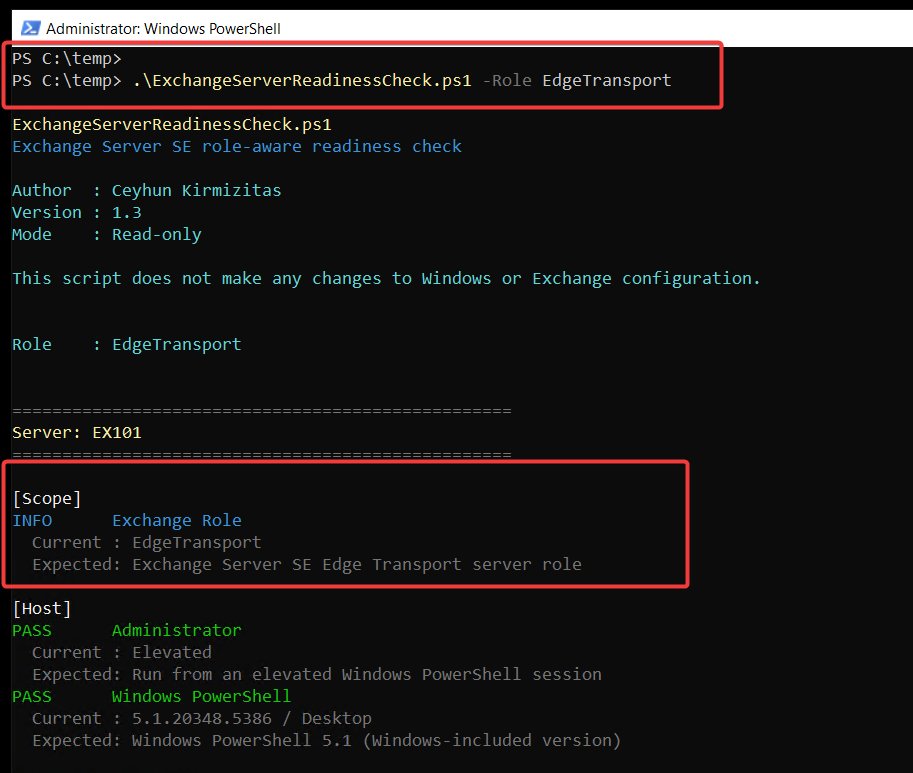
The selected role changes the evaluation scope, not only the prerequisite list. Mailbox performs the full server-readiness evaluation, ManagementTools uses the Windows Server Management Tools prerequisite scope, and EdgeTransport avoids Mailbox-only checks while applying Edge-specific prerequisites and readiness rules.
BLOCKER is reserved for conditions that are expected to prevent Exchange Setup or are explicitly unsupported. Recommendations, preferred deployment baselines, and environment-specific settings are reported as REVIEW instead of being treated as hard setup failures.
This script is not intended to replace Microsoft CSS-Exchange HealthChecker.
3. Running the Script
Run the script from an elevated Windows PowerShell 5.1 session.
Parameters
Parameter
Description
Notes
-Role
Selects the Exchange SE role to validate.
Mailbox, ManagementTools, or EdgeTransport. Mailbox is the default.
-Server
Checks one or more remote servers.
Uses Windows PowerShell Remoting / WinRM with the current credentials.
-OutputFile
Saves the results to a TXT report.
Multiple servers are written to one combined report. Also disables console paging.
-GroupBy
Groups multi-server results by check.
Already the default when two or more servers are checked.
-Detailed
Displays results server by server.
Useful when you do not want grouped output.
-NoPaging
Prints console output continuously.
Also disables paging for -Help.
-NonInteractive
Runs without interactive prompts.
Intended for unattended execution, scheduled tasks, or pipelines. Mailbox is used if -Role is omitted.
-Help
Displays the built-in usage guide.
Use with -NoPaging to display the full help continuously.
The internal InternalLocal parameter is used by the script for remote execution and is not intended for normal user invocation.
To check the local server:
PowerShell
.\ExchangeServerReadinessCheck.ps1
Role-aware checks
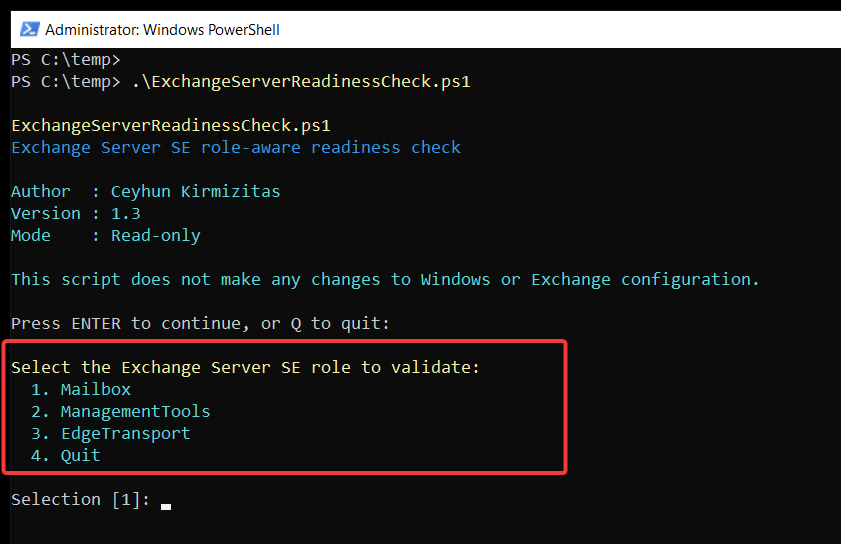
If you run the script without parameters, it starts in interactive mode and lets you select Mailbox, ManagementTools, or EdgeTransport. Operational parameters such as -Role, -Server, or -OutputFile bypass the startup confirmation. If -Role is omitted in a parameterized run, Mailbox remains the default role.
Mailbox role:
PowerShell
.\ExchangeServerReadinessCheck.ps1 -Role Mailbox
The script detects whether the server uses Server Core or Server with Desktop Experience and automatically applies the matching Mailbox Windows Feature baseline.
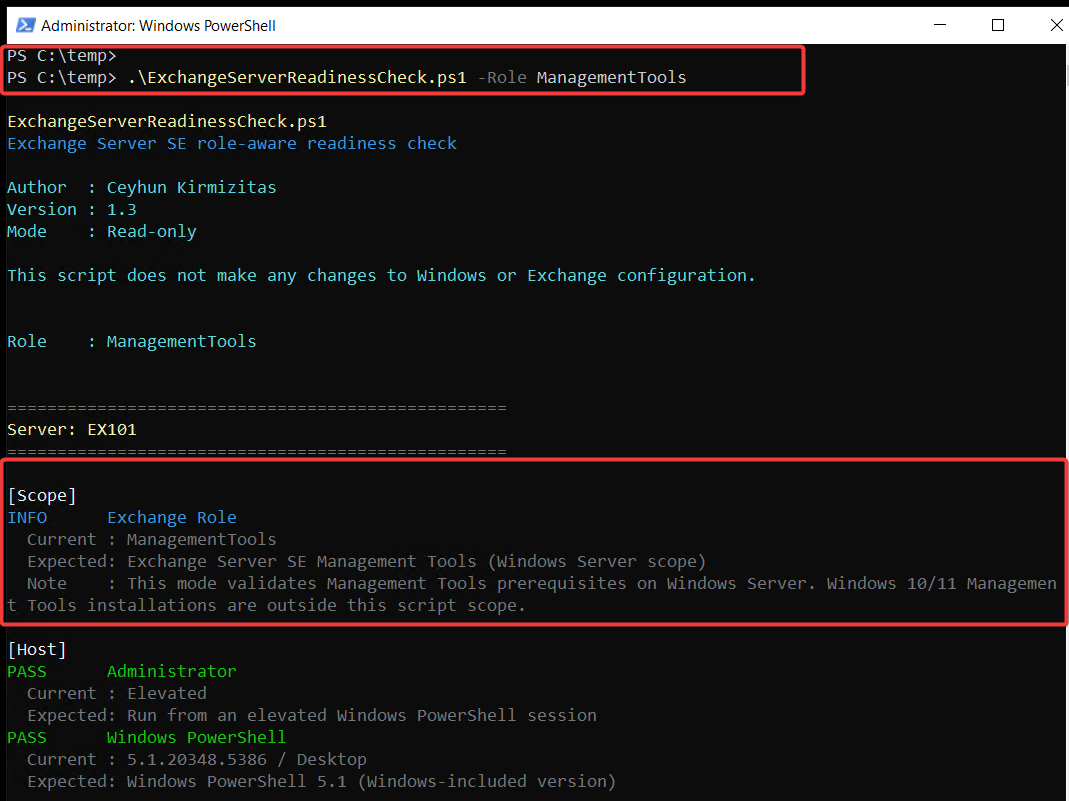
For Management Tools on Windows Server, the script validates the supported Desktop Experience prerequisite path. Windows client Management Tools installations are outside this script scope.
The script also compares selected regional and time zone settings across the checked servers.
5. Understanding the Results
The script uses four result types:
PASS – The expected readiness condition is met.
BLOCKER – Exchange Setup is expected to fail, or the configuration is explicitly unsupported and must be corrected before installation.
REVIEW – The item needs review because it is a Microsoft recommendation, preferred deployment baseline, or environment-specific configuration decision.
INFO – Information only. It does not affect readiness counts.
This makes it easier to focus on the important findings before starting Exchange Setup.
6. Example Findings
A server can look ready at first, but a readiness check can still find missing prerequisites or configuration differences.
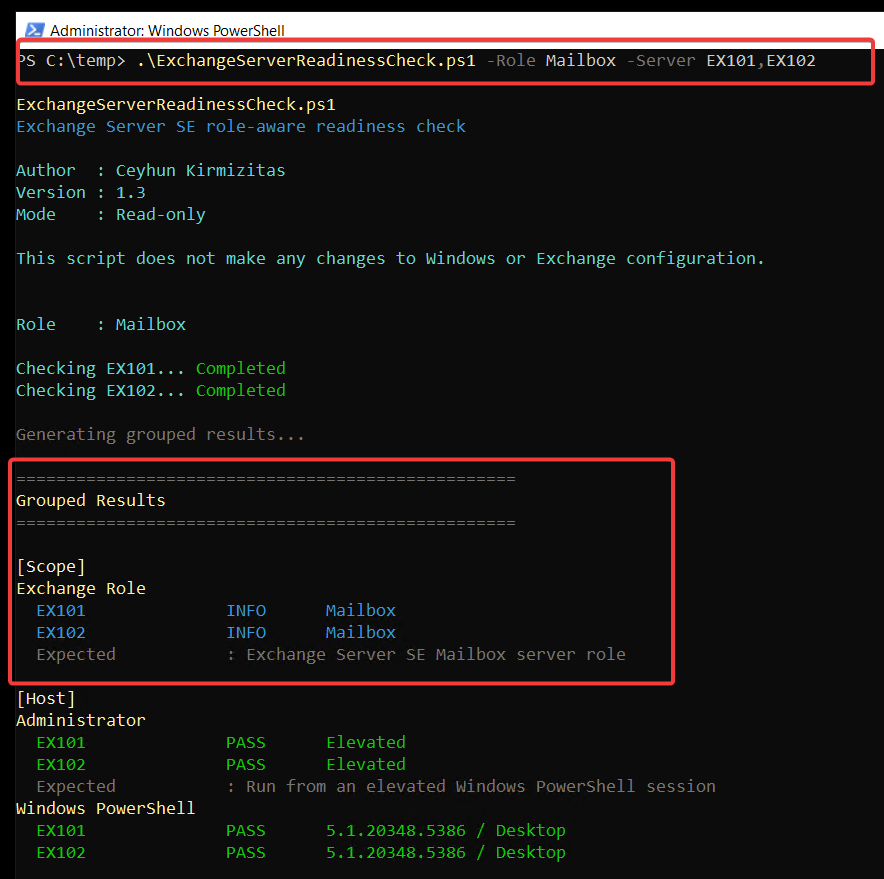
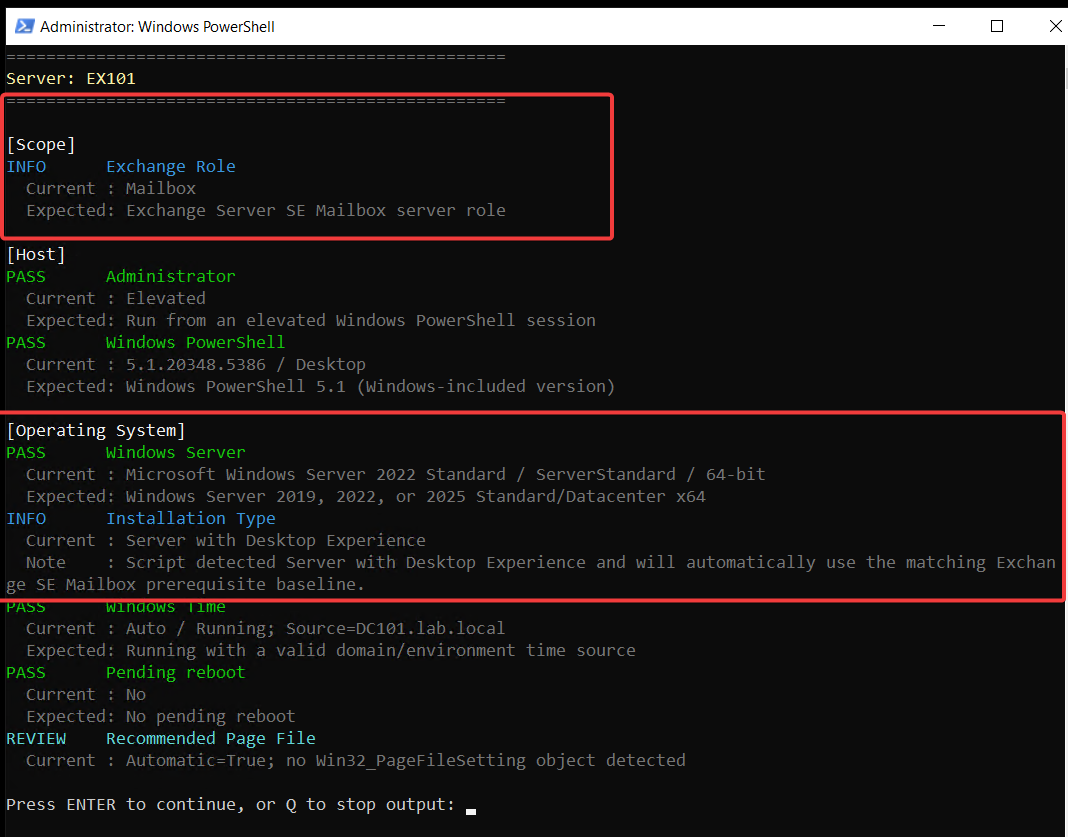
For example, the Mailbox role output below shows the supported Windows Server check and automatic detection of Server with Desktop Experience. The script then uses the matching Mailbox prerequisite baseline for that installation type.
Other findings can include missing role-specific prerequisites, pending reboot, page file guidance, IPv6 being disabled or unbound, regional or time zone differences, and storage settings that should be reviewed before the Exchange deployment.
The script does not try to fix the server automatically. I prefer to review the result first and then decide what should be changed.
7. Key Takeaways
Check the Windows Server before starting Exchange Setup.
Active Directory and DNS are as important as the Exchange prerequisites.
One or multiple Windows Servers can be checked in the same run.
PASS, BLOCKER, REVIEW, and INFO make the results easier to review.
The script reports the findings but does not change the server configuration.
Cloud and infrastructure professional with nearly two decades of experience in enterprise IT environments, spanning public cloud, private cloud, and hybrid architectures.