The original GetExchangeURLs.ps1 script was written by Paul Cunningham to provide a simple way to display Exchange Server Client Access URLs from a single PowerShell script.
Ali Tajran later updated the script to version 1.10, adding the PowerShell virtual directory and reorganizing the output.
I recently revisited the script and decided to continue the same approach rather than create a completely new one. The result is GetExchangeURLs-v2.ps1.
Improved server selection. Invalid or unsupported server names are skipped with a warning, and duplicate servers are processed only once.
Improved Autodiscover and Alternate Service Account (ASA) reporting when a query fails.
Simplified ASA reporting by removing the misleading credential status line.
Improved text file export with better path validation and clearer error handling.
Added clearer startup, progress, and completion messages.
Version 2.2 was validated on Exchange Server 2019 using Windows PowerShell 5.1. Additional scenarios were tested offline. Exchange Server 2016 and Subscription Edition have not been tested in a live lab.
Version 2.1 – September 14, 2026
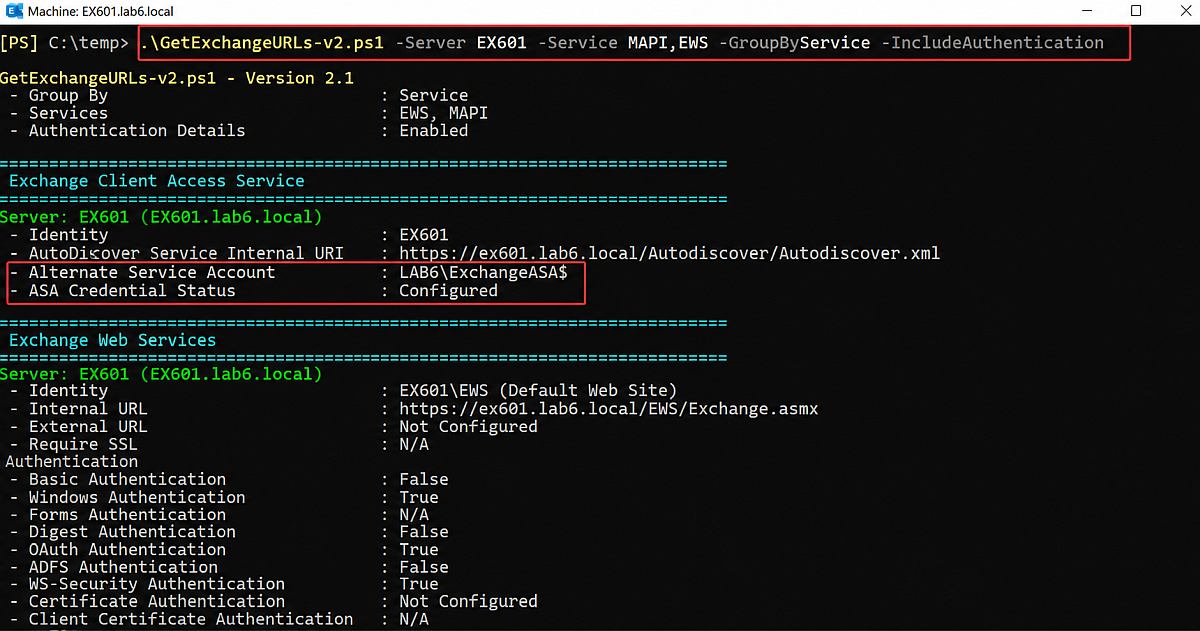
Added Alternate Service Account (ASA) visibility in the Client Access Service output to help identify Kerberos-related configurations before migrations.
Added the simplified -GroupByService switch for comparing the same service configuration across multiple Exchange servers.
Improved default query performance by using -AdPropertiesOnly where applicable. Full authentication and IIS-backed settings are queried when -IncludeAuthentication is used.
Simplified script processing and improved text-file output handling.
Version 2 – August 25, 2026
Replaced the legacy Get-ClientAccessServer cmdlet with Get-ClientAccessService.
Added Autodiscover virtual directory information in addition to the Autodiscover SCP.
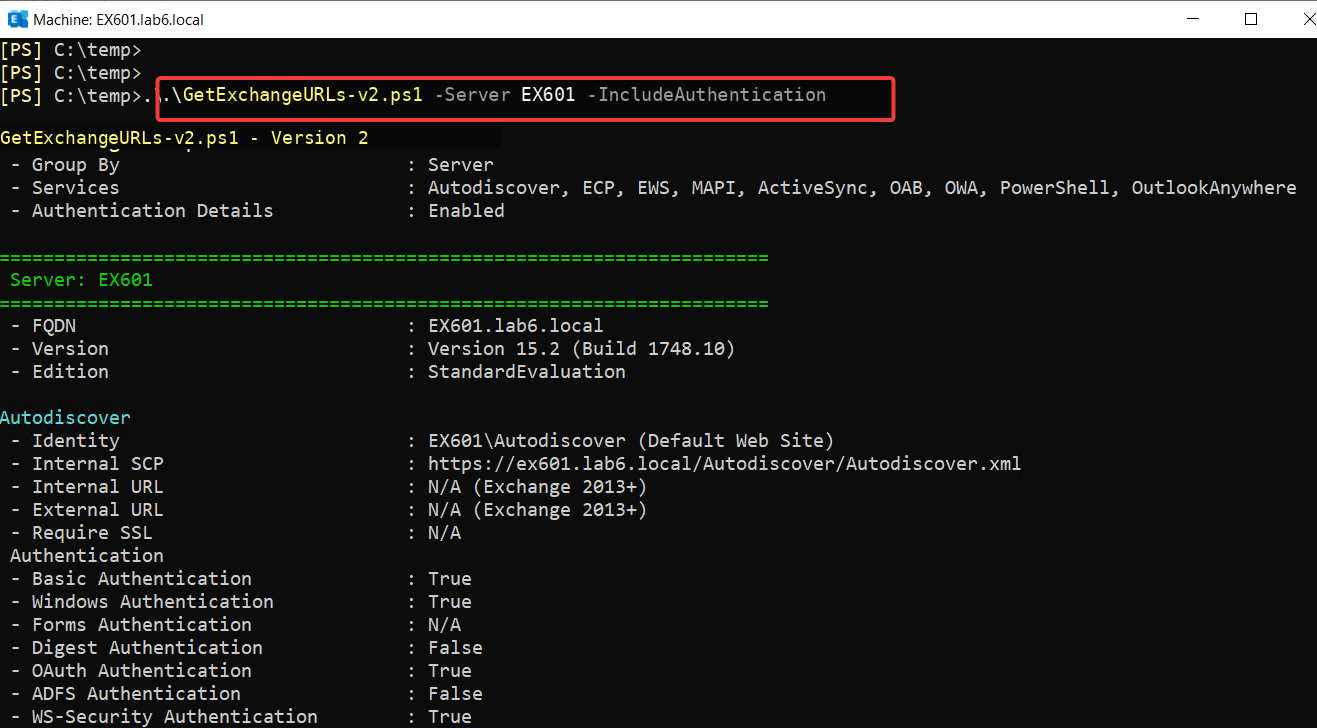
Added optional authentication reporting with -IncludeAuthentication.
Added service filtering, for example -Service MAPI,EWS.
Made the -Server parameter optional so Exchange Mailbox servers can be discovered automatically.
Added optional text-file output with -OutputFile.
Added explicit N/A and Not Configured states instead of leaving values ambiguous.
The script remains read-only and does not make any Exchange configuration changes.
2. Get Exchange Server URLs
The basic usage is:
PowerShell
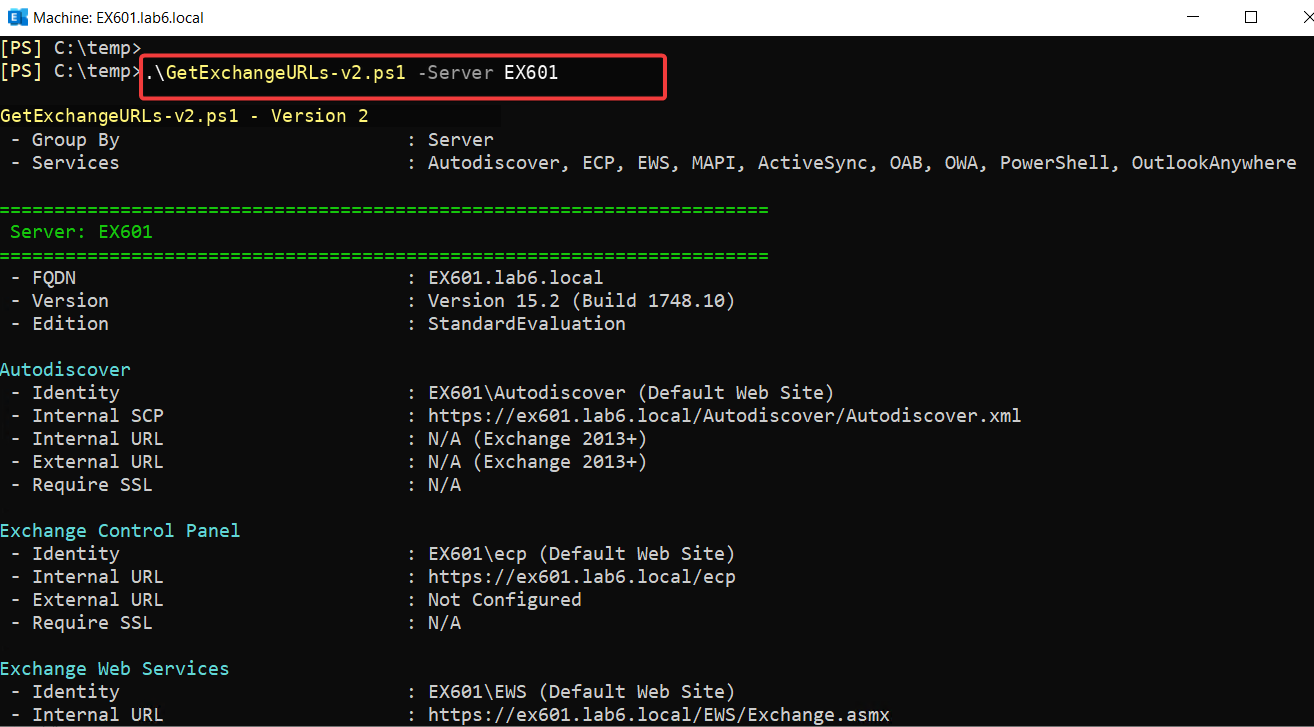
.\GetExchangeURLs-v2.ps1 -Server EX601
The script displays the Client Access configuration for Autodiscover, ECP, EWS, MAPI, ActiveSync, OAB, OWA, PowerShell, and Outlook Anywhere. It also shows the Exchange Server FQDN, version, and edition.
The default output is intentionally simple and focuses on URLs and namespace-related values without adding authentication details. Default virtual directory queries use -AdPropertiesOnly for faster collection. When -IncludeAuthentication is used, the script queries the IIS-backed authentication settings as well.
3. Alternate Service Account (ASA)
The Client Access Service output also shows the Alternate Service Account configuration. This makes an existing ASA easier to notice when reviewing Kerberos-enabled Exchange environments before a migration or server replacement.
If an ASA account is configured, the script displays the account name. If none is configured, it displays Not Configured. If the ASA status cannot be read, it displays Unknown. This information does not test ASA credential health or confirm that Kerberos authentication is currently being used.
The script also distinguishes between two different conditions. Not Configured means the property exists but currently has no configured value. N/A means that the property is not applicable or is not exposed by that Exchange component.
This avoids treating every empty value as the same condition.
4. Include Authentication Settings
Authentication information is optional and is not shown in the default output.
Depending on the Exchange component, the script can display authentication properties such as:
Basic Authentication
Windows Authentication
Forms Authentication
Digest Authentication
OAuth Authentication
ADFS Authentication
WS-Security Authentication
Certificate Authentication
IIS Authentication Methods
Exchange components do not expose exactly the same authentication properties. Instead of hiding those differences, the script displays non-applicable properties as N/A.
5. Filter Specific Services
The complete Client Access configuration is not always required. The -Service parameter can limit the output to selected components.
Multiple services can be supplied in the same command.
6. Group Results by Service
The switch only changes how the results are displayed; the queried settings remain the same.
By default, output is server-based. Use -GroupByService when you want to compare the same service configuration across multiple Exchange servers.
PowerShell
# Default server-based output.\GetExchangeURLs-v2.ps1 -Server EX601,EX602# Group by service.\GetExchangeURLs-v2.ps1 -Server EX601,EX602 -GroupByService# Filter services, group by service, and include authentication.\GetExchangeURLs-v2.ps1 -Server EX601 -Service MAPI,EWS -GroupByService -IncludeAuthentication
With multiple Exchange servers, the same command places each server under the corresponding service. This provides a cleaner view when comparing the same configuration across servers.
7. Query All Exchange Servers
The -Server parameter is optional.
If -Server is omitted, the script automatically discovers eligible Exchange servers. You can limit the query to specific servers when needed. In version 2.2, invalid or unsupported servers are skipped with a warning, and duplicate servers are queried only once:
PowerShell
# Query all Exchange Mailbox servers.\GetExchangeURLs-v2.ps1# Query specific servers.\GetExchangeURLs-v2.ps1 -Server EX601,EX602
8. Save the Output to a File
The formatted output can be written to a text file, and the same option can be combined with the other parameters. In version 2.2, the output path is checked before Exchange queries begin, save errors are reported, and existing files are overwritten:
PowerShell
# Save one server to a text file.\GetExchangeURLs-v2.ps1 -Server EX601 -OutputFile C:\Temp\ExchangeURLs.txt# Combine multiple options and save the output.\GetExchangeURLs-v2.ps1 -Server EX601,EX602 -Service MAPI,EWS -GroupByService -IncludeAuthentication -OutputFile C:\Temp\ExchangeURLs.txt
The same formatted information displayed in the console is written to the specified file.
9. Key Takeaways
The default output remains compact, read-only, and focused on Exchange Server Client Access URLs and namespace-related values.
Optional parameters add authentication reporting, service filtering, service grouping, automatic server discovery, ASA visibility, and text-file export when needed.
The script can be used for day-to-day configuration checks and for comparing Exchange Server settings before migrations or server replacements.
Cloud and infrastructure professional with nearly two decades of experience in enterprise IT environments, spanning public cloud, private cloud, and hybrid architectures.



HI
where is this script located
Hi Arun,
The script is available in the post under the “View / Download the PowerShell Script” section.
I’ve moved the link closer to the top to make it easier to find.
Thanks for the feedback!