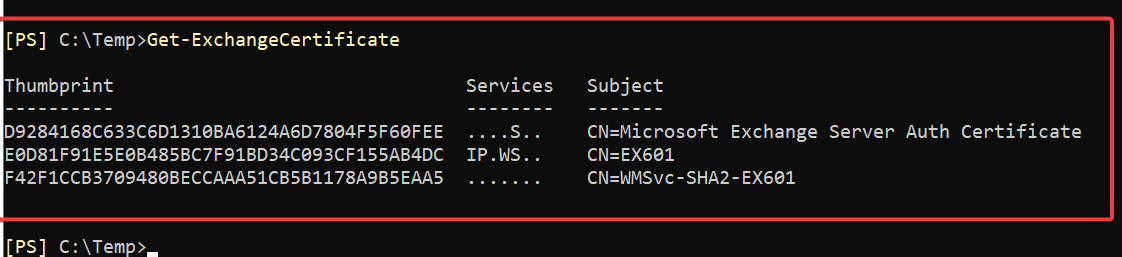
While validating a fresh Exchange Server 2019 CU15 installation, I started capturing the default configuration before making any namespace, certificate, or authentication changes.
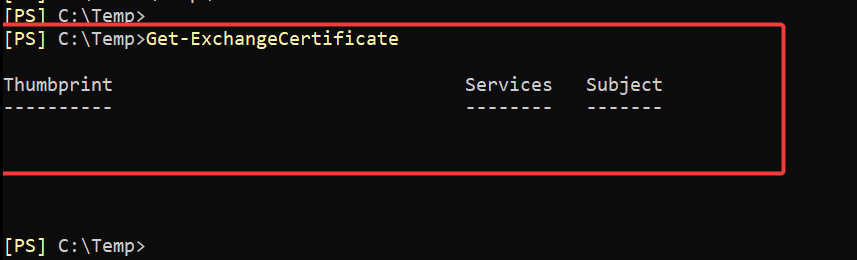
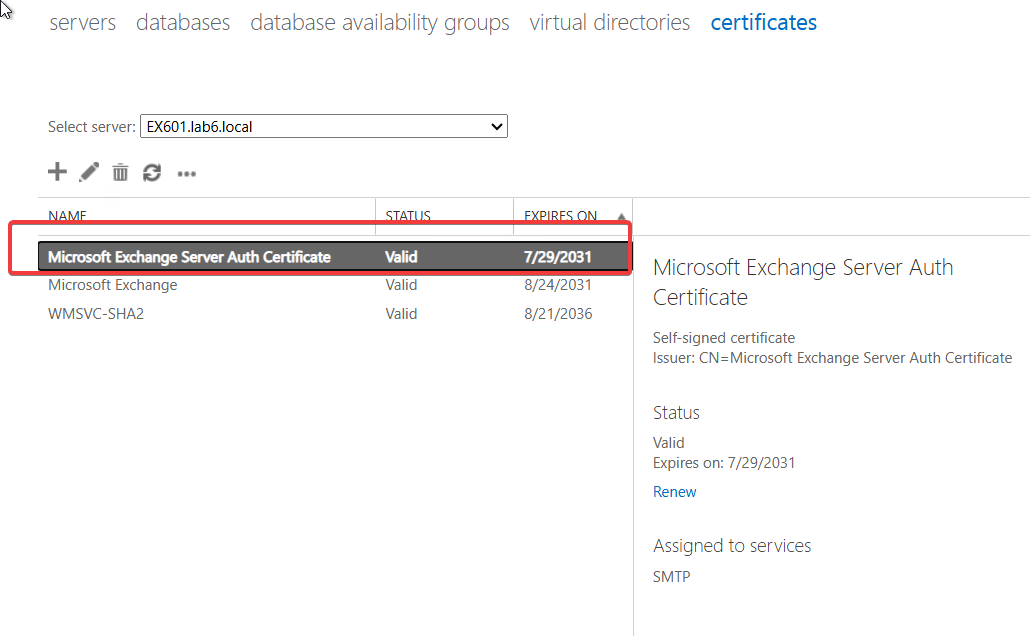
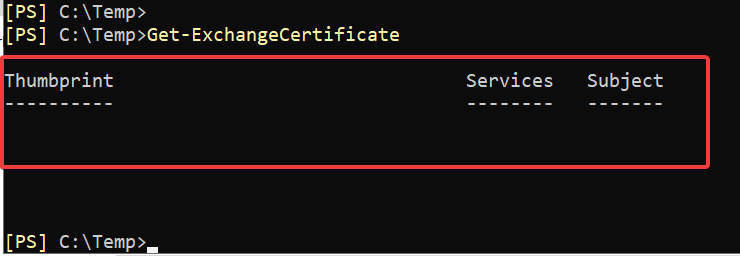
One of the first checks was Get-ExchangeCertificate. Unexpectedly, the cmdlet returned only the column headers and no certificate objects, even though the Exchange Admin Center showed the certificates normally.
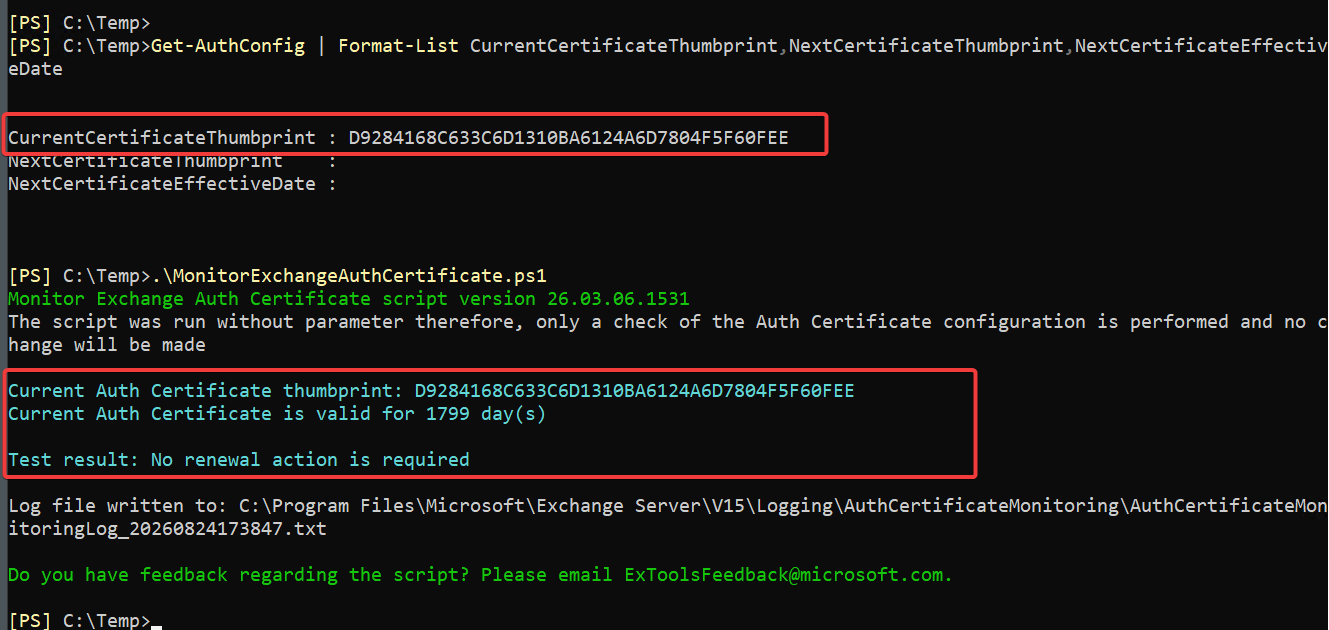
At first, this looked like the known Exchange Auth Certificate issue associated with PowerShell Serialization Payload Signing. However, the Auth Certificate was present, valid, correctly configured, and Microsoft’s validation script reported no problem.
What initially looked like a certificate problem eventually turned out to be related to the timing of certificate activation and HMAC key selection.
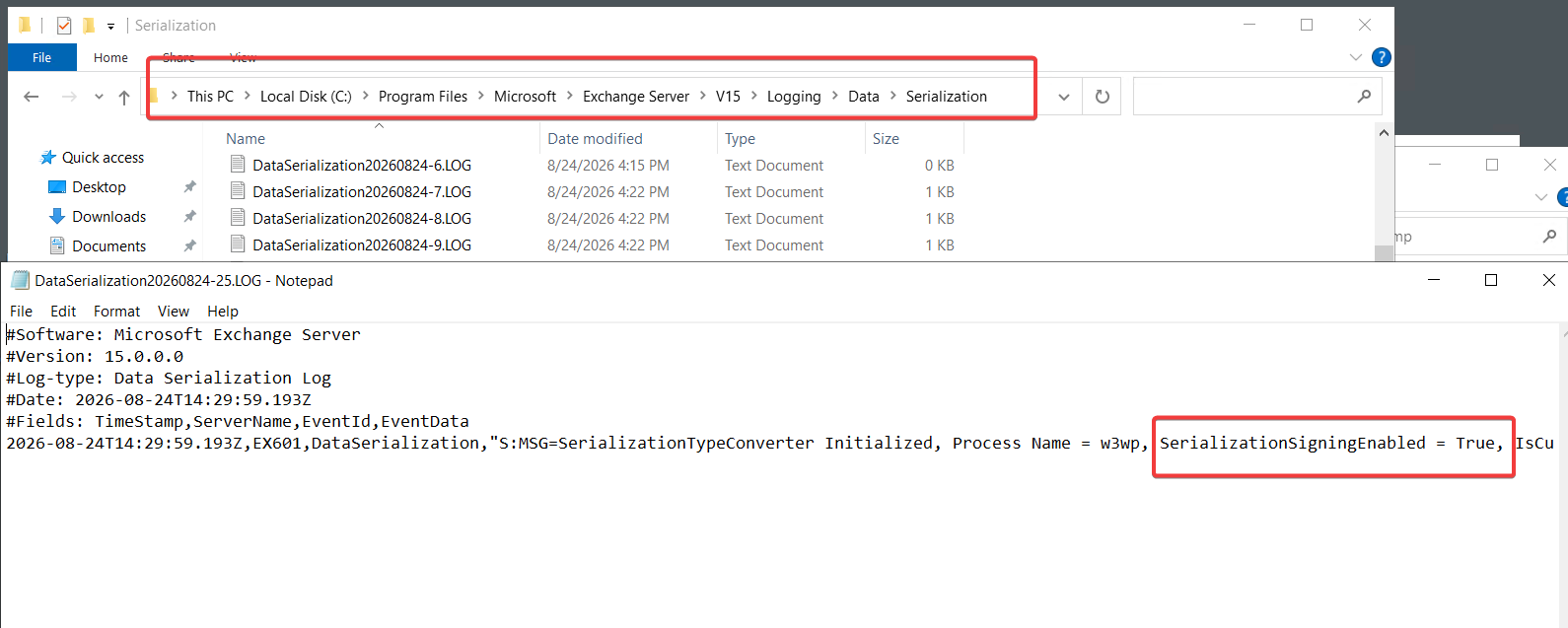
The log confirmed that certificate-based signing of PowerShell serialization payloads was enabled:
SerializationSigningEnabled = True
For troubleshooting only, I temporarily disabled Serialization Payload Signing. Immediately afterwards, Get-ExchangeCertificate returned all certificates normally.
After removing the temporary override and returning Serialization Signing to its default enabled state, the cmdlet became blank again.
This isolated the problem to the serialization signing path. Disabling Serialization Payload Signing is not a permanent fix and should only be used as a controlled troubleshooting test.
3. The Important Clue: HmacCryptoProvider activeKey==null
The Data Serialization log showed the actual failure:
Exchange could see the certificate objects, but the HMAC provider used to sign the serialized PowerShell data did not have an active signing key.
This explains why the command appeared to return nothing even though the certificates were visible in EAC.
4. Replacing the Auth Certificate Did Not Fix It Immediately
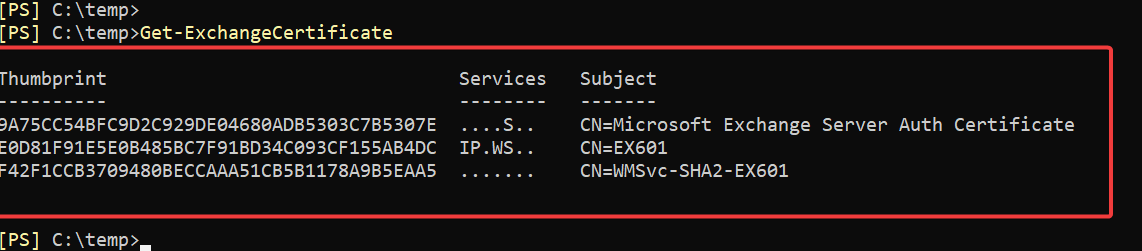
To rule out a damaged Auth Certificate, I forced creation of a new Auth Certificate with Microsoft’s MonitorExchangeAuthCertificate.ps1 script. The new certificate became the Current Auth Certificate, existed in the Local Computer certificate store, had a private key, and remained correctly configured after service restarts and a server reboot.
However, Get-ExchangeCertificate was still blank.
This is the point where certificate activation time becomes important. Microsoft documents NewCertificateEffectiveDate as the date when the certificate configured as Next should start being used. When testing or setting this value manually, using an explicit UTC value helps avoid ambiguity between local server time and the effective time being evaluated:
The Exchange server in this test was running in UTC+3.
The newly created Auth Certificate already appeared as Current in Get-AuthConfig, but the serialization subsystem continued to report:
HmacCryptoProvider.HmacProvider:activeKey==null
As a controlled test, I temporarily moved the server clock four hours forward. I did not change the certificate or disable Serialization Signing.
Get-ExchangeCertificate immediately started returning all certificates.
This strongly indicates a time-based certificate activation or validation condition in the HMAC key-selection path. It also explains reports where administrators renew an Exchange Auth Certificate, reboot the server, and still see the problem for several hours before it starts working.
Important: advancing the server clock is not a production fix and can break Kerberos and other time-sensitive services. It was used only to prove the timing dependency.
6. What Should You Check?
If Get-ExchangeCertificate returns blank while certificates are visible in EAC, check the following before repeatedly creating new certificates:
Verify the Current Auth Certificate with Get-AuthConfig.
Run MonitorExchangeAuthCertificate.ps1.
Check the Data Serialization logs for HmacCryptoProvider.HmacProvider:activeKey==null.
Confirm whether the Auth Certificate was created or rotated recently.
Pay attention to NewCertificateEffectiveDate and UTC versus local time.
Allow the certificate activation window to pass before assuming the replacement failed.
7. Key Takeaways
A blank Get-ExchangeCertificate result does not necessarily mean that the Exchange Server Auth Certificate is expired or corrupt.
HmacCryptoProvider.HmacProvider:activeKey==null is an important clue when PowerShell Serialization Signing is enabled.
After Auth Certificate creation or rotation, certificate effective time and UTC/local-time differences can affect when the signing key becomes usable.
I’m a Cloud Solution Architect – Global Delivery at Microsoft, working within the Modern Work team. My areas of expertise include Exchange Server (on-premises), Exchange Hybrid, Exchange Online, Microsoft 365, security, identity, and enterprise infrastructure.