Applies to: Windows 11 / Windows 10 / Windows 8.1 / Windows 8 / Windows 7 / Windows Vista
Windows DNS clients cache both successful and unsuccessful DNS responses. A cached negative response can temporarily prevent name resolution even after the DNS record becomes available.
In most cases, you should troubleshoot the DNS response and clear the resolver cache first. Disabling negative DNS caching should be used only for specific troubleshooting scenarios where cached failures are causing repeated resolution problems.
When a DNS query returns a negative result, Windows can cache that failure for a short period. During that time, applications can continue to receive the cached failure instead of immediately sending another DNS query.
The exact caching behavior and default timing can vary by Windows version and scenario. The older 15-minute value commonly associated with DNS negative caching should not be treated as a universal Windows client default.
2. Check the DNS Client Cache
Before changing registry settings, confirm whether Windows has cached a negative response:
ipconfig /displaydns
If the affected name appears with a negative result, test the DNS server directly with nslookup. This bypasses the local DNS client cache and helps separate a client-cache problem from a DNS server problem.
nslookup app1.contoso.com
3. Clear the DNS Cache First
For most troubleshooting cases, clear the local DNS resolver cache and test again:
ipconfig /flushdns
If name resolution works after the cache is cleared, investigate why the original negative response was returned before disabling caching permanently.
4. Disable Negative DNS Caching
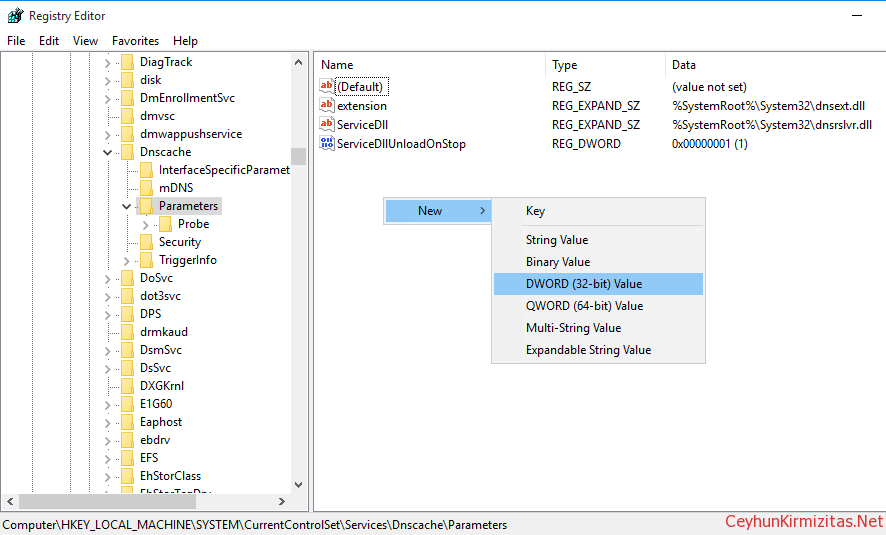
When a specific troubleshooting scenario requires negative DNS caching to be disabled, use the following registry location:
A value of 0 disables DNS negative caching for this setting.
Microsoft documents this registry value in troubleshooting scenarios where cached DNS failures prevent Windows from retrying domain or network detection correctly.
5. When Not to Disable It
Do not disable negative DNS caching simply because a DNS lookup failed once. Negative caching reduces repeated DNS queries for names that do not exist or are temporarily unavailable.
If failures occur regularly, fix the underlying DNS server, forwarding, routing, VPN, suffix, or record-registration problem instead of using the registry setting as the permanent solution.
6. Key Takeaways
Use ipconfig /displaydns to check whether a negative response is cached.
Use nslookup to test the DNS server without relying on the local resolver cache.
Try ipconfig /flushdns before changing registry settings.
MaxNegativeCacheTtl = 0 disables DNS negative caching for targeted troubleshooting.
Fix the underlying DNS problem rather than using the registry change as a general optimization.
Cloud and infrastructure professional with nearly two decades of experience in enterprise IT environments, spanning public cloud, private cloud, and hybrid architectures.