Microsoft is moving away from NTLM in Windows. For Exchange Server administrators, this raises an important question: What does this mean for Exchange client authentication, and where does Kerberos fit in?
In discussions with customers, I sometimes get the impression that moving away from NTLM means everything in Exchange should use Kerberos. But that is not how Exchange works. Different clients and services use different authentication methods. Kerberos can help reduce NTLM dependency, but it cannot replace all of them.
So I wanted to focus on three practical questions: Where does Kerberos really fit in Exchange Server? What does it take to configure it correctly? And how can we confirm that clients are actually using Kerberos rather than falling back to NTLM?
In this field guide, I walk through how to plan, configure, troubleshoot, and verify Kerberos authentication in Exchange Server. I explain not only what to configure, but also why each step matters and how the components work together. I also address common misconceptions and cover different Exchange architectures, so administrators can understand the configuration and adapt it to their own environments rather than simply copy and run commands.
We want supported Exchange clients to authenticate through Kerberos when that is the appropriate authentication method, without breaking existing client connections.
For a shared Exchange Client Access namespace, this means creating a dedicated Alternate Service Account (ASA), deploying its credentials to the Exchange servers, registering the correct HTTP Service Principal Names (SPNs), and confirming that the client actually uses Kerberos.
A successful Outlook connection is not enough to prove success. Negotiate can use Kerberos or fall back to NTLM. We will verify the result from the client, the domain controller, and the Exchange server.
The examples in this article use the Active Directory domain lab25.local (LAB25), Exchange server EX2501, and namespaces mail.onpremx.cloud and autodiscover.onpremx.cloud. Replace them with the names used in your environment.
2. Where Kerberos Fits in Exchange Server
Kerberos is one of several authentication mechanisms used around Exchange Server. Its role depends on the client protocol, access path, and authentication configuration. It does not replace OAuth, forms-based authentication, or every NTLM connection.
2.1 NTLM Today: Deprecated, Not Removed
Microsoft has deprecated NTLM in Windows, but that does not mean NTLM has already been removed from Exchange Server or can simply be disabled on its virtual directories.
Microsoft has also announced that network NTLM will be disabled by default in most cases in the next major Windows Server release and associated Windows client releases. The timeline may change, but the direction is clear: Exchange administrators need to understand their NTLM dependencies before that change arrives. This does not mean NTLM is already disabled in Exchange Server.
The direction is to reduce dependence on NTLM and use supported alternatives where possible. For Exchange Client Access connections using Integrated Windows Authentication, Kerberos is relevant because Negotiate can choose Kerberos when its requirements are met.
Important: Microsoft does not support removing NTLM or Negotiate authentication from Exchange virtual directories just because Kerberos has been configured.
2.2 Kerberos vs NTLM – What an Exchange Admin Needs to Know
With NTLM, the client authenticates without requesting an HTTP service ticket from the domain controller. With Kerberos, the client requests a ticket for a service identity represented by an SPN, such as HTTP/mail.onpremx.cloud.
Kerberos offers mutual authentication, helps reduce exposure to NTLM relay attacks, and can reduce domain controller authentication workload: the service can validate reusable tickets without asking a domain controller to authenticate every connection (although some validation may still involve a DC).
Kerberos is not risk-free. Service accounts can be targeted by Kerberoasting, especially when weak passwords or RC4-encrypted service tickets are involved. This is one reason to protect the ASA account, use AES encryption, and maintain its password.
Exchange must be able to accept and decrypt that ticket. In a shared Client Access namespace, the ASA credential provides the common Kerberos service identity across the Exchange servers that serve it.
Negotiate is not synonymous with Kerberos. Negotiate can select Kerberos or fall back to NTLM. Seeing Nego in Outlook Connection Status is not sufficient proof that the client used Kerberos.
2.3 Which Exchange Connections Can Use Kerberos
Classic Outlook can use Kerberos for supported Integrated Windows Authentication connections, including MAPI over HTTP and Outlook Anywhere. EWS, Autodiscover, and OAB can also use Kerberos when their clients and Windows Authentication settings support it.
Internal and external connections are not equivalent. Microsoft notes that Kerberos authentication is typically unavailable for external Outlook Anywhere connections. An externally connected Classic Outlook client may nevertheless use Kerberos if it can obtain the required service ticket, for example through a VPN that provides KDC connectivity. VPN is a possible access path, not a Kerberos requirement.
OWA and ECP depend on their selected browser authentication configuration. If they use forms-based authentication, AD FS, or OAuth, configuring ASA credentials for Outlook does not automatically make their sign-in use Kerberos.
Outlook for Mac, mobile applications, and other clients may use different authentication methods. They should not be treated as Kerberos clients simply because the Exchange namespace has an HTTP SPN.
Where Outlook uses Modern Authentication, OAuth is a separate authentication path from Kerberos.
2.4 What the Client Needs to Get a Kerberos Ticket
For a normal Kerberos flow, the client needs a usable domain identity, the ability to obtain a ticket from a suitable Key Distribution Center (KDC), the correct service name, and a service that can accept the ticket.
The client must request a ticket for the name it actually uses to reach Exchange. This is why the HTTP SPN belongs to the Client Access namespace rather than an arbitrary Exchange server hostname.
Clients outside the corporate network may still use Kerberos if they can obtain the required service ticket. VPN is one way to provide KDC connectivity, but VPN itself is not a Kerberos requirement.
A domain-joined Windows client is a common and straightforward scenario. Microsoft’s Exchange Kerberos guidance does not explicitly require domain membership for Classic Outlook scenarios; nevertheless, domain membership alone does not guarantee Kerberos if ticket acquisition or SPN configuration fails.
For OWA/ECP using Integrated Windows Authentication, Microsoft explicitly requires the client computer to be a member of the Exchange domain or a trusted domain. This is distinct from the Classic Outlook guidance above.
For workgroup (non-domain-joined) Windows clients, do not assume that Kerberos is a documented Exchange deployment scenario. Microsoft does not document Classic Outlook Kerberos in a workgroup configuration; a workgroup client should not be treated as automatically supporting Exchange Kerberos sign-in.
3. Client Access Namespaces and Kerberos Authentication
In this guide, my Active Directory domain is lab25.local (NetBIOS: LAB25), while Exchange clients use mail.onpremx.cloud and autodiscover.onpremx.cloud.
The Active Directory domain and Exchange Client Access namespaces do not need to share the same DNS suffix for Kerberos to work.
3.1 Who Owns HTTP/mail.onpremx.cloud?
When Outlook connects to mail.onpremx.cloud, the Kerberos service identity is based on the namespace it uses. For example, the relevant SPN is:
HTTP/mail.onpremx.cloud
For Autodiscover, it is:
HTTP/autodiscover.onpremx.cloud
These SPNs must be registered to the account that owns the shared Kerberos identity. They must not also be registered to another account in the forest.
A load balancer or DNS round robin may direct the client to different Exchange servers, but the HTTP service identity remains associated with the shared namespace.
3.2 What the Alternate Service Account (ASA) Does
Exchange uses an Alternate Service Account (ASA) to share one Kerberos service identity across Exchange servers that handle a common Client Access namespace.
Rather than registering HTTP/mail.onpremx.cloud separately to each Exchange server’s computer account, we register the SPN to the dedicated ASA computer account. Exchange servers serving that namespace receive the same ASA credentials.
In this article, that account is LAB25\EXCASA$.
The ASA identity is what allows a Kerberos ticket for the shared name to be accepted by more than one Exchange server.
3.3 Load Balancer, DNS Round Robin, Multiple Sites and Namespaces
The central rule is the same regardless of how clients reach Exchange: Exchange servers that may serve the same namespace must have the same ASA credentials. Microsoft supports CNAME records for shared namespaces but recommends A records to help clients request tickets for the shared name.
Load balancer: All participating Exchange servers need the shared ASA credential before the SPN is used for production traffic.
DNS round robin: Although it does not use a traditional load balancer, the same namespace can resolve to different Exchange servers. The shared ASA requirement still follows from that design.
Multiple sites: Multiple Active Directory sites do not automatically require multiple ASA accounts. A single ASA is generally sufficient within a forest for the supported Exchange versions.
Site failover: Exchange servers that may handle the namespace after a failover must already have the matching ASA credentials.
Multiple namespaces: Register each required HTTP/<namespace> SPN to the correct ASA identity. Additional namespaces do not automatically require new ASA accounts.
Before applying configuration, identify every Exchange server that may serve each namespace, including during failover.
4. Before You Configure
4.1 Check and Save the Existing Configuration
Before making changes, understand how Exchange is currently configured. Review the Client Access namespaces, HTTP SPNs, existing authentication methods, and any ASA credentials that may already be deployed.
Save the current configuration and authentication settings before proceeding. You will need this baseline to compare results and support rollback if necessary.
For a reusable backup of supported Exchange Client Access URL and namespace settings, you can use ExchangeURLManager.ps1. The tool creates versioned JSON backups and can restore supported settings on the same server. It does not back up ASA credentials or HTTP SPN registrations, so keep the Kerberos-specific checks below as part of your baseline. For usage and backup details, see Manage Exchange Server URLs and Namespaces with PowerShell.
In Exchange Management Shell, check the MAPI authentication settings:
The two checks are needed because mail.onpremx.cloud and autodiscover.onpremx.cloud are separate service names.
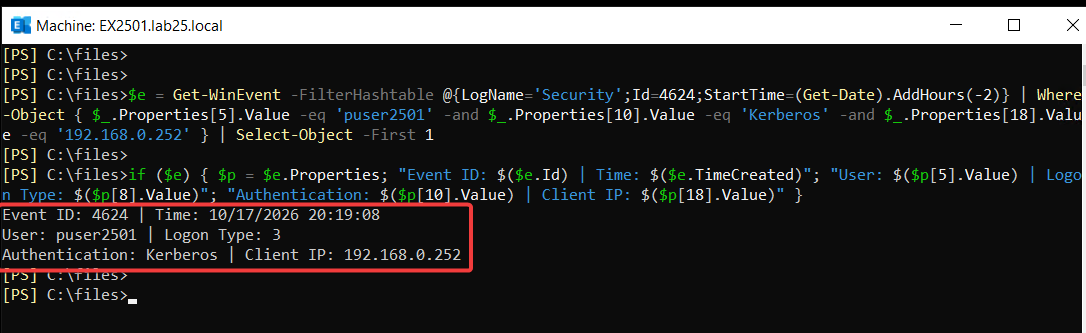
On a Windows client, use klist in the same user’s normal session as Outlook. Record whether any tickets exist for the Exchange HTTP namespaces. On Exchange, use Security Event 4624 to review the authentication package for a relevant client connection.
Save the results before moving forward.
4.2 Plan the Configuration
Now that we know the existing configuration, we can plan the Kerberos changes.
Namespaces and SPNs: Identify which Client Access names will use Kerberos and the HTTP SPNs required for each.
ASA and Exchange servers: Decide which ASA account to use and which Exchange servers need its credentials. Servers sharing the same namespace must be considered together.
Authentication settings: Keep existing authentication methods unless a change is necessary. Negotiate may already be enabled, in which case no MAPI/HTTP change is required.
AD readiness: Confirm that the ASA account has replicated to the domain controllers serving Exchange and that the required permissions are available for credential deployment.
Change sequence: Deploy the ASA credentials first, register the SPNs afterward, and verify Kerberos authentication.
Registering an HTTP SPN can affect clients using Negotiate for that namespace. Plan the change accordingly, especially in load-balanced or multi-site environments.
4.3 Rollback Plan
Prepare the rollback before making changes. Keep the authentication settings and SPN ownership captured in section 4.1.
If Kerberos must be rolled back, remove the HTTP SPNs first, then remove the ASA credentials from the participating Exchange servers. Do not delete an SPN that was present before your change without investigating its ownership.
On a domain controller, remove only the SPNs introduced for this deployment:
Repeat for other participating servers, then restore only the authentication settings changed during this deployment. Verify the result with Get-ClientAccessService -IncludeAlternateServiceAccountCredentialStatus.
Clients may retain cached Kerberos service tickets. Restart affected clients after rollback to clear the old tickets, and confirm that their Exchange connectivity works.
5. Configure Kerberos Authentication
5.1 Create the ASA Computer Account
On DC2501, open Active Directory Users and Computers, navigate to the Computers container, and select New > Computer.
Enter a name for the ASA computer account (for example, EXCASA) and create it.
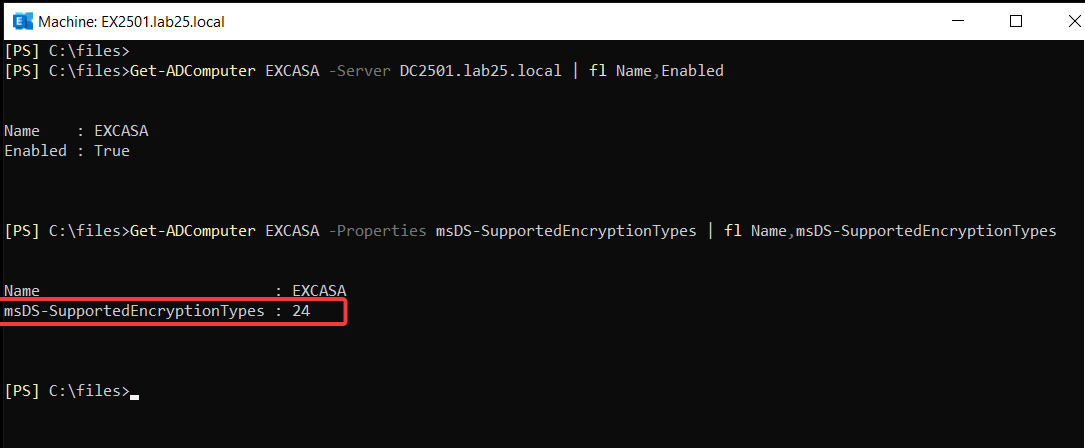
This creates the Active Directory computer account LAB25\EXCASA$.
After creating the ASA account, we need to deploy its credentials to the Exchange servers. All Exchange servers sharing the same Client Access namespace must use the same ASA credentials.
Repeat the command for other relevant domain controllers by changing -Server. Do not deploy the credential until the ASA account has replicated successfully.
Open Exchange Management Shell as Administrator and navigate to the Exchange Scripts directory:
PowerShell
cd $exscripts
Deploy to the first Exchange server
Run the following command, replacing the server and ASA account names with your own:
Include all existing authentication methods in the command. Do not remove OAuth, particularly in hybrid environments or where Modern Authentication is used.
Outlook Anywhere (RPC over HTTP)
If Outlook Anywhere is still in use, check its authentication settings:
Preserve any other existing authentication methods.
What about other virtual directories?
EWS, Autodiscover and OAB can also use Kerberos through the HTTP SPNs registered earlier. As long as Windows Authentication is enabled (the default) and IIS offers the Negotiate provider, they do not require separate SPNs or authentication changes simply because Kerberos is being configured for Outlook.
OWA, ECP and other Exchange endpoints should retain their existing authentication configuration unless a separate requirement calls for a change.
IIS Authentication Providers: Negotiate vs. Negotiate:Kerberos
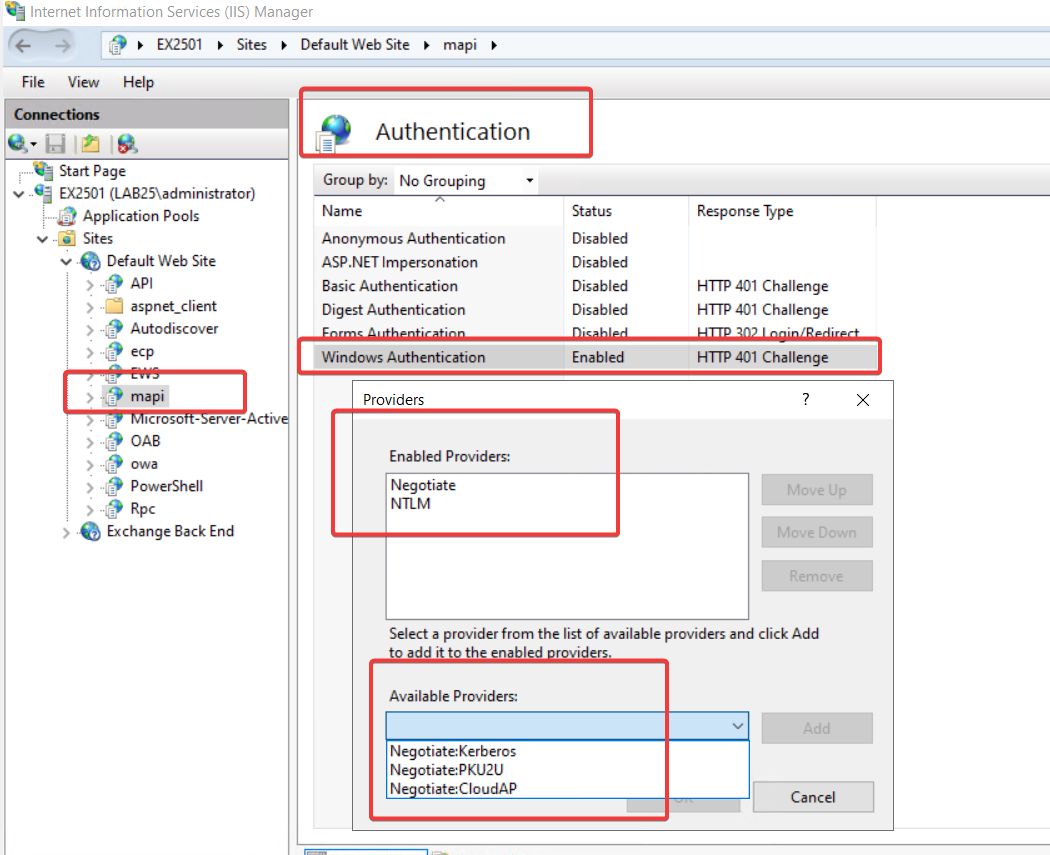
In IIS Manager, navigate to Default Web Site → mapi → Authentication → Windows Authentication → Providers.
The typical Exchange configuration lists Negotiate followed by NTLM.
Negotiate allows Windows to select Kerberos when the necessary conditions are met, with NTLM fallback when applicable. Negotiate:Kerberos, on the other hand, restricts the provider to Kerberos without NTLM fallback.
Although Negotiate:Kerberos is available in IIS, replacing the Exchange provider configuration with Kerberos-only authentication is not a documented Exchange configuration. Microsoft’s Kerberos configuration guidance specifies Ntlm,Negotiate for MAPI over HTTP, while preserving OAuth where required.
Security assessments may recommend removing Negotiate or NTLM from IIS. Do not apply generic IIS authentication recommendations directly to Exchange virtual directories. Removing Negotiate can prevent Kerberos authentication, while removing NTLM can break client compatibility.
If authentication settings are modified on Exchange virtual directories, such as adding NTLM or Negotiate, restart IIS before validating client connectivity.
PowerShell
iisreset /noforce
Perform the restart during a maintenance window, as active client connections will be temporarily interrupted.
When only ASA credentials or HTTP SPNs are configured, an IIS restart is not required.
Repeat the necessary configuration on all Exchange servers sharing the Client Access namespace.
We will verify actual Kerberos authentication in section 6.
5.5 Protect the ASA Account
The ASA account is a shared Kerberos service identity used by Exchange servers. It should be protected like any other service account.
Microsoft recommends using a dedicated Active Directory computer account for the ASA credential.
A few important precautions:
No elevated privileges: The ASA account does not need Domain Admins, Exchange administrative roles or other privileged group memberships. Membership in Domain Computers is sufficient.
Restrict access: Limit who can modify the ASA account, reset its password or change its registered SPNs.
Password management: Use RollAlternateServiceAccountPassword.ps1 for ASA password rotation. Do not reset the password manually without updating the Exchange servers.
Keep credentials consistent: All Exchange servers sharing the same ASA identity must have the same current credentials.
To review the account’s group memberships, run the following on a domain controller:
PowerShell
Get-ADPrincipalGroupMembership'EXCASA$'|Select-Object Name
The ASA account should not belong to unnecessary privileged groups.
Do not use a Group Managed Service Account (gMSA) for this configuration. Microsoft does not support gMSAs for on-premises Exchange Server ASA credentials.
We will cover password rotation and ongoing maintenance in section 8.
6. Verify That Kerberos Is Really Used
The configuration is complete, but that does not necessarily mean Outlook is using Kerberos.
Even when Negotiate is enabled, authentication can fall back to NTLM. We need to verify what is actually happening.
6.1 Check the Kerberos Tickets on the Client
Sign in to a domain-joined Windows computer and open Classic Outlook.
Once Outlook connects to Exchange, open a normal, non-elevated Command Prompt or PowerShell window using the same Windows user account that runs Outlook.
Do not use Run as administrator. Kerberos tickets are stored per logon session, and an elevated session may have a different ticket cache. Checking the wrong session can make it appear that Kerberos is not working.
Run:
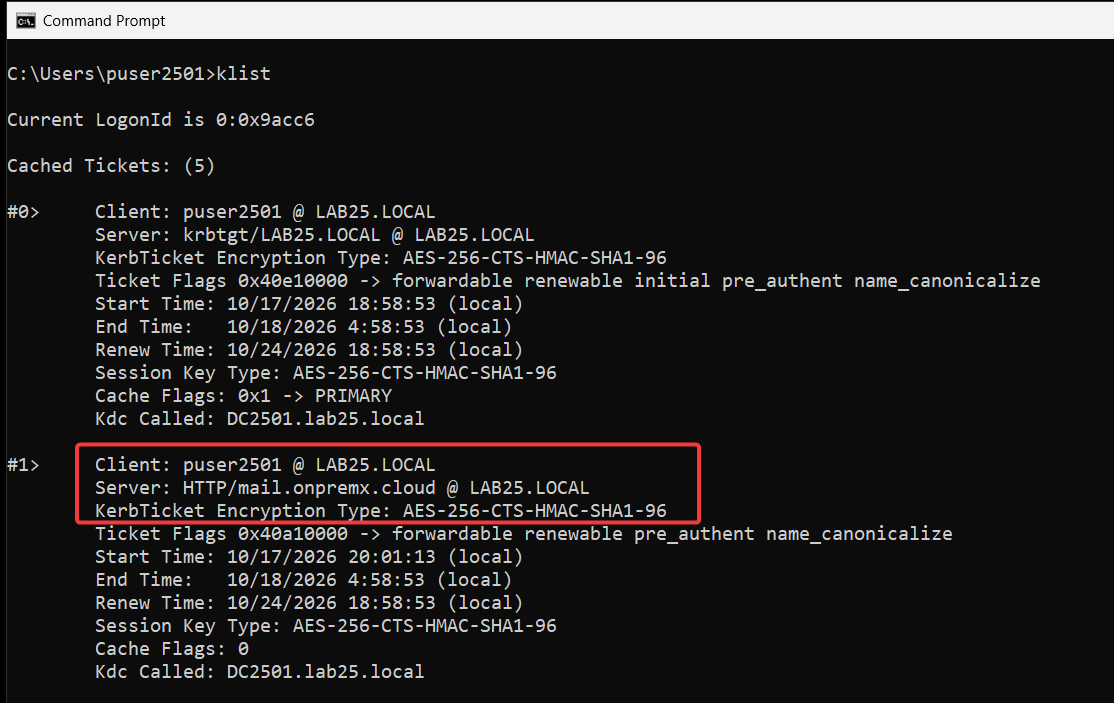
klist
Look for tickets associated with your Exchange namespaces:
This confirms that Windows obtained a Kerberos service ticket for the Exchange namespace.
If no HTTP ticket appears, do not assume Kerberos is working simply because Outlook connects successfully.
6.2 Verify the Ticket Request on the Domain Controller
On a domain controller, open Event Viewer → Windows Logs → Security.
Filter for Event ID 4769 (A Kerberos service ticket was requested).
Look for a ticket request associated with the Exchange ASA account (EXCASA$).
Check these fields:
Account Name: The user requesting the ticket.
Service Name: The ASA account.
Ticket Encryption Type: The encryption algorithm used for the ticket.
For example:
Service Name: EXCASA$
Ticket Encryption Type: 0x12
0x12 indicates AES256. 0x11 indicates AES128.
This verifies that the domain controller issued a Kerberos service ticket for the ASA account. It does not, by itself, prove that Exchange accepted the ticket.
6.3 Verify Authentication on the Exchange Server
On the Exchange server handling the client connection, open Event Viewer → Windows Logs → Security.
Filter for Event ID 4624 (An account was successfully logged on).
Find the relevant client connection and check:
Authentication Package: Kerberos
Correlate the event with the user, client address and connection time.
This provides server-side evidence that Kerberos authentication succeeded.
6.4 Check Outlook Connection Status
In Classic Outlook, hold Ctrl, right-click the Outlook icon in the Windows notification area, and select Connection Status.
Check the authentication information for the Exchange connections.
You may see:
Authn: Nego
Nego means Negotiate, not necessarily Kerberos. It can represent Kerberos or NTLM, so Outlook Connection Status alone is not sufficient evidence.
6.5 Confirm the Result
For a successful validation, look for evidence from both sides:
Location
Expected evidence
Windows client
klist shows an HTTP ticket for the Exchange namespace
Domain controller
Event 4769 shows a ticket issued for the ASA account
The strongest confirmation comes from checking the client ticket and correlating the domain controller and Exchange events by user, service, client and time. Do not assume that Event 4769 and Event 4624 have a one-to-one match.
If Outlook connects but these checks show NTLM instead of Kerberos, continue with the troubleshooting section.
7. Troubleshooting
If Kerberos is not working after configuration, start with the symptom. There is no need to recreate the ASA account or change authentication settings before identifying the problem.
7.1 Outlook Connects, but No Kerberos Ticket Appears
On the Windows client, open a normal, non-elevated PowerShell window using the same account that runs Outlook:
klist
If there is no HTTP/mail.onpremx.cloud ticket, check the following:
DNS resolution — on the client
nslookup mail.onpremx.cloud
Confirm that the namespace resolves to the intended Exchange endpoint or load balancer.
SPN ownership — on a domain controller
setspn -F -Q HTTP/mail.onpremx.cloud
The SPN should belong to LAB25\EXCASA$, not an individual Exchange server or another account.
MAPI authentication — in Exchange Management Shell
Also verify that the client can communicate with a domain controller and obtain Kerberos tickets. Clients without access to a suitable KDC may fall back to NTLM.
Time synchronization — on the client, Exchange server and domain controller
w32tm /query /status
Kerberos authentication can fail when the clock difference exceeds the default five-minute tolerance.
7.2 Kerberos Ticket Exists, but Authentication Fails
Having a Kerberos service ticket does not guarantee that Exchange can decrypt and accept it.
First, check the ASA credentials on the Exchange server:
Confirm that the Latest credential belongs to LAB25\EXCASA$.
Then check the Microsoft Exchange Service Host service on that server:
Get-Service MSExchangeServiceHost
It should be running.
Also investigate incorrect SPN ownership, outdated ASA credentials and Kerberos errors such as KRB_AP_ERR_MODIFIED, which can indicate that the service cannot decrypt the ticket.
Do not reset the ASA password as an initial troubleshooting step.
7.3 Kerberos Works on One Exchange Server but Fails on Another
This is particularly important in load-balanced environments.
All Exchange servers sharing the same Client Access namespace must have the same ASA credentials.
Do not generate a different ASA password for the second server.
Also verify that the load balancer sends traffic only to Exchange servers configured for the shared namespace.
7.4 Outlook Shows Negotiate but Still Uses NTLM
Nego in Outlook Connection Status does not prove Kerberos.
Check the client’s Kerberos tickets using klist, then correlate the connection with Exchange Security Event 4624.
If NTLM is still being used, investigate:
Missing or incorrect HTTP SPNs.
Negotiate not enabled for the relevant Exchange protocol.
Client connectivity to a domain controller.
Authentication changes introduced by a proxy or other intermediary.
An outdated cached ticket following an ASA or SPN change.
For a controlled retest, close Outlook and purge the current user’s Kerberos tickets:
klist purge
Then reopen Outlook and check again:
klist
Purging tickets affects other Kerberos connections in the same logon session, so avoid doing this during critical user activity.
7.5 Check Exchange HttpProxy Logs
Exchange HttpProxy logs help identify which authentication method was used for a particular HTTP connection.
Default locations:
MAPI over HTTP
%ExchangeInstallPath%\Logging\HttpProxy\Mapi
Outlook Anywhere
%ExchangeInstallPath%\Logging\HttpProxy\RpcHttp
Open the relevant log and inspect the AuthenticationType, client IP, username, HTTP status and timestamp.
An AuthenticationType value of Negotiate is useful evidence, but correlate it with Kerberos tickets and Security events before concluding that the client used Kerberos rather than NTLM.
Troubleshooting principle: Check the client ticket, SPN ownership, ASA deployment and Exchange authentication settings before making configuration changes.
8. Operations and Lifecycle
Kerberos configuration is not something we need to change frequently. However, ASA password rotation, Exchange server replacements and namespace changes require some attention.
8.1 ASA Password Rotation
Microsoft recommends periodically rotating the ASA account password, even when using an Active Directory computer account whose password does not expire automatically.
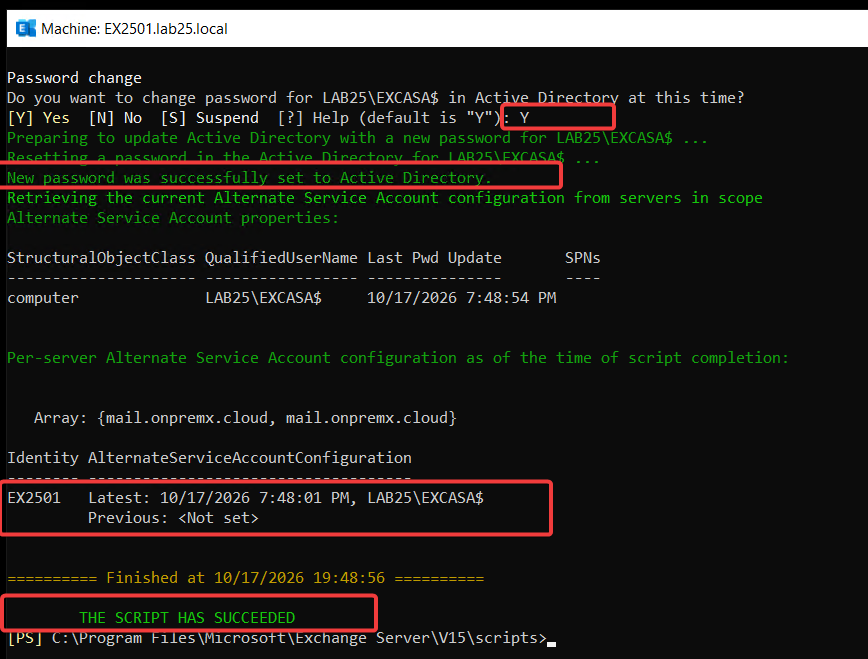
Use RollAlternateServiceAccountPassword.ps1, not a manual password reset. During rotation, the script distributes the new credentials before updating the password in Active Directory and can retain the previous credential during the transition.
Open Exchange Management Shell as Administrator:
cd $exscripts
If all Exchange servers targeted in the forest use the same ASA account, you can rotate the password across them in one operation:
Check the target server list before confirming the AD password change. In attended mode, do not approve the password change unless the new credential has been distributed successfully to every intended server.
Do not use -ToEntireForest if it would include servers using a different ASA identity. In that case, select the correct set of servers using the script’s supported targeting options and verify the targets before rotating the AD password. Servers temporarily offline must receive the current credentials before they return to client traffic.
Verify the deployment on every participating Exchange server:
Confirm that the script completed successfully and the Latest entry shows LAB25\EXCASA$ on each server. Allow for Active Directory replication, then verify Kerberos client connectivity.
Consider automating periodic rotation only after the attended procedure works reliably. Monitor scheduled execution and failures.
8.2 Adding or Replacing Exchange Servers
When introducing a new Exchange server that will serve an existing Client Access namespace, deploy the existing ASA credential before directing client traffic to it.
For example, if EX2502 is already configured and EX2503 is the new server:
cd $exscripts

.\RollAlternateServiceAccountPassword.ps1 -ToSpecificServer EX2503.lab25.local -CopyFrom EX2502.lab25.local
Verify the ASA credential on EX2503 before adding it to the load balancer or DNS rotation.
There is no need to create another ASA account or register duplicate HTTP SPNs when the new server uses the existing namespace.
8.3 Namespace and Site Changes
When introducing a new Client Access namespace, check whether its HTTP SPN is registered to the appropriate ASA account.
For example:
setspn -F -Q HTTP/mail2.onpremx.cloud
If the SPN is not registered and the new namespace uses the existing ASA identity:
For multiple Active Directory sites, determine which Exchange servers serve each namespace. Multiple sites do not automatically require separate ASA accounts. A single ASA account is generally sufficient within an Active Directory forest. All Exchange servers that may serve the same namespace, including during site failover, must have the same ASA credentials.
When removing an Exchange server, do not remove the shared ASA account or its SPNs if other servers still use them.
8.4 Routine Health Checks
Include a few Kerberos checks in regular Exchange maintenance:
ASA credentials: Confirm that participating servers have valid, consistent credentials.
SPNs: Check ownership when adding or changing namespaces.
Password rotation: Verify successful execution and investigate failures.
Authentication: Investigate unexpected NTLM usage or Kerberos errors following infrastructure changes.
Kerberos should remain operational through normal Exchange maintenance without repeated authentication reconfiguration.
The main operational rule is simple: Keep the ASA identity, credentials and HTTP SPN ownership consistent with the Exchange servers serving each namespace.
9. After Kerberos: What Still Uses NTLM
Configuring Kerberos does not eliminate NTLM from Exchange Server.
Internal and external Classic Outlook clients can use Kerberos when they can obtain the required service tickets. VPN can provide access to a domain controller, but VPN itself is not a requirement.
Other clients and services may continue using NTLM, OAuth or different authentication methods, depending on their configuration.
Important: Do not remove Ntlm from Exchange virtual directory authentication settings simply because Kerberos is working. Microsoft does not support disabling NTLM or Negotiate on Exchange virtual directories.
After configuring Kerberos, check whether NTLM is still being used where Kerberos is expected.
Use Windows Security Event 4624 and Exchange HttpProxy logs to identify the authentication method and affected clients.
If a Kerberos-capable client still uses NTLM, investigate its SPN, ASA credentials, authentication settings and KDC connectivity.
The goal is to reduce unnecessary NTLM usage, not to force every Exchange client to use Kerberos.
10. Key Takeaways
Kerberos does not replace every Exchange authentication method. It reduces NTLM dependency for supported clients and services.
The ASA account and HTTP SPNs are central to the configuration. All Exchange servers sharing a Client Access namespace must have the appropriate ASA credentials, including servers used during failover.
Preserve existing authentication methods. Enable Negotiate where required without unnecessarily changing OAuth, NTLM or other authentication settings.
Verify actual Kerberos usage. Negotiate alone is not proof. Check client Kerberos tickets, domain controller events and Exchange authentication logs.
Plan for ongoing maintenance. ASA password rotation, server replacements and namespace changes must preserve consistent credentials and SPN ownership.
Cloud and infrastructure professional with nearly two decades of experience in enterprise IT environments, spanning public cloud, private cloud, and hybrid architectures.