Applies to: Windows 11 25H2
Summary: On a Windows 11 25H2 VM, the entire system tray disappeared after installing KB5121003 and again after KB5120998 Preview. Removing KB5121003 brought the icons back on OS Build 26200.8037. On October 12, 2026, I installed KB5124010 Preview. After restarting Windows, the clock, network, volume and other system tray icons returned. This is what I observed on this VM; it is not a confirmed fix for every Windows 11 computer.
Microsoft did not list this exact system-tray symptom as a known issue for KB5121003 when the original article was written.
In This Article
- 1. KB5124010 Preview — System Tray Restored
- 2. Update Results
- 3. Final Thoughts
- 4. Earlier Updates and Rollback (Historical Reference Only)
1. KB5124010 Preview — System Tray Restored
I installed the September 2026 non-security preview update KB5124010 on the affected Windows 11 Enterprise 25H2 VM. Before installation, winver showed OS Build 26200.9457 and the system tray was still empty. Windows Update offered KB5124010 for OS Build 26200.9550.
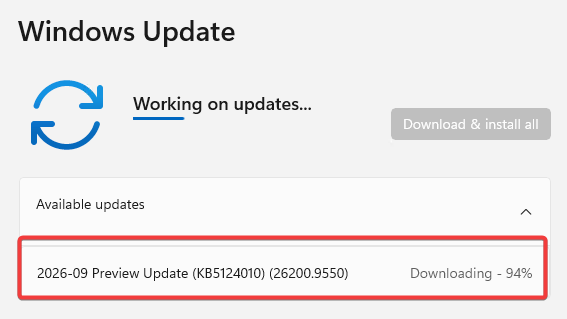
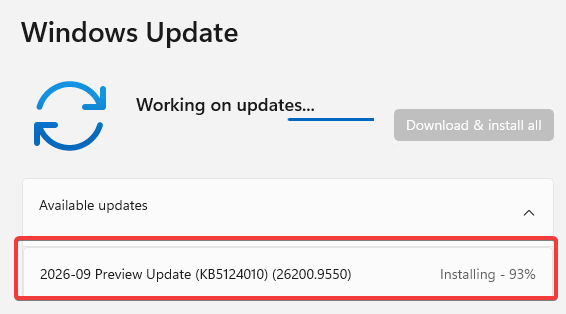
After installing KB5124010 and restarting Windows, the clock, date, language indicator, network and volume icons were visible again. These icons had been missing before the update.
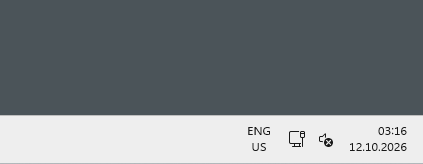
The system tray returned after the first restart. I confirmed OS Build 26200.9550 with winver. I have not yet checked whether the icons remain visible after further restarts. Microsoft’s KB5124010 release notes do not explicitly mention this exact issue. I cannot confirm which Windows change resolved it.
1.1. How to Install KB5124010
1. Windows Update
Open Settings → Windows Update → Advanced options → Optional updates. If KB5124010 is available, select Download & install. Restart Windows when prompted.
2. Microsoft Update Catalog
Download the update from the Microsoft Update Catalog — KB5124010. Choose the packages for your Windows version and architecture.
For manual installation, Microsoft lists KB5043080 as the required checkpoint cumulative update before KB5124010. If the checkpoint is already installed, it does not need to be installed again. Follow the package order in the official KB5124010 installation instructions.
2. Update Results
| Update state | OS build | Result |
|---|---|---|
| KB5121003 installed | 26200.9168 | System tray missing |
| KB5121003 removed | 26200.8037 | System tray restored |
| KB5120998 Preview installed | 26200.9278 | System tray missing again |
| Before KB5124010 Preview | 26200.9457 | System tray still missing |
| KB5124010 Preview installed and restarted | 26200.9550 | System tray restored after restart |
3. Final Thoughts
The system tray was missing on builds 26200.9168 and 26200.9278, but returned on 26200.8037 after the rollback. It was still missing on 26200.9457 before I installed KB5124010 Preview. After the update and restart, the system tray returned.
This does not mean the earlier updates affect every Windows 11 25H2 computer, or that KB5124010 fixes the issue everywhere. I have not identified the exact Windows component responsible. I will update the article if the behavior changes after later restarts or updates.
4. Earlier Updates and Rollback (Historical Reference Only)
Below are the earlier update results, rollback steps and screenshots. I have kept them for reference, but the rollback is no longer the first option I would try after the KB5124010 result.
4.1. Initial Environment and Build
The affected system was a non-touch Windows 11 25H2 virtual machine. Its starting build was 26200.9168. Microsoft documents this build in the August 11, 2026 security update KB5121003.
Windows Update history also showed KB5121003 as successfully installed.
If you want to verify the installed state from PowerShell, use:
Get-HotFix -Id KB51210034.2. Original System Tray Symptom
After the update and restart, the taskbar itself still loaded, but the entire system tray area on the right side disappeared. The clock, network, volume and other notification-area icons were all missing.
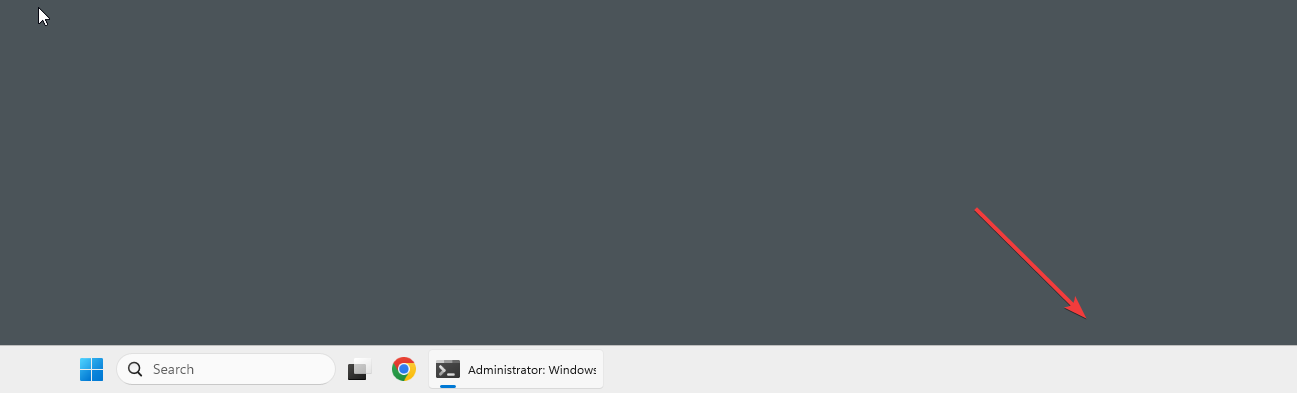
The useful result came from comparing the same VM before and after removing the cumulative update.
4.3. KB5121003 Rollback
Windows Update automatically offered the same security update again. I temporarily paused Windows Update before uninstalling KB5121003 so it would not be reinstalled during the next restart.
I then started the uninstall from an elevated PowerShell window. The command opens Windows Update Standalone Installer and asks for confirmation.
wusa /uninstall /kb:5121003After the removal completed, Windows required a restart to finish the servicing operation.
4.4. Result After Rollback
After removing KB5121003 and restarting, the system tray returned immediately. The clock, network, volume and other notification-area icons were visible again.
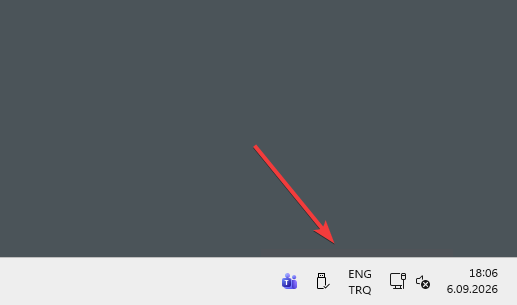
The update was no longer installed after the rollback. Get-HotFix -Id KB5121003 returned no matching hotfix, and winver showed that the rollback returned Windows 11 25H2 to OS Build 26200.8037.
4.5. Temporarily Hide KB5121003
Because Windows Update can offer KB5121003 again, I used the PSWindowsUpdate module to hide the update after the rollback. PSWindowsUpdate is a third-party PowerShell module available from the PowerShell Gallery.
If the module is not already installed, install it from an elevated PowerShell session:
Install-Module PSWindowsUpdate -ForceAfter the rollback, resume Windows Update so the update becomes visible to the Windows Update API. Once KB5121003 is offered again, hide it before allowing another restart:
Hide-WindowsUpdate -KBArticleID KB5121003 -Confirm:$false

Get-WindowsUpdate -IsHidden -KBArticleID KB5121003The H flag in the output confirms that KB5121003 is hidden. This kept the VM on the working rollback build while I checked the next available update.
4.6. KB5120998 Preview Update
Leaving an August security cumulative update removed is not a good long-term answer, so I installed the later KB5120998 cumulative preview. Microsoft documents OS Build 26200.9278 for Windows 11 25H2. Windows client updates are cumulative, so newer packages also carry forward earlier cumulative fixes.
Under Taskbar, Microsoft’s KB5120998 release notes say that the update improves the reliability of loading the system tray on non-touch PCs. This VM has no touch screen, so I expected an improvement. Microsoft lists the change as a gradual rollout, which means availability can vary by device.
After installing KB5120998 and restarting Windows, the entire system tray disappeared again.

In this VM, KB5120998 did not provide a working replacement for the rollback. The issue was reproducible on both 26200.9168 with KB5121003 and 26200.9278 with KB5120998.
4.7. Security Considerations
KB5121003 is a security update. Removing it rolls back the security fixes delivered by that cumulative update. Hiding it indefinitely would therefore leave the device below the current security servicing level.
KB5120998 carries forward previously released fixes, but the system tray disappeared again on this VM. Installing KB5124010 Preview later restored the icons after a restart. For production computers, removing and hiding security updates should only be a temporary workaround after considering the security impact. Check a current update on a small number of devices first.
References
- August 11, 2026—KB5121003 (OS Builds 26200.9168 and 26100.9168) – Microsoft Support
- August 27, 2026—KB5120998 (OS Builds 26200.9278 and 26100.9278) Preview – Microsoft Support
- September 22, 2026—KB5124010 (OS Build 26200.9550 for Windows 11 25H2) Preview – Microsoft Support

Cloud and infrastructure professional with nearly two decades of experience in enterprise IT environments, spanning public cloud, private cloud, and hybrid architectures.