Applies to: Exchange Server SE / 2019 / 2016
Exchange Server can generate a large amount of log data over time, especially Message Tracking, SMTP protocol, and connectivity logs. By default, these logs are usually stored under the Exchange installation path, which is commonly on the system drive.
I created ExchangeLogPathManager.ps1 to make it easier to review and compare transport log paths across multiple Exchange servers, and safely move supported high-growth transport logs to a dedicated log drive when needed.
The script works with supported Transport Service, Front End Transport, and Mailbox Transport log path settings. Version 1.1 also adds Interactive Configure and explicit Review modes while keeping the same Preview, confirmation, pre-change snapshot, drift protection, Apply, and verification workflow.
Download ExchangeLogPathManager.ps1
Questions and feedback are welcome in the comments below. For script issues or feature requests, please use GitHub Issues.
In This Article
- 1. What the Script Manages
- 2. Parameters
- 3. Reviewing the Current Log Paths
- 4. Moving Transport Logs to a Dedicated Log Drive
- 5. Interactive Configure Mode
- 6. Bare Drive Root Safety
- 7. Comparing Exchange Servers and Cloning Log Paths
- 8. Preview, Apply, Snapshot, and Verification
- 9. Saving the Report to a File
- 10. Key Takeaways
1. What the Script Manages
ExchangeLogPathManager.ps1 works with supported log path settings from three Exchange transport components:
- Transport Service
- Front End Transport
- Mailbox Transport
The script reviews 22 log path settings in total.
The script is designed for multi-server environments. Review and Log Root modes can target multiple servers with -Server, Interactive Configure can collect a server list, and comparison can use one source server against one or more target servers.
In Log Root and Interactive Configure modes, the script automatically manages 10 higher-growth transport log paths that are typically the most useful to place on a dedicated log drive:
- Message Tracking
- Connectivity
- SMTP Receive Protocol
- SMTP Send Protocol
These paths are handled across the relevant Transport Service, Front End Transport, and Mailbox Transport services.
Other supported transport log paths remain visible during Review and are compared, and can also be applied, in Clone mode.
PipelineTracingPath remains Review Only because pipeline tracing can capture message content.
Not managed by this version
ExchangeLogPathManager.ps1 does not manage:
- IIS logs
- HttpProxy and other Exchange diagnostic logging folders
- Queue database or queue transaction log paths
- Mailbox databases
- Mailbox database transaction logs
The script also does not create log directories.
2. Parameters
| Parameter | Description |
|---|---|
-Review | Explicitly starts Configuration Review mode. Running the script without a mode parameter also starts Review. |
-Server | One or more Exchange Mailbox servers. In Review and Log Root mode, the local server is used when omitted. In Interactive Configure mode, the script asks for the server list. |
-LogRootPath | Local absolute path used as the new log root, for example E:\EXCLOG. |
-Interactive | Starts guided Interactive Configure mode. It is Preview-only unless -ApplyChanges is specified and requires an interactive console. |
-SourceServer | Live Exchange server used as the reference for comparison and as the source when cloning log path settings. |
-TargetServer | One or more target Exchange servers used for comparison and, with -ApplyChanges, for cloning the proposed log path settings. |
-ApplyChanges | Enables the Apply path. Without it, configuration modes remain Preview-only. |
-OutputFile | Writes the review or proposed changes to a TXT file without applying Exchange configuration changes. |
-NoPaging | Disables console paging. |
-WhatIf | Shows the Apply workflow without making Exchange configuration changes. Use with -ApplyChanges. |
-Confirm | Uses PowerShell confirmation behavior during the Apply workflow. |
-Help | Displays the built-in usage guide. |
3. Reviewing the Current Log Paths
Running the script without additional parameters starts Configuration Review mode:
.\ExchangeLogPathManager.ps1You can also select Review explicitly:
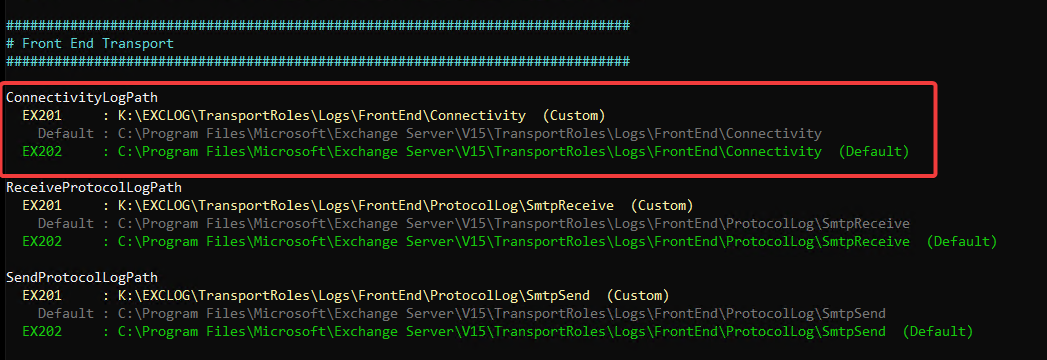
.\ExchangeLogPathManager.ps1 -ReviewThe output is grouped by component, then setting, then server. Each server line shows the current path and whether it is Default or Custom. For a Custom path, the default path is shown below it. Review Only settings, such as PipelineTracingPath, are marked.
To review multiple Exchange servers:
.\ExchangeLogPathManager.ps1 -Review -Server EX01,EX02If one server cannot be read, the remaining servers are still reviewed where possible.
This is useful before an upgrade or side-by-side deployment to quickly see which servers still use the default Exchange log locations and which ones already have custom paths configured.
4. Moving Transport Logs to a Dedicated Log Drive
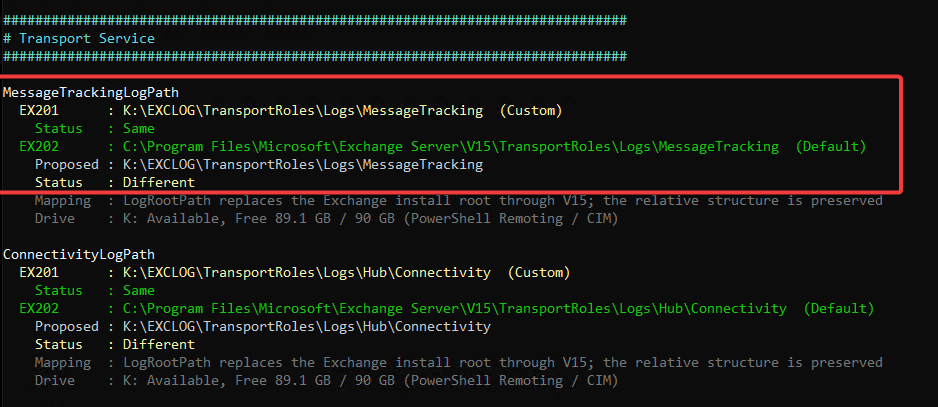
Log Root mode builds a Current → Proposed plan for moving the selected higher-growth transport log paths below a new local log root.
For example:
.\ExchangeLogPathManager.ps1 -Server EX01,EX02 -LogRootPath E:\EXCLOGWithout -ApplyChanges, the script only shows the proposed changes.
The existing Exchange directory structure below V15 is preserved. For example, C:\Program Files\Microsoft\Exchange Server\V15\TransportRoles\Logs\MessageTracking is proposed as E:\EXCLOG\TransportRoles\Logs\MessageTracking.
The Preview also shows target-drive validation and available free space before any change is made.
To apply the reviewed plan:
.\ExchangeLogPathManager.ps1 -Server EX01,EX02 -LogRootPath E:\EXCLOG -ApplyChangesWith -ApplyChanges, the script shows the complete Preview and asks for confirmation before Exchange configuration is changed.
After confirmation, the script reads the current configuration again, creates a fresh pre-change snapshot, rebuilds the plan, and checks for drift. If the configuration changed after the Preview, Apply is blocked instead of using a stale plan.
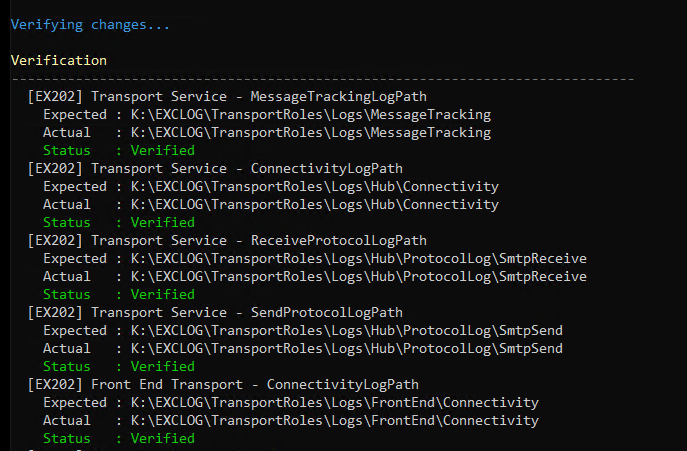
After Apply, the script reads the settings again and verifies the resulting configuration.
5. Interactive Configure Mode
Version 1.1 adds a guided Interactive Configure mode:
.\ExchangeLogPathManager.ps1 -InteractiveThe top-level menu provides two configuration options:
- Common Log Root Path
- Advanced per-component configuration
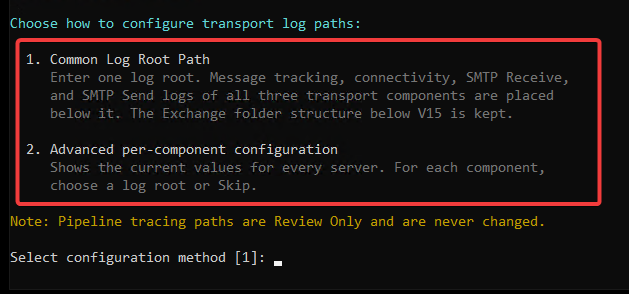
Common Log Root Path applies one selected root to the supported higher-growth log paths.
Advanced configuration lets you independently choose whether to configure or skip Transport Service, Front End Transport, and Mailbox Transport.
Interactive mode is Preview-only by default and requires an interactive console.
If -Server is omitted, the script asks for the server list and validates the entered server names. Advanced mode first shows the current values and uses Skip as the conservative default. Selections are collected once and are not requested again after Preview.
Common Log Root Path feeds the same planning logic used by -LogRootPath.
To allow Apply:
.\ExchangeLogPathManager.ps1 -Interactive -ApplyChangesInteractive mode uses the same desired-state, Preview, snapshot, drift-check, Apply, and verification workflow as Log Root mode.
6. Bare Drive Root Safety
A path such as K:\ is technically a valid local drive root, but configuring Exchange log paths directly under the root of a drive can be easy to do accidentally.
Version 1.1 therefore adds a dedicated safety check.
With -LogRootPath, Preview, -OutputFile, and -WhatIf runs only show the warning and remain non-destructive.
In Interactive Configure mode, the dedicated question is asked as soon as a bare drive root is entered, in every run: Use the drive root anyway? [y/N]
The default answer is No. If No is selected in Interactive Configure mode, the script asks for a different log root. For a real -LogRootPath Apply, rejecting the dedicated confirmation exits without making changes.
This dedicated safety confirmation is separate from normal PowerShell confirmation behavior. Using -Confirm:$false does not bypass it.
A non-interactive real Apply to a bare drive root is blocked. Version 1.1 does not provide an unattended override for this safety gate.
A normal path such as K:\EXCLOG does not trigger the bare-drive-root warning.
7. Comparing Exchange Servers and Cloning Log Paths
You can first compare the log path configuration of a source Exchange server with one or more target servers without making any changes.
.\ExchangeLogPathManager.ps1 -SourceServer EX01 -TargetServer EX02,EX03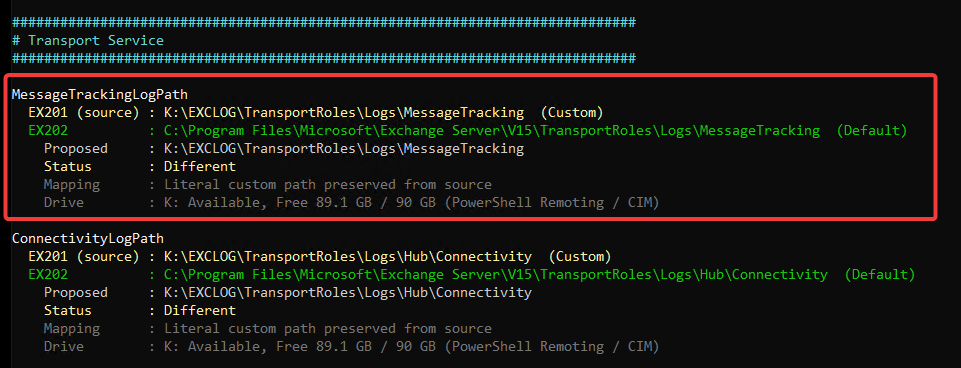
The source server is read live and used as the configuration reference.
If a source path uses the default Exchange installation path, the script translates that path to the target server’s own Exchange installation path.
If the source uses a custom path below the Exchange installation path, the relative folder structure is preserved on the target.
If the source uses a local absolute custom path outside the Exchange installation path, that path is proposed literally. If the required drive does not exist on the target server or is not a local fixed disk, that setting is not applied automatically.
To clone the proposed log path settings to the target servers, use -ApplyChanges:
.\ExchangeLogPathManager.ps1 -SourceServer EX01 -TargetServer EX02,EX03 -ApplyChangesThe script shows the complete Preview and asks for confirmation before applying changes. The same pre-change snapshot, stale-plan protection, and post-Apply verification workflow is used here as well.
8. Preview, Apply, Snapshot, and Verification
Configuration-changing modes use the same safety workflow: Preview → Confirm → JSON pre-change snapshot → Drift check → Apply → Verify.
No Exchange configuration change is made unless -ApplyChanges is specified and the required confirmation is accepted.
After confirmation, the script:
- reads the current Exchange configuration again
- creates a fresh pre-change JSON snapshot with a TXT companion; Apply does not start if the required snapshot cannot be created
- rebuilds the plan from the fresh state
- checks that the reviewed plan is still current
- blocks Apply if any relevant setting changed after the Preview
- applies only the required Exchange configuration changes
- reads the changed settings again and verifies the result
The pre-change files are stored in the ConfigBackups folder next to the script.
The script does not create target log directories.
9. Saving the Report to a File
You can use -OutputFile to save the current review or proposed changes to a text report.
For example:
.\ExchangeLogPathManager.ps1 -Server EX01,EX02 `
    -LogRootPath E:\EXCLOG `
-OutputFile C:\Temp\ExchangeLogPath-Report.txtThe report includes the reviewed configuration, proposed paths, and the Set-* commands that would be used.
-OutputFile is always non-destructive. Even if -ApplyChanges is also specified, the script writes the report and does not change Exchange configuration.
The script also prevents an existing output file from being overwritten accidentally.
10. Key Takeaways
- ExchangeLogPathManager.ps1 reviews 22 supported Transport Service, Front End Transport, and Mailbox Transport log path settings.
- Log Root and Interactive Configure modes manage the main high-growth transport logs.
- Multi-server workflows are supported: Review and Log Root can target multiple servers, while comparison can use one source server against one or more targets.
- Every real change goes through Preview, confirmation, pre-change snapshot, drift protection, Apply, and verification.
-OutputFileremains non-destructive even when-ApplyChangesis supplied.
References
Microsoft Learn – Transport logs in Exchange Server
Microsoft Learn – Message tracking
Microsoft Learn – Protocol logging

Cloud and infrastructure professional with nearly two decades of experience in enterprise IT environments, spanning public cloud, private cloud, and hybrid architectures.