Applies to: Exchange Server SE / 2019 / 2016 | Exchange Online | Hybrid
In Exchange Hybrid environments, shared calendar behavior after mailbox migration is often misunderstood. Calendar access does not automatically fail when a mailbox moves to Exchange Online, but the result depends on the permission type, how it was assigned, and the hybrid configuration. This article walks through a controlled test and shows the behavior observed before and after the move.
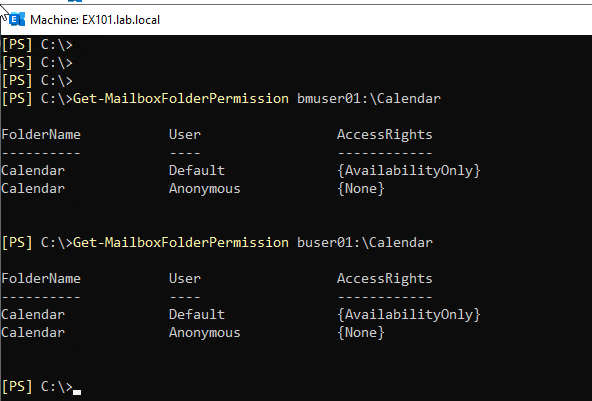
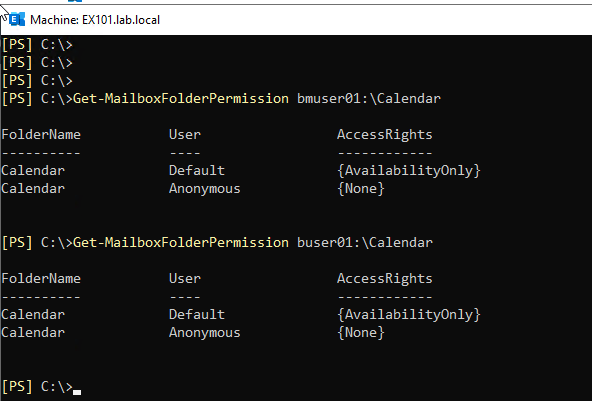
The important distinction in this test is between free/busy visibility provided by the Default calendar permission and an explicit folder permission. In this environment, the Default entry was AvailabilityOnly, so only free/busy information was visible. After explicit Reviewer permissions were assigned, both users could see calendar details.
The explicit Reviewer permissions were configured before the mailbox move.
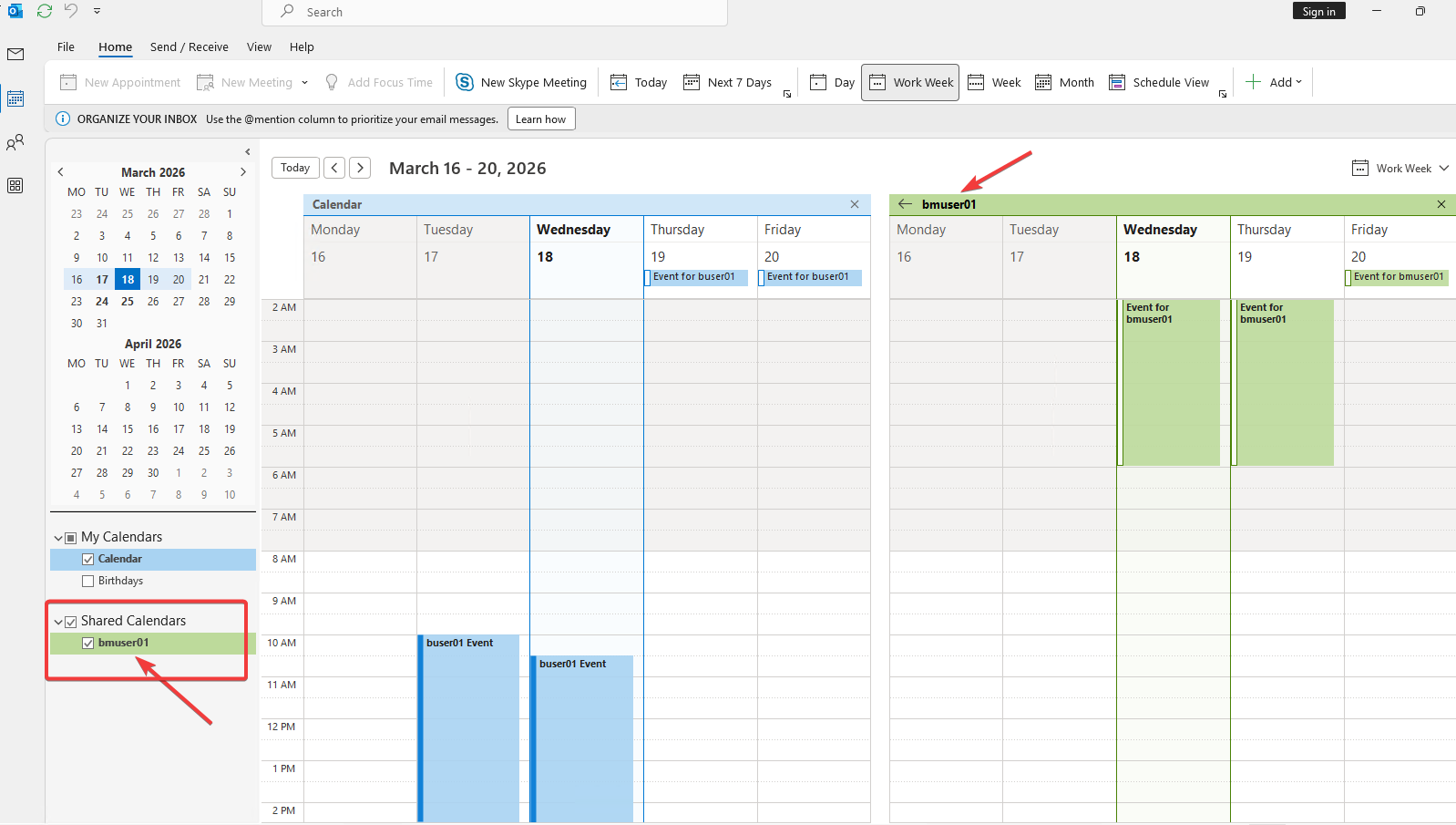
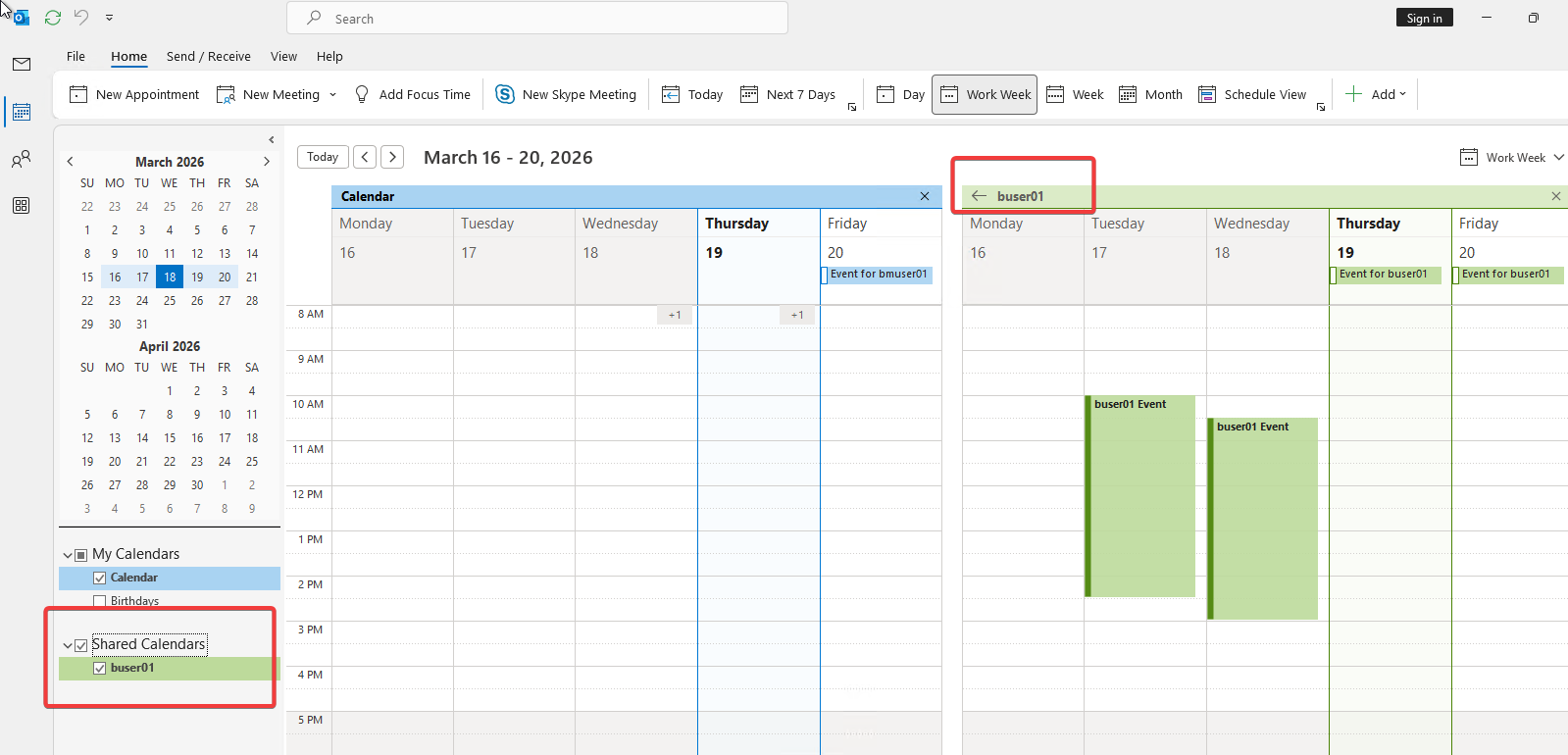
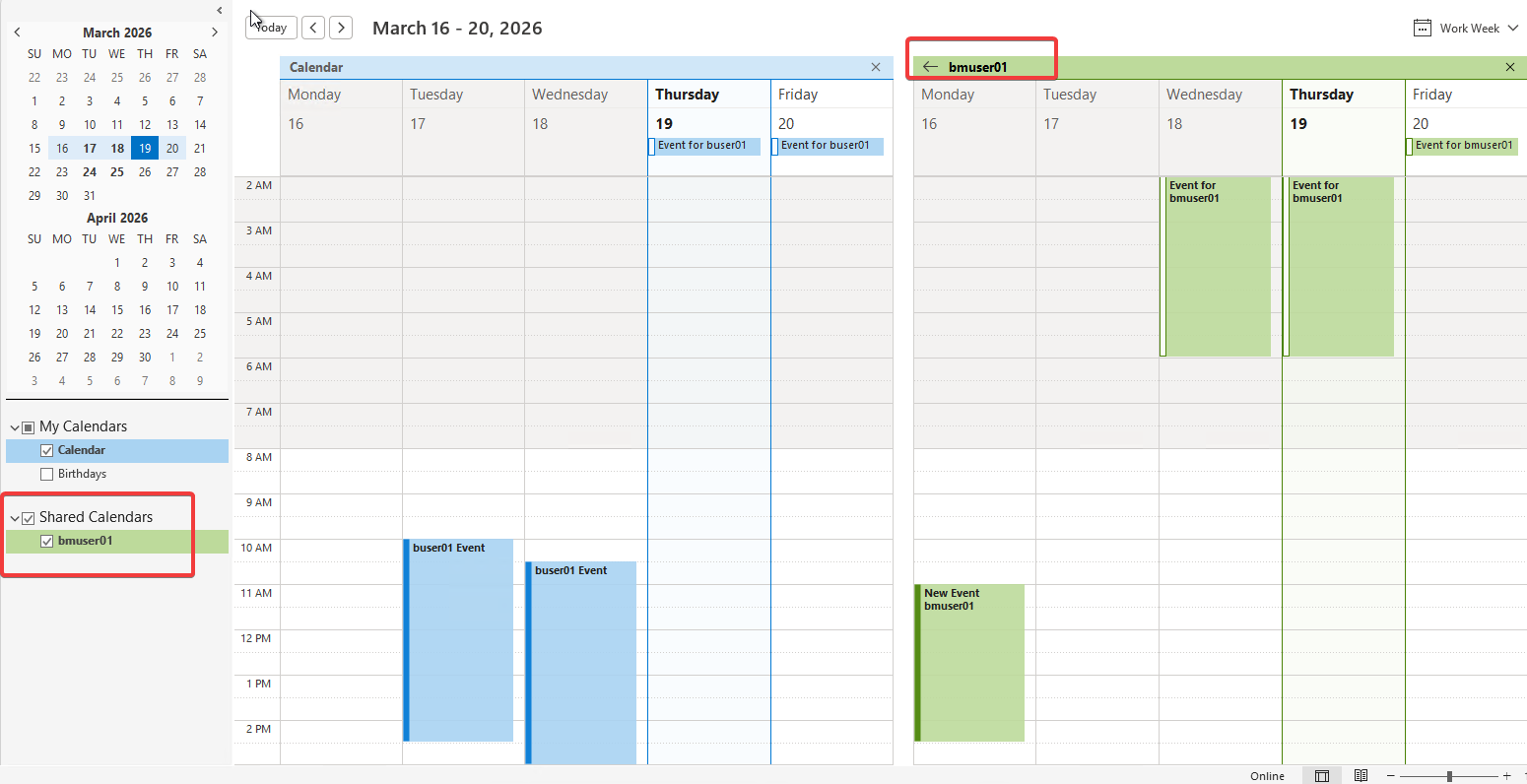
After bmuser01 moved to Exchange Online, the on-premises user could still open that calendar with details.
The Exchange Online user could also open the remaining on-premises user’s calendar with details.
No calendar permission had to be recreated for this controlled migration test.
This is the result observed in the specific Exchange Hybrid scenario tested above, not a guarantee for every cross-premises calendar configuration. Microsoft documents limitations for mailbox and folder permissions in hybrid environments and recommends moving mailboxes that participate in folder-permission relationships together. If access fails after a move, verify the folder permission itself and the failing cross-premises direction before recreating permissions.
9. If Calendar Access Fails After the Move
Before removing and recreating calendar permissions, I would first confirm what actually changed. Start by checking the folder permission on the calendar and compare it with the permission level that existed before migration.
Confirm whether the expected user is still listed on the Calendar folder.
Distinguish default AvailabilityOnly free/busy visibility from an explicit permission such as Reviewer.
Test access in both directions when one mailbox is in Exchange Online and the other remains on-premises.
Only recreate the permission after confirming that the existing folder permission is missing or incorrect.
This keeps a migration-related access problem from being mistaken for a permission problem without evidence.
10. Key Takeaways
In this controlled test, the explicit Reviewer calendar permissions continued to work after one mailbox was moved to Exchange Online.
Explicit folder permissions can migrate with a mailbox, but cross-premises permission behavior has documented limitations and should not be treated as universally supported in every topology.
If calendar access fails after a move, verify the existing folder permission and the affected cross-premises direction before removing and recreating permissions.
Cloud and infrastructure professional with nearly two decades of experience in enterprise IT environments, spanning public cloud, private cloud, and hybrid architectures.