Applies to: VMware ESXi 9.x / 8.x / 7.x / 6.7 / 6.5 / 6.0 / 5.5 / 5.1 / 5.0 / 4.1
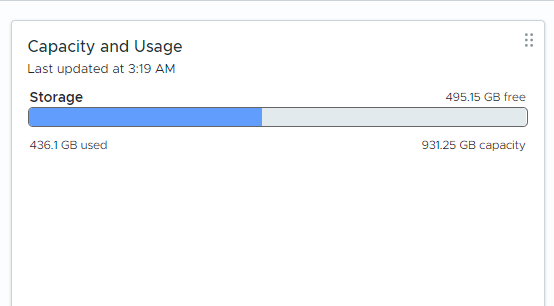
After exporting several virtual machines from my ESXi environment, I noticed that datastore usage had increased significantly. Although the guest operating systems were using only a small portion of their virtual disks, the VMDK files appeared to occupy space close to their full provisioned size.
For example, a virtual machine with a 100 GB thin-provisioned disk that was actually using only around 17 GB inside the guest OS appeared to consume almost the entire provisioned disk size on the datastore.
This situation can quickly become problematic in environments where multiple virtual machines are exported or stored for later use. Datastores may appear nearly full even though the real data footprint is much smaller.
In This Article
- 1. What I Observed After VM Export
- 2. Checking the Actual Disk Usage
- 3. Before Running the Reclaim
- 4. Reclaiming Space Using vmkfstools
- 5. Automating the Process
- 6. Running the Script
- 7. Example Output
- 8. Key Takeaways
1. What I Observed After VM Export
In this case, after the virtual machines were exported and stored back on the datastore, the thin-provisioned VMDK files were consuming space close to their full provisioned size.
The guest operating systems were using much less space, but the datastore usage was still close to the provisioned disk size.
Example from this test:
Thin disk provisioned size: 100 GB
Actual data inside VM: 17 GB
Datastore usage: ~100 GB
This behavior was different from what I expected based on the documented thin-disk and OVF/OVA behavior. I am documenting the result as observed in this environment rather than assuming that every VM export will produce the same result.
2. Checking the Actual Disk Usage
Before reclaiming space, it is useful to check the real disk usage of virtual machine directories on the datastore. You can do this directly from the ESXi shell.
[root@esx8:~] du -sh /vmfs/volumes/<DATASTORE_NAME>/*This command shows how much space each virtual machine directory is actually consuming.
You can also check the overall datastore usage using:
[root@esx8:~] df -h3. Before Running the Reclaim
- Check the VM directory size with
du -shand the datastore free space withdf -hso you have a before/after baseline. - Use the VMDK descriptor file with
vmkfstools -K; do not run the command against the-flat.vmdkfile. - Confirm there are no snapshots. Power off the virtual machine, or detach the disk so it is not in use, before running
vmkfstools -K. - Test the process on one disk first and confirm the reclaimed space before processing an entire datastore.
4. Reclaiming Space Using vmkfstools
VMware provides a built-in command to reclaim unused blocks from thin-provisioned disks.
[root@esx8:~] vmkfstools -K Ubuntu-2404-4-T.vmdkThis command performs a hole-punch operation, scanning the virtual disk and returning unused blocks back to the VMFS datastore.
During the process you will see output similar to:
Hole Punching: 47% doneDepending on disk size, the operation may take several minutes to complete.
5. Automating the Process
For repeated reclaim operations, a small wrapper script can reduce typing and keep the same checks and output for each disk.
The following script works on one explicitly selected VMDK descriptor at a time. It does not scan the entire datastore automatically. This keeps the target disk clear and avoids processing snapshot or delta files by mistake.
#!/bin/sh

###############################################################################
# Script Name : vmfs_thin_reclaim.sh
# Description : Runs vmkfstools -K against one explicitly selected VMDK.
#
# Author      : Ceyhun Kirmizitas
# Website     : https://ceyhunkirmizitas.net
# Date        : 2026-03-15
# Version     : 1.4
#
# Usage
#   sh vmfs_thin_reclaim.sh DATASTORE_NAME VMDK_PATH
#
# Example
#   sh vmfs_thin_reclaim.sh DS_Sandisk "_VM-Templates/W2025_Eng-T/W2025_Eng-T.vmdk"
#
# Before running:
# - Confirm the disk is thin provisioned.
# - Confirm there are no snapshots.
# - Power off the VM, or detach the disk so it is not in use.
# - Pass the descriptor .vmdk file, not -flat.vmdk or snapshot/delta files.
###############################################################################

DATASTORE="$1"
VMDK="$2"

if [ -z "$DATASTORE" ] || [ -z "$VMDK" ]; then
    echo "Usage: $0 DATASTORE_NAME VMDK_PATH"
    exit 1
fi

VMDK_PATH="/vmfs/volumes/$DATASTORE/$VMDK"

if [ ! -f "$VMDK_PATH" ]; then
    echo "VMDK descriptor not found: $VMDK_PATH"
    exit 1
fi

case "$VMDK" in
    *-flat.vmdk|*-delta.vmdk|*-sesparse.vmdk|*-ctk.vmdk)
        echo "Use the base VMDK descriptor file, not: $VMDK"
        exit 1
        ;;
esac

if grep -q "parentFileNameHint" "$VMDK_PATH"; then
    echo "Snapshot descriptor detected. Stop and verify the disk chain."
    exit 1
fi

VMDK_DIR=$(dirname "$VMDK_PATH")
before=$(du -sk "$VMDK_DIR" | awk '{print $1}')

echo ""
echo "==============================================="
echo "VMFS Thin Reclaim"
echo "VM Disk : $DATASTORE/$VMDK"
echo "Before  : $(du -sh "$VMDK_DIR" | awk '{print $1}')"
echo "==============================================="

if ! vmkfstools -K "$VMDK_PATH"; then
    echo "vmkfstools -K failed. No further action was taken."
    exit 1
fi

after=$(du -sk "$VMDK_DIR" | awk '{print $1}')
diff=$((before-after))

echo "After   : $(du -sh "$VMDK_DIR" | awk '{print $1}')"
echo "Saved   : $(echo "$diff" | awk '{printf "%.2f GB\n",$1/1024/1024}')"
echo "==============================================="6. Running the Script
[root@esx8:~] sh vmfs_thin_reclaim.sh DS_Sandisk "_VM-Templates/W2025_Eng-T/W2025_Eng-T.vmdk"7. Example Output
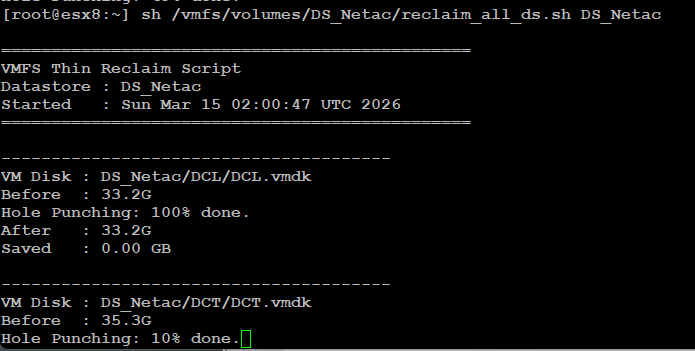
VM Disk : DS_Sandisk/_VM-Templates/W2025_Eng-T/W2025_Eng-T.vmdk
Before  : 100.0G
Hole Punching: 100% done.
After   : 17.5G
Saved : 82.47 GB8. Key Takeaways
- In this test, thin-provisioned VMDK files were consuming space close to their full provisioned size after the virtual machines were exported and stored back on the datastore.
vmkfstools -Kcan reclaim zeroed blocks from thin-provisioned VMDK files on VMFS.- Process one VMDK at a time and verify the result before moving to the next disk.

I’m a Cloud Solution Architect – Global Delivery at Microsoft, working within the Modern Work team. My areas of expertise include Exchange Server (on-premises), Exchange Hybrid, Exchange Online, Microsoft 365, security, identity, and enterprise infrastructure.