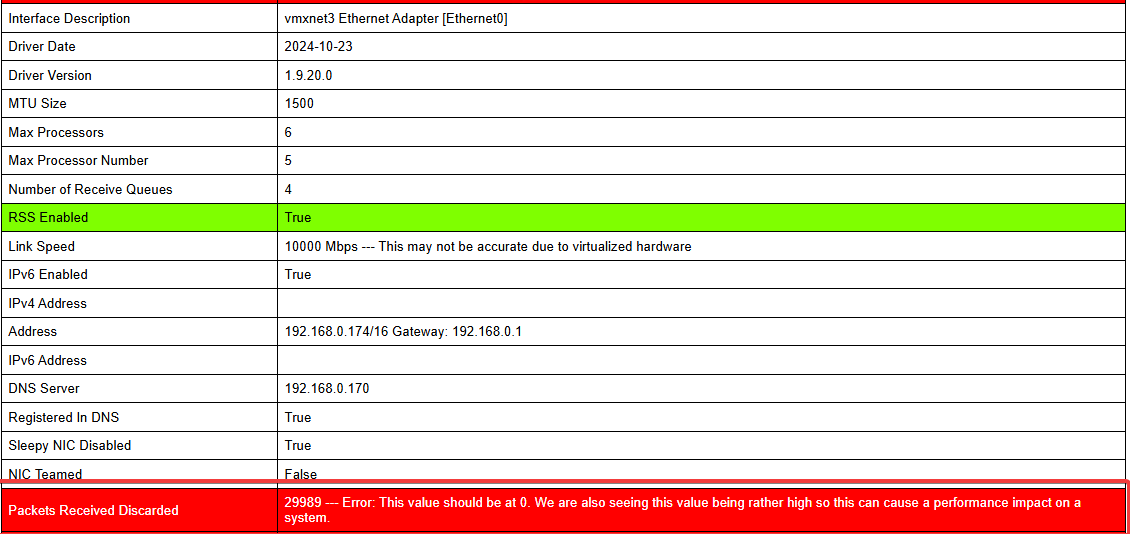
During Exchange Server health checks in customer environments, the Packets Received Discarded error can appear in HealthChecker reports, particularly on servers running on VMware ESXi.
For example, Exchange HealthChecker may report:
Packets Received Discarded | 29989 --- Error: This value should be at 0. We are also seeing this value being rather high so this can cause a performance impact on a system.
The HealthChecker result tells us that network packets have been discarded, but it doesn’t tell us why or where the problem occurred.
This article explains how to check discarded packets in Windows, investigate VMXNET3 receive counters on ESXi, and adjust the relevant adapter settings when receive buffer exhaustion is confirmed.
The Packets Received Discarded value reported by Exchange HealthChecker comes from the Windows network adapter statistic ReceivedDiscardedPackets. It shows how many incoming packets have been discarded by the network adapter.
This can happen for several reasons. In VMware environments, one possible cause is that incoming traffic exceeds the VMXNET3 adapter’s receive capacity, causing receive rings or buffers to fill up.
One important detail is that 29,989 is a counter, not a packet-loss rate. It tells us that packets have been discarded, but not whether packets are still being dropped.
To understand what is happening, the next step is to check the network statistics in Windows and VMware ESXi.
2. Check the Network Adapter in Windows
Let’s start by checking the network adapter directly in Windows.
First, list the available network adapters:
PowerShell
Get-NetAdapter| ft Name,InterfaceDescription,Status
Identify the VMXNET3 adapter and note its name. In this example, the adapter is named Ethernet0.
Next, check the received discarded packets counter:
PowerShell
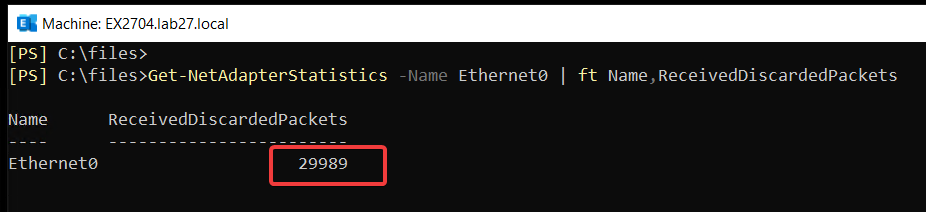
Get-NetAdapterStatistics-Name Ethernet0 | ft Name,ReceivedDiscardedPackets
The received discarded packet counter showed:
Name      ReceivedDiscardedPackets
----      ------------------------
Ethernet0                    29989
Next, check the VMXNET3 receive counters on the ESXi host to determine whether receive ring or buffer exhaustion is involved.
3. Check VMXNET3 Receive Counters on VMware ESXi
The VMXNET3 receive statistics on the ESXi host can help identify whether receive ring or buffer exhaustion is involved.
Connect to the ESXi host using SSH and identify the virtual switch port associated with the Exchange VM:
Bash
net-stats-l|grep-iEX2704
Once you have the port ID, check the VMXNET3 receive statistics. In this example, the VM is connected to vSwitch0 using port 100663312.
With the default VMXNET3 receive ring and buffer values, the ESXi counters showed:
running out of buffers:29989
# of times the 1st ring is full:255167
# of times the 2nd ring is full:19784
The running out of buffers counter indicates receive buffer exhaustion, while the ring-full counters show how often the receive rings became full.
The ESXi running out of buffers counter matched the 29,989 discarded packets reported by Windows and Exchange HealthChecker. In this case, the matching counters and ring-full events pointed to receive buffer exhaustion even though the VMXNET3 settings were at their defaults.
These counters do not necessarily match in every environment. The virtual switch name and port ID will vary depending on the VMware environment.
4. Other Possible Causes
Not every Packets Received Discarded error is caused by insufficient VMXNET3 receive buffers.
Other factors, such as CPU pressure, receive queue limitations, or network filtering, can also contribute to packet drops.
If the ESXi counters don’t show receive ring or buffer exhaustion, it’s worth investigating these other possibilities before changing the VMXNET3 advanced settings.
5. Understanding the VMXNET3 Advanced Settings
Before changing anything, let’s look at the VMXNET3 advanced settings that may be relevant to received packet drops.
The default values and available settings in the table below were verified against the vmxnet3.inf file extracted from the Broadcom VMXNET3 driver package (version 1.9.21.0), downloaded from the Microsoft Update Catalog. These are driver-defined values, not recommended Exchange Server tuning settings.
Note: Windows may display Not Present for receive ring and buffer settings when no value has been explicitly configured. The table shows the defaults defined in the driver’s INF file.
What do these settings control?
Receive Side Scaling (RSS): Allows Windows to distribute incoming network traffic processing across multiple CPU cores.
Rx Ring #1 Size: Controls the size of the first receive ring, which handles incoming packets.
Rx Ring #2 Size: Controls the size of the second receive ring.
Small Rx Buffers: Controls the number of small receive buffers available to the adapter.
Large Rx Buffers: Controls the number of large receive buffers available to the adapter.
Broadcom specifically identifies Rx Ring #1 Size and Small Rx Buffers as settings to consider increasing when investigating receive buffer exhaustion.
These defaults and available values come from the driver version examined for this article. Other VMXNET3 driver versions may differ.
6. Check the Current VMXNET3 Advanced Settings
Before making any changes, let’s check the current VMXNET3 advanced settings.
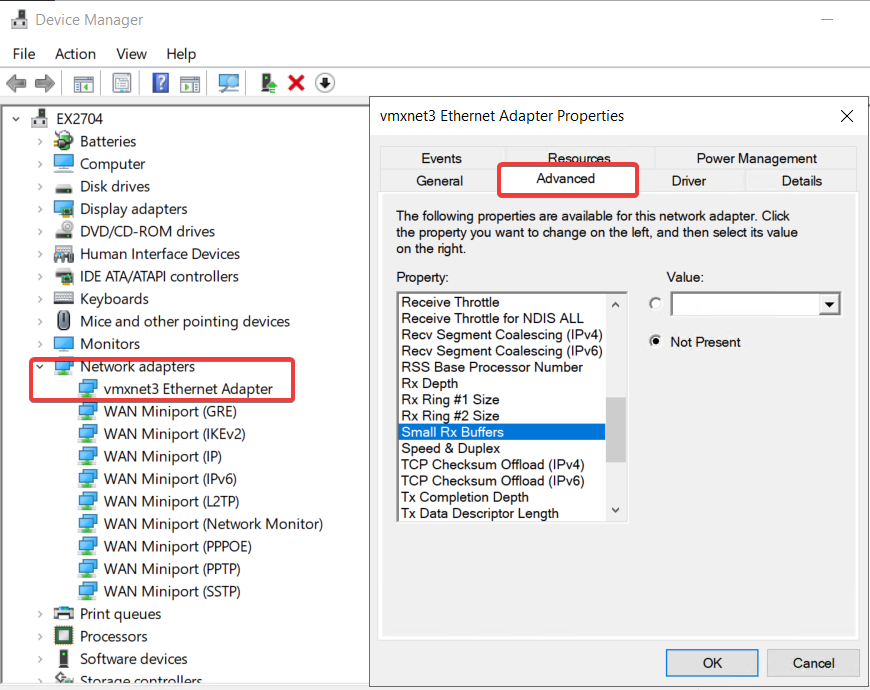
You can find these settings in Device Manager → Network adapters → vmxnet3 Ethernet Adapter → Properties → Advanced.
You can also check each setting using PowerShell:
PowerShell
Get-NetAdapterAdvancedProperty-Name Ethernet0 -RegistryKeyword '*RSS'| ft DisplayName,DisplayValueGet-NetAdapterAdvancedProperty-Name Ethernet0 -RegistryKeyword 'MaxRxRing1Length'| ft DisplayName,DisplayValueGet-NetAdapterAdvancedProperty-Name Ethernet0 -RegistryKeyword 'MaxRxRing2Length'| ft DisplayName,DisplayValueGet-NetAdapterAdvancedProperty-Name Ethernet0 -RegistryKeyword 'NumRxBuffersSmall'| ft DisplayName,DisplayValueGet-NetAdapterAdvancedProperty-Name Ethernet0 -RegistryKeyword 'NumRxBuffersLarge'| ft DisplayName,DisplayValue
Replace Ethernet0 with the adapter name identified earlier.
RSS was enabled, while the receive ring and buffer settings appeared blank (Not Present), indicating that no values had been explicitly configured.
7. Increasing VMXNET3 Receive Buffers
The counters in Section 3 showed receive buffer exhaustion with the default VMXNET3 settings. When the ESXi counters confirm this condition, increasing the receive ring and buffer capacity is a reasonable next step.
Both Microsoft and Broadcom identify Rx Ring #1 Size and Small Rx Buffers as settings to increase when investigating receive packet drops.
Rather than increasing everything to the maximum right away, the following levels start with the driver defaults and increase the values in stages:
Setting
Default
Level 1 (2×)
Level 2 (4×)
Receive Side Scaling
Enabled
Enabled
Enabled
Rx Ring #1 Size
1024
2048
4096
Rx Ring #2 Size
512
1024
2048
Small Rx Buffers
2048
4096
8192
Large Rx Buffers
1024
1024
1024
These levels are based on the VMXNET3 driver defaults and provide a simple way to increase receive capacity step by step. The 2× and 4× levels are not predefined Microsoft or Broadcom recommendations.
The Level 1 values were applied and confirmed in Windows and ESXi. If discarded packets continue to increase and the ESXi counters still indicate receive buffer exhaustion, Level 2 can be considered.
Larger buffers also consume more memory, so there’s no need to increase everything to the maximum unless the situation calls for it.
8. Changing the VMXNET3 Advanced Settings
Now let’s apply the Level 1 (2×) settings from the previous section.
You can change these settings through Device Manager → Network adapters → vmxnet3 Ethernet Adapter → Properties → Advanced, or use PowerShell.
Use the following PowerShell commands to apply the Level 1 settings:
Replace Ethernet0 with the network adapter name in your environment.
The -NoRestart parameter lets us apply all five settings before restarting the adapter once:
PowerShell
Restart-NetAdapter-Name Ethernet0 -Confirm:$false
Important: Restarting the network adapter briefly interrupts network connectivity. On production Exchange servers, especially DAG members, plan the change during an appropriate maintenance window.
If you need to move to Level 2, use the corresponding values from the table in Section 7 rather than increasing every setting to its maximum.
9. Verifying the Changes and Restoring Defaults
After restarting the network adapter, use the PowerShell commands from Section 6 to confirm that the new settings have been applied.
After applying the Level 1 settings, Windows showed the following values:
Setting
Value
Receive Side Scaling
Enabled
Rx Ring #1 Size
2048
Rx Ring #2 Size
1024
Small Rx Buffers
4096
Large Rx Buffers
1024
The ESXi rxSummary output also confirmed the new receive ring sizes:
running out of buffers:0
1st ring size:2048
2nd ring size:1024
# of times the 1st ring is full:0
# of times the 2nd ring is full:0
You can check the Windows discarded packet counter again:
PowerShell
Get-NetAdapterStatistics-Name Ethernet0 | ft Name,ReceivedDiscardedPackets
After the adapter restart, Windows and ESXi showed 0 discarded packets. However, restarting the adapter can reset these counters. ESXi counters may also reset after vMotion or a VM restart.
Zero counters immediately after a restart do not prove that the packet drops have stopped. Check the counters again during comparable network traffic to see whether they continue to increase.
9.1 Restoring the Default Settings
If you need to undo the changes, PowerShell provides a simple way to restore the driver defaults:
PowerShell
Reset-NetAdapterAdvancedProperty-Name Ethernet0 -DisplayName "Rx Ring #1 Size","Rx Ring #2 Size","Small Rx Buffers","Large Rx Buffers"-NoRestart -Confirm:$falseRestart-NetAdapter-Name Ethernet0 -Confirm:$false
This restores the driver’s default receive ring and buffer values. RSS remains unchanged.
Remember that restarting the adapter briefly interrupts network connectivity.
10. Final Thoughts
If Exchange HealthChecker reports the Packets Received Discarded error, start by checking the Windows and ESXi counters.
If the counters point to VMXNET3 receive buffer exhaustion, the settings and commands covered in this article provide a practical way to increase receive capacity, verify the changes, and restore the defaults if needed.
I hope this helps you troubleshoot the same issue in your Exchange environment.
I’m a Cloud Solution Architect – Global Delivery at Microsoft, working within the Modern Work team. My areas of expertise include Exchange Server (on-premises), Exchange Hybrid, Exchange Online, Microsoft 365, security, identity, and enterprise infrastructure.