Summary: Windows Authentication can make OWA sign-in look simple because the browser may open the mailbox without showing a credential prompt. That does not mean Kerberos is being used. In this part, we enable Windows Authentication, compare Negotiate and NTLM, force an NTLM-only test, reproduce a Kerberos failure caused by a missing HTTP SPN, add the SPN, and verify the resulting Kerberos service ticket.
Seamless Exchange OWA sign-in is not evidence that Kerberos is working; NTLM can look exactly the same to the user. This part shows how to verify what is actually happening with provider configuration, SPN ownership, and Kerberos ticket evidence instead of relying on the browser experience.
Part 2: Forms-Based and Basic Authentication – What Really Changes?
Part 3: Frontend vs Backend Authentication – Controlled A/B Tests
Part 4: Troubleshooting OWA Authentication with IIS and HttpProxy Logs
Part 5: Managed Availability and OWA Health Probes
Part 6: Windows Authentication, NTLM, Kerberos, SPNs and SSO — you are here
Part 7: LogonFormat, DefaultDomain and Troubleshooting Playbook
The purpose here is the same as in the earlier tests: use a controlled lab to verify what would otherwise be easy to assume in production. When Windows Authentication, NTLM, Kerberos, or SPNs are involved, the browser experience alone is not enough evidence. Understanding the behavior first makes production troubleshooting and authentication changes much safer.
Part 5 was about Exchange-generated traffic. This part goes back to an interactive browser test on a domain-joined client.
Enable Windows Authentication on the OWA frontend
The starting point was the normal FBA configuration. I switched the frontend OWA virtual directory to Windows Authentication and then checked the Exchange-side properties again.
Set-OwaVirtualDirectory -Identity "EX601\owa (Default Web Site)" -FormsAuthentication $false -WindowsAuthentication $true

Get-OwaVirtualDirectory -Identity "EX601\owa (Default Web Site)" |
Format-List FormsAuthentication,BasicAuthentication,WindowsAuthentication,DigestAuthentication,InternalAuthenticationMethods,ExternalAuthenticationMethodsAfter the change, the important values were:
FormsAuthentication          : False
BasicAuthentication          : False
WindowsAuthentication        : True
DigestAuthentication         : False
InternalAuthenticationMethods: {Ntlm, WindowsIntegrated}
ExternalAuthenticationMethods: {Fba}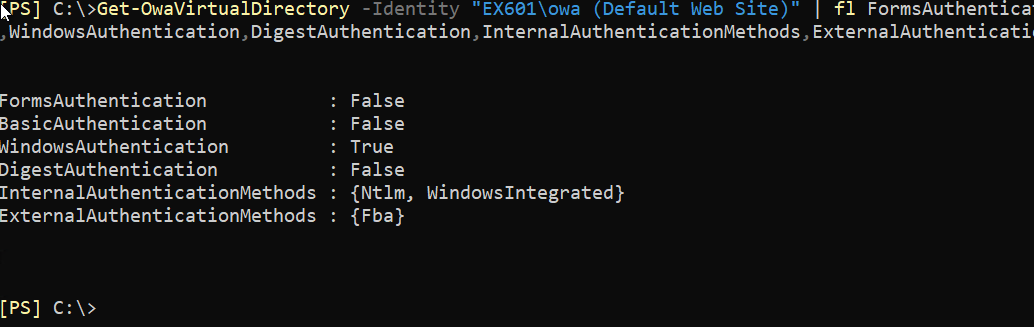
The last line is another reminder from Part 1: ExternalAuthenticationMethods is not a live mirror of the browser authentication method. The runtime frontend behavior was Windows Authentication even though that property still showed FBA.
After the IIS restart requested by Exchange, the browser initially prompted for credentials. Once the OWA URL was treated as a Local Intranet site, the domain-joined browser signed in automatically with the current Windows user.
That user experience is different from FBA. With Integrated Windows Authentication, the browser naturally sends the current Windows logon identity. There is no Exchange sign-in form inviting the user to choose a different account in the same way FBA does.
SSO does not prove Kerberos
This is one of the easiest assumptions to make during troubleshooting:
Browser opens OWA without a prompt
        ↓
"Kerberos is working"
That conclusion is too strong. Windows Authentication can use Kerberos or NTLM. Microsoft documents the default IIS Windows Authentication provider order as Negotiate followed by NTLM. Microsoft Learn: Windows Authentication providers
Negotiate
NTLM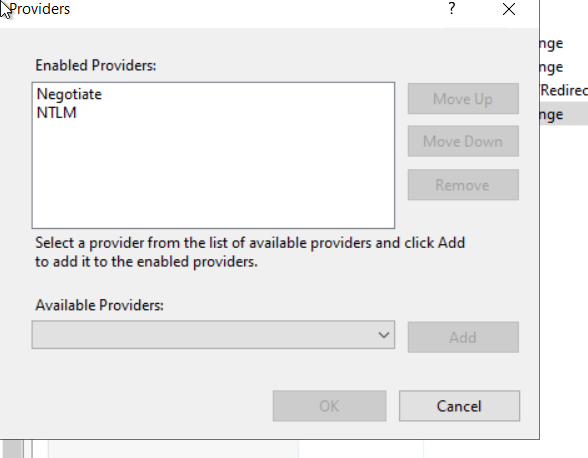
Negotiate tries Kerberos when it is available, while NTLM remains available as a fallback. Microsoft Learn: Windows Authentication
NTLM-only still gave automatic sign-in
For the first provider test, I removed Negotiate and left only NTLM on the frontend OWA application.
Windows Authentication providers

NTLM
The same domain-joined browser still opened OWA automatically. There was no manual credential prompt.
That test is important because it proves the point directly: automatic browser sign-in is not proof of Kerberos. NTLM can also provide an SSO-like user experience when the browser and IIS settings allow integrated authentication.
There was another useful configuration lesson in this test. Even with the IIS provider list reduced to NTLM only, Exchange still reported InternalAuthenticationMethods={Ntlm, WindowsIntegrated}. That property is therefore not a one-to-one copy of the IIS Windows Authentication provider list. I use the Exchange property and the IIS provider configuration as separate pieces of evidence.
I then restored the normal provider order before continuing.
Kerberos-only exposed the missing SPN
Next I changed the provider test so that the frontend used only:
Negotiate:KerberosThis time the browser displayed a credential prompt instead of signing in automatically.
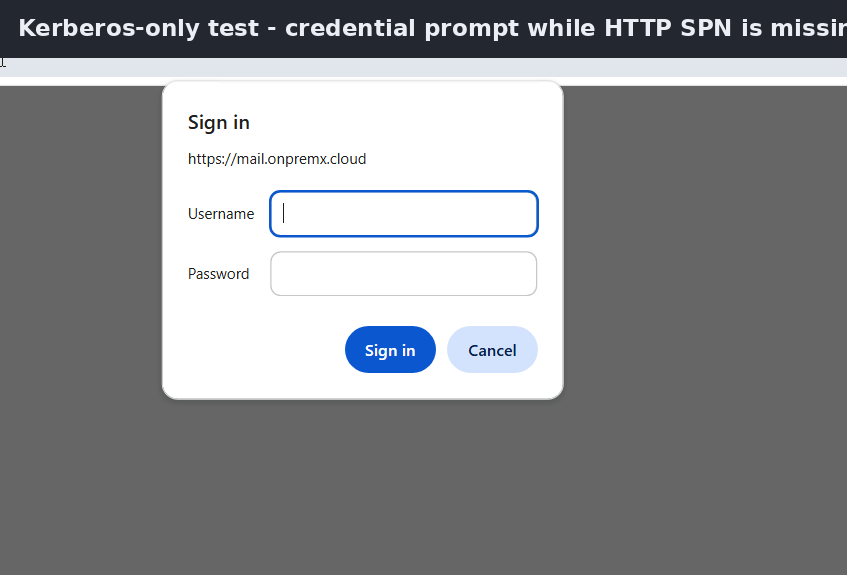
The OWA URL used a custom HTTPS namespace, so I checked whether an HTTP SPN existed for that name.
setspn -Q HTTP/mail.onpremx.cloudNo matching SPN existed for HTTP/mail.onpremx.cloud. Without the correct service principal name, the client could not obtain a Kerberos service ticket for that HTTP service.
Add the HTTP SPN and verify the ticket
For the single-server lab test, I registered the HTTP SPN on the Exchange server computer account, cleared the client Kerberos ticket cache, reopened OWA, and then inspected the ticket cache.
setspn -S HTTP/mail.onpremx.cloud EX601
klist purge

klistAfter that change, automatic OWA sign-in worked again. More importantly, klist showed direct Kerberos evidence:
Server: HTTP/mail.onpremx.cloud @ LAB6.LOCAL
KerbTicket Encryption Type: AES-256-CTS-HMAC-SHA1-96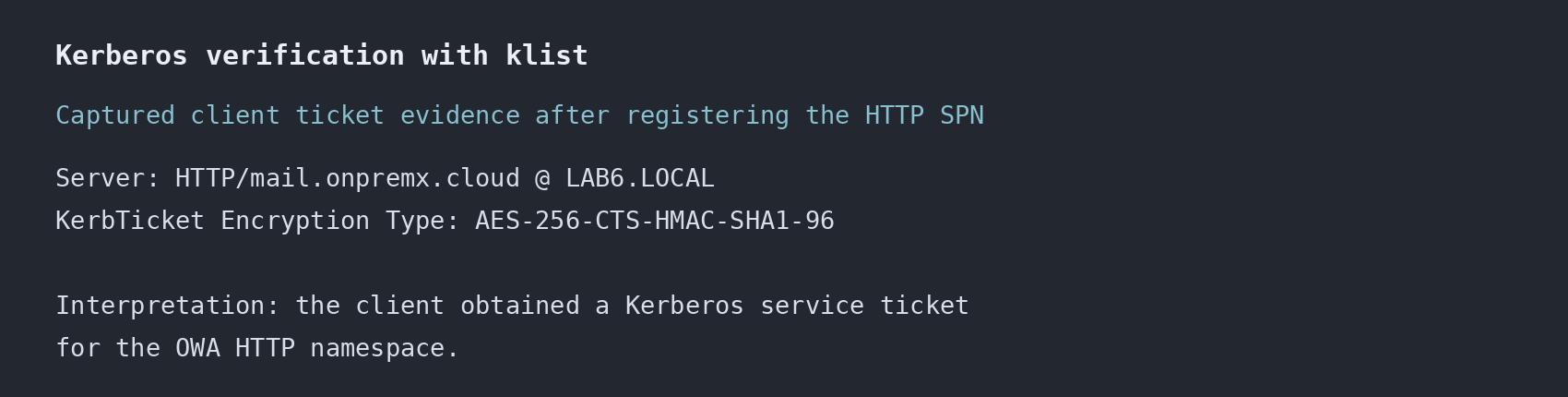
klist confirms a Kerberos service ticket for the OWA HTTP namespace.This is much stronger evidence than “the browser did not prompt.” The client had an actual Kerberos service ticket for the OWA HTTP namespace.
What the provider tests actually proved
| Frontend provider state | Browser result | What it proves |
|---|---|---|
| Negotiate + NTLM | Automatic sign-in | Integrated authentication works, protocol still needs verification |
| NTLM only | Automatic sign-in | SSO-like behavior does not require Kerberos |
| Kerberos only, SPN missing | Credential prompt | Kerberos could not obtain the required HTTP service ticket |
| Kerberos only, HTTP SPN present | Automatic sign-in | Kerberos works when the correct SPN exists |
klist shows HTTP ticket | Direct ticket evidence | Kerberos was actually used for that service |
Do not copy the single-server SPN design into a load-balanced Exchange environment
The SPN registration above was intentionally a single-server lab test. In a production Exchange environment with a shared namespace and multiple Exchange servers running Client Access services behind a load balancer, placing the shared HTTP namespace SPN on one server computer account is not the correct design.
Microsoft documents the use of an Alternate Service Account (ASA) credential for Kerberos with load-balanced Exchange Client Access services. The shared SPNs are associated with that identity and the credential is deployed to the Exchange servers. Before assigning a shared SPN in production, I would also check for existing ownership across the forest with setspn -F -Q HTTP/mail.contoso.com; Microsoft requires the ASA credential to be the only account associated with those SPNs. Microsoft Learn: Kerberos authentication for load-balanced Client Access services
So the lesson from this lab is about SPN ownership and ticket verification, not a production deployment recipe for a multi-server namespace.
Restore the lab baseline
After the test, I first restored the normal IIS Windows Authentication provider order. I then removed the temporary SPN, cleared the cached tickets, and returned OWA to the FBA baseline used earlier in the series.
setspn -D HTTP/mail.onpremx.cloud EX601
klist purge

Set-OwaVirtualDirectory -Identity "EX601\owa (Default Web Site)" -FormsAuthentication $trueThe final Exchange-side authentication state returned to:
FormsAuthentication          : True
BasicAuthentication          : True
WindowsAuthentication        : False
DigestAuthentication         : False
InternalAuthenticationMethods: {Basic, Fba}
ExternalAuthenticationMethods: {Fba}
What this part proved
- Windows Authentication on OWA can use either Kerberos or NTLM.
- The default IIS provider list contains Negotiate and NTLM.
- Automatic browser sign-in does not prove Kerberos because NTLM-only also signed in automatically in the controlled test.
- Forcing Kerberos exposed a missing HTTP SPN for the OWA namespace.
- After the SPN was added,
klistshowed a realHTTP/mail.onpremx.cloudKerberos service ticket. - Kerberos verification should rely on ticket or protocol evidence, not only on whether the user saw a credential prompt.
- A single-server SPN test is not the production design for a load-balanced Exchange namespace; use the documented ASA approach.
Next: LogonFormat, DefaultDomain and the troubleshooting playbook
Part 7 will finish the series with the OWA logon-name experiments and a practical troubleshooting workflow. We will compare FullDomain, UserName, PrincipalName, and DefaultDomain, then combine the frontend, HttpProxy, backend, Managed Availability, and Windows Authentication findings into one OWA authentication playbook.
Exchange Server OWA Authentication Deep Dive Series
- Part 1: How OWA Authentication Really Works
- Part 2: Forms-Based and Basic Authentication – What Really Changes?
- Part 3: Frontend vs Backend Authentication – Controlled A/B Tests
- Part 4: Troubleshooting OWA Authentication with IIS and HttpProxy Logs
- Part 5: Managed Availability and OWA Health Probes
- Part 6: Windows Authentication, NTLM, Kerberos, SPNs and SSO — current
- Part 7: LogonFormat, DefaultDomain and Troubleshooting Playbook
References
- Windows Authentication – Microsoft Learn
- Windows Authentication providers – Microsoft Learn
- Kerberos authentication for load-balanced Client Access services – Microsoft Learn
- Set-OwaVirtualDirectory – Microsoft Learn

Cloud and infrastructure professional with nearly two decades of experience in enterprise IT environments, spanning public cloud, private cloud, and hybrid architectures.