How to Perform Windows Server 2008 Complete Server Backup and Restore

How to Perform Windows Server 2008 Complete Server Backup and Restore

Video Tutorials
Windows Server 2008 contains new and updated features to help you create backups and, if needed, perform a recovery of your operating system, applications, and data. You can recover your server operating system or full server by using Windows Recovery Environment and a backup that you created earlier with Windows Server Backup. Using the Windows Recovery Environment on Windows Server 2008 you can perform a bare-metal restore to recover your server operating system or the entire server itself. An operating system restore will only recover critical drive volumes that contain system components. If you would like to restore all volumes, you will need to conduct a full server recovery.
Read More

How to Perform Step by Step Exchange 2010 Single Mailbox Item Restore with Windows Server Backup

Exchange Server, Video Tutorials
Exchange Server 2010 no longer has the notion of Storage Groups, which were used in Exchange 2007 and 2003 to contain logical groupings of databases. Exchange 2010 now simply lets you create databases on mailbox servers. The difference is that in Exchange 2003/2007, you created a Recover Storage Group (RSG) to restore the database into. In Exchange 2010, you simply restore the database and connect to it as a Recovery Database (RDB). While the main purpose of Exchange backup is to enable server, storage, and datacenter disaster recovery scenarios, a common and routine request of Exchange admins is to restore an individual mailbox. Microsoft does not provide a native and fully automated way to granularly restore a single mailbox from an Exchange database backup. In this video I'll demonstrate the…
Read More

Event ID: 16 Client Access server failed to proxy Exchange Web Services to Active Directory site

Exchange Server
Log Name:      Application Source:        MSExchange Web Services Event ID:      16 Task Category: Core Level:         Error Keywords:      Classic User:          N/A Description: Client Access server Internet-Facing-CAS-Name failed to proxy Exchange Web Services to Active Directory site CN=Default-First-Site-Name,CN=Sites,CN=Configuration,DC=yourdomain,DC=tld because there are no applicable Client Access servers in the destination site. Please check the configuration of the servers in site [No Server]. If you have an Exchange Server 2010 infrastructure that contains more than 1 Client Access Server (CAS) with 1 Internet facing and the rest are not, then you may see this error message in application log in Internet Facing CAS server. The problem is that the Internet Facing CAS proxies the request for Exchange Web Services (EWS) to the Non-Internet facing CAS. It is failing because the servers are not trusting the…
Read More

VMware vSphere 5 features a new ESXi firewall

VMware
VMware vSphere 5 features a new ESXi firewall that you can configure though the vSphere Client or command line. The addition brings a feature to ESXi 5 that was previously found only in the recently discontinued ESX hypervisor. VMware argued that ESXi didn't require a firewall, because the lightweight hypervisor had hardly any services or ports open, leaving it with almost nothing to attack. I believe VMware added a firewall to ESXi 5 for few reasons. With a firewall, ESXi 5 isn't missing a notable feature found in the old ESX Server. Also, a firewall signals to customers and partners that VMware is committed to security. And finally, vSphere 5 is just as secure as before, if not more so. Five things to know about the ESXi 5 firewall It?s…
Read More

SSH Connection: Wait long after entering username – ssh password prompt delay

Linux
When I make ssh connection I get long wait just after entering username. It's most likely that ssh daemon  is set up to do a DNS reverse-lookup on the host that's connecting. So, sshd try to find reverse DNS record for a while before prompting you password. If you do not want to wait,  you can either add your client's ip and hostname information to /etc/hosts file on linux or you can disable reverse dns lookup in /etc/ssh/sshd_config 1- Open your terminal window 2- Edit /etc/ssh/sshd_config 3- Add UseDNS no at the end 4- Restart your ssh daemon
Read More
Microsoft SQL Server 2008 Best Practices in VMware vSphere 4.x

Microsoft SQL Server 2008 Best Practices in VMware vSphere 4.x

VMware
Best practices for SQL Server 2008 in VMware Set a fixed amount of memory that the SQL Server process will use. For example, set the max server memory and min server memory equal and large enough to satisfy the workload (2500 MB is a good starting value). Configure SQL Server to Use Soft-NUMA - To avoid any performance latency resulting from remote memory accesses, you should size a SQL Server virtual machine?s memory so it is less than the amount available per NUMA node. For more information about NUMA, you can visit http://msdn.microsoft.com/en-us/library/ms345357.aspx Note: This should be applied only if it is applicable to your environment. If you set the SQL Server lock pages in memory parameter, make sure to set the virtual machine?s reservations to match the amount of…
Read More

How to Install SQL Server 2008 R2 SP1 for Data Protection Manager 2010

System Center, Video Tutorials
A System Center Data Protection Manager (DPM) 2010 installation includes two primary tasks: installing the DPM prerequisite software and installing the DPM application. The DPM Setup Wizard guides you through the process of specifying the DPM installation settings, and automatically installs the prerequisite software as part of an integrated DPM installation process. Important Note: DPM 2010 is not supported on the Turkish language version of Windows Server 2008 or Windows Server 2008 R2. Supported Databases For the DPM database, DPM 2010 requires a dedicated instance of the 64-bit or 32-bit version of any of the following SQL Server versions: SQL Server 2008 with Service Pack 3 SQL Server 2008 R2 with Service Pack 1 When you use a remote instance of SQL Server with the DPM 2010 installation, you must install the remote instance of SQL Server before you install DPM 2010.
Read More

How to Install VMware vCenter Server 5.1 U1 with Microsoft SQL Server 2012 on Windows Server 2012

Video Tutorials, vSphere
it’s possible to install vCenter Server on Windows Server 2012. Also a Microsoft SQL 2012 is supported as an external database. Since the vSphere 5.1, the architecture of vCenter has changed and another database is present – SSO (single sign on database). So there are three databases for vCenter: VMware vSphere 5.1 Single Sign-On VMware vSphere vCenter server VMware Update Manager All those database can be installed on a separate Microsoft SQL Server 2012 (this post) or on the same VM as vCenter server. SQL 2008R2 Express is still the database which is bundled with the VMware vSphere. VMware vCenter Server VM requirements: 64-bit system DSN to connect to its database I recommend getting the latest patches from Microsoft before going further.
Read More
Implementing iSCSI Cluster Using Starwind iSCSI Target and WMware Workstation

Implementing iSCSI Cluster Using Starwind iSCSI Target and WMware Workstation

VMware
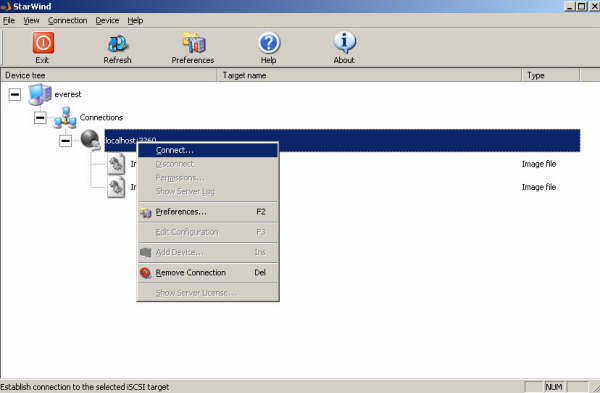
In this article, I will show you how to implement iSCSI cluster on vmware workstation. In an iSCSI network, there are three components: Target, Initiator and Network. I will use Starwind as an iSCSI target and Microsoft iSCSI Software Initiator as an iSCSI Initiator. You can download free trial version of Starwind at http://www.rocketdivision.com/ and Microsoft iSCSI Software Initiator at http://www.microsoft.com/downloads/ Basic Steps 1. Install Starwind and make disks available that can be used for the Quorum and Data in MSCS on the host pc 2. Install Microsoft iSCSI Initiator in the guest operating system. 3. Configure MS iSCSI Software Initiator to use the disks made available by Starwind in the guest OS 4. Now you can see extra SCSII disks in Windows 2003 that you can format and assign a…
Read More
EMC cannot Close after Installing IE9 – You must close all dialog boxes before you can close Exchange Management Console

EMC cannot Close after Installing IE9 – You must close all dialog boxes before you can close Exchange Management Console

Exchange Server
After Internet Explorer 9 is installed on the server, you can not close the EMC. Instead you will have a dialog box saying "You must close all dialog boxes before you can close Exchange Management Console". However, you can't find any open dialog boxes for Exchange Management Console. Only way to close it is via task manager. Solution: 1. Turn off "Internet Explorer Enhanced Security Configuration" for Administrators and Users 2. Add " https://localhost "  and " http://localhost " to the "trusted sites" in IE9 3. Reboot your server UPDATE Interm  fixes are not needed anymore. Fix is now included within the official Internet Explorer Update  
Read More