Handling External Disclaimer Exceptions for Trusted Application Relays in Exchange Hybrid

Handling External Disclaimer Exceptions for Trusted Application Relays in Exchange Hybrid

Exchange Server
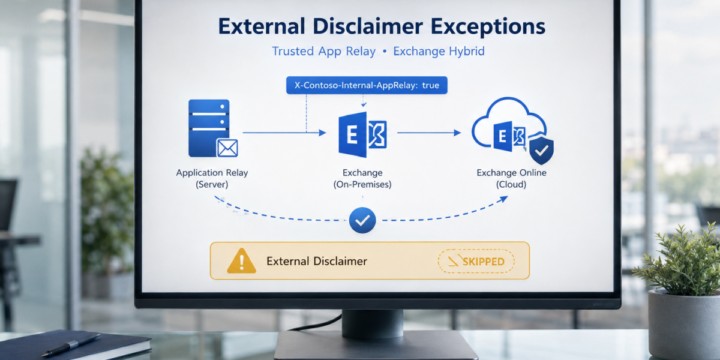
In Exchange Hybrid environments, it is common to use mail flow rules to add an external disclaimer or warning banner to messages received from outside the organization. A typical warning may look like this: WARNING: This email originated from outside the organization. Do not click links or open attachments unless you recognize the sender. This is a good security control. It helps users identify messages that came from external sources. However, there are some scenarios where messages generated by internal application servers may also receive this external disclaimer. This usually happens when an internal application server submits email anonymously to Exchange Server on-premises, and Exchange then routes the message to Exchange Online. In this article, we will look at how to handle this scenario safely by using a custom header…
Read More
Force OWA Light Users to Premium OWA After Exchange Server May 2026 CVE Mitigation

Force OWA Light Users to Premium OWA After Exchange Server May 2026 CVE Mitigation

Exchange Server
Microsoft recently published guidance for Exchange Server addressing the May 2026 vulnerability. One important note in the article is related to OWA Light. Microsoft states that OWA Light — accessed by using an OWA URL ending with /?layout=light — does not work properly after the mitigation is applied. Microsoft also notes that this feature was deprecated several years ago and is not intended for regular production use. This can become a practical issue if some users previously selected the following option in Outlook on the web: "Use the light version of Outlook" When this option is selected, the user may continue to be redirected to the Light version of OWA even when accessing the normal OWA URL. Example URLs: https://mail.contoso.com/owahttps://mail.contoso.com/owa/?layout=light The Issue In the lab I confirmed the following behavior:…
Read More
What Happens to Shared Calendars After Exchange Hybrid Migration?

What Happens to Shared Calendars After Exchange Hybrid Migration?

Exchange Server
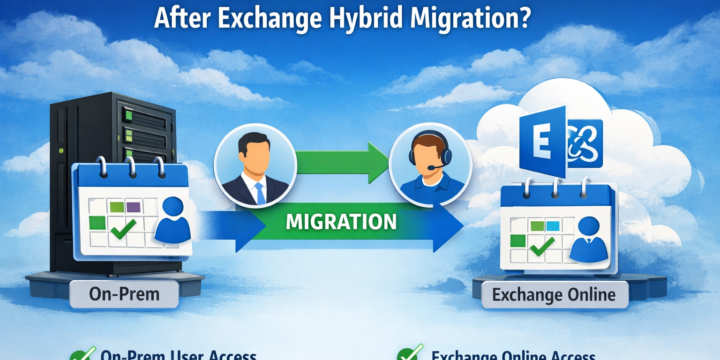
In Exchange Hybrid environments, shared calendar behavior after mailbox migration is often misunderstood. Many assume that calendar access breaks when a mailbox is moved to Exchange Online. In reality, the outcome depends on how permissions were configured before the migration. This article walks through a controlled scenario and shows exactly what happens. Scenario We use two users: buser01@onpremx.com bmuser01@onpremx.com Initial state: Both mailboxes are on on-prem Exchange Users can access each other’s calendars Step 1 – Test Default Behavior (On-Prem → On-Prem) Without assigning any permissions: Add calendar in Outlook Calendar is added successfully Only free/busy information is visible No subject or details This is expected. Default calendar permission: PowerShellAvailabilityOnlyAvailabilityOnly Step 2 – Check Existing Permissions Verify current permissions: PowerShellGet-MailboxFolderPermission bmuser01:\Calendar Get-MailboxFolderPermission buser01:\CalendarGet-MailboxFolderPermission bmuser01:\Calendar Get-MailboxFolderPermission buser01:\Calendar Typical result: No explicit…
Read More
How to Deploy Windows Server 2008 Read Only Domain Controller (RODC)

How to Deploy Windows Server 2008 Read Only Domain Controller (RODC)

Video Tutorials, Windows Server
Read-Only Domain Controller (RODC) is an additional domain controller for a domain that hosts read-only partitions of the Active Directory database. An RODC is designed primarily to be deployed in a branch office environment. Branch offices typically have relatively few users, poor physical security, relatively poor network bandwidth to a hub site, and little local IT knowledge. RODC is primarily aimed at providing additional security on an Active Directory Database for a server that is not physically secured. In this video we'll deploy Windows Server 2008 Read Only Domain Controller (RODC).
Read More
Moved Mailboxes Are Shown in Disconnected Mailbox – Exchange 2010 SP1 SP2 SP3

Moved Mailboxes Are Shown in Disconnected Mailbox – Exchange 2010 SP1 SP2 SP3

Exchange Server
You have just moved some mailboxes from one Exchange 2010 SP1 ( or later ) mailbox database to another mailbox database but all the moved mailboxes are shown in disconnected mailboxes. This happens because of the "Soft Deleted mailboxes". Exchange doesn?t fully delete the mailbox from the source database immediately after completion of the move. Instead, the mailbox in the source mailbox database is switched to a soft-deleted state. The soft-deleted mailboxes are retained in the source database until either the deleted mailbox retention period expires or you use the Remove-StoreMailbox cmdlet to purge the mailbox.   You can see soft-deleted mailbox by running the following shell command Get-MailboxStatistics ?Database ?Mailbox Database Name? | Where-Object {$_.DisconnectReason ?eq ?Softdeleted?} You can delete all soft deleted mailboxes from a particular Mailbox Database by…
Read More
Installing and Configuring Data Protection Manager 2010 for Exchange Server 2010 SP2

Installing and Configuring Data Protection Manager 2010 for Exchange Server 2010 SP2

Exchange Server, System Center, Video Tutorials
A System Center Data Protection Manager (DPM) 2010 installation includes two primary tasks: installing the DPM prerequisite software and installing the DPM application. The DPM Setup Wizard guides you through the process of specifying the DPM installation settings, and automatically installs the prerequisite software as part of an integrated DPM installation process. Important Note: DPM 2010 is not supported on the Turkish language version of Windows Server 2008 or Windows Server 2008 R2. If the automatic installation of one or more of the DPM prerequisite software products fails, you can install the prerequisite software manually. Before installing DPM, note the following: All computers that you use for your DPM installation must meet at least the minimum hardware and software requirements. DPM Setup stops the Removable Storage service before installing DPM. After you install DPM, you…
Read More
How to Restore Exchange 2010 Mailbox to Different Mailbox

How to Restore Exchange 2010 Mailbox to Different Mailbox

Exchange Server, Video Tutorials
Exchange 2010 no longer has the notion of Storage Groups, which were used in Exchange 2007 and 2003 to contain logical groupings of databases. Exchange 2010 now simply lets you create databases on mailbox servers. The difference is that in Exchange 2003/2007, you created a Recover Storage Group (RSG) to restore the database into. In Exchange 2010, you simply restore the database and connect to it as a Recovery Database (RDB). First,  you have to have a good backup that contains the item to be recovered. Windows Server 2008 and Windows Server 2008 R2 have the built-in Windows Server Backup feature. I cover how to use Windows Server Backup to backup Exchange in this article. Without the ability to restore an individual mailbox, it is necessary to first restore an entire…
Read More
How to Configure Windows 2008 Fine-Grained Password Policy

How to Configure Windows 2008 Fine-Grained Password Policy

Video Tutorials, Windows Server
In previous versions of Active Directory, we had only one password policy for the entire domain. Some companies had to use multiple domains to place different password policies on different users or buy third party solutions. In Windows Server 2008, you can use fine-grained password policies to specify multiple password policies and apply different password restrictions and account lockout policies to different sets of users within a single domain. Password polices are designed to control what kind of password a user can have and how often the user needs to change it. Strong password policies are important to help protect your system and data.
Read More
The replica of Exchange Mailbox Database is inconsistent – Data Protection Manager 2010

The replica of Exchange Mailbox Database is inconsistent – Data Protection Manager 2010

System Center
Description: The replica of Exchange Mailbox Database on ExchangeServerNameFQDN is inconsistent with the protected data source. All protection activities for data source will fail until the replica is synchronized with consistency check. You can recover data from existing recovery points, but new recovery points cannot be created until the replica is consistent. Data consistency verification check failed for LOGS of Exchange Mailbox Database on ExchangeServerNameFQDN. (ID 30146 Details: Unknown error (0xc0000135) (0xC0000135)) Recommended action: Copy " eseutil.exe and ese.dll " from Exchange Server " C:\Program Files\Microsoft\Exchange Server\V14\Bin " to the DPM server " C:\Program Files\Microsoft DPM\DPM\bin " folder.
Read More
Microsoft Exchange POP3 service terminated with the following error: No site name is available for this machine

Microsoft Exchange POP3 service terminated with the following error: No site name is available for this machine

Exchange Server
Problem: The Microsoft Exchange POP3 service terminated with the following error: No site name is available for this machine. Solution Associate a Subnet with Default-First-Site-Name Open Active Directory Sites and Services Console. Double-click the Sites node that corresponds to the Site where the Exchange Server resides, and then right-click Subnets. Click New Subnet on the shortcut menu. Type the IP address, and the subnet mask of the subnet, and then click Default-First-Site-Name on the Site Name list. Click OK to close the New Object-Subnet dialog box. Set the Site Membership Start Registry Editor, Regedit.exe. Locate and click the following registry key: HKEY_LOCAL_MACHINE\System\CurrentControlSet\Services\Netlogon\Parameters On the Edit menu, point to New, and then click String Value. Type SiteName to change the name of the newly created value, and then press ENTER. Double-click the…
Read More