Applies to: Exchange Server SE / 2019 / 2016 | Exchange Online | Hybrid
In Exchange Hybrid environments, it is common to use mail flow rules to add an external disclaimer or warning banner to messages received from outside the organization.
A typical warning may look like this:
WARNING: This email originated from outside the organization. Do not click links or open attachments unless you recognize the sender.
This is a good security control. It helps users identify messages that came from external sources. However, there are some scenarios where messages generated by internal application servers may also receive this external disclaimer. This usually happens when an internal application server submits email anonymously to Exchange Server on-premises, and Exchange then routes the message to Exchange Online.
In this article, we will look at how to handle this scenario safely by using a custom header stamped by Exchange Server on-premises and an exception in the Exchange Online disclaimer rule.
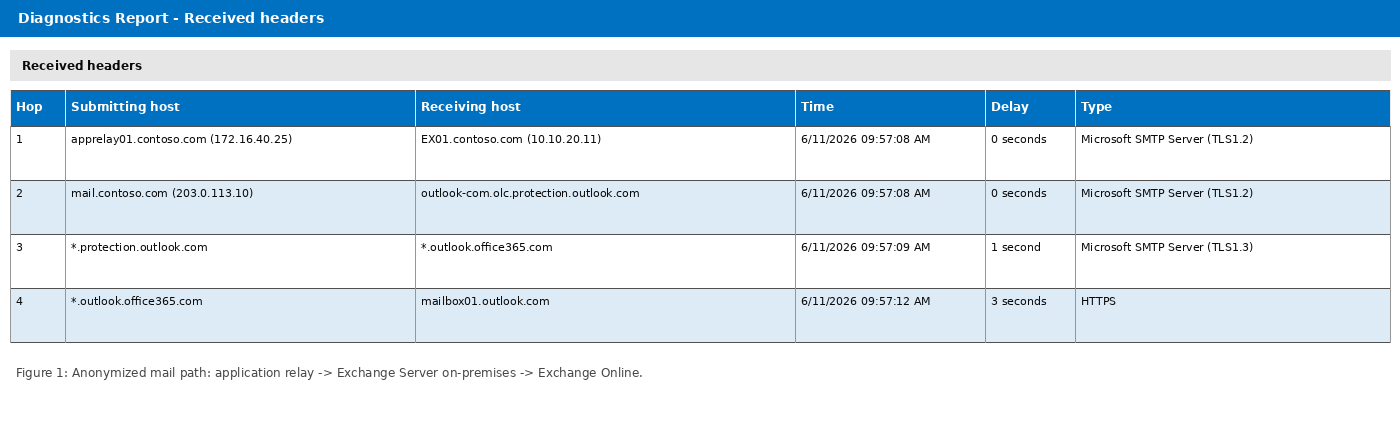
Application Server / Postfix / Monitoring System
        ↓
Exchange Server On-Premises Anonymous Relay Connector
        ↓
Hybrid Send Connector
        ↓
Exchange Online Protection / Exchange Online
        ↓
Cloud Mailbox
Example sender address:
monitoring@alerts.contoso.com
The sender domain belongs to the organization, but the sender address may not exist as a mailbox or mail-enabled object. This is common for application-generated notifications from systems such as Postfix, SCOM, Nagios, printers, scanners, backup systems, or custom applications.
The application server submits the message anonymously to an Exchange Server on-premises relay connector. Exchange Server then routes the message to Exchange Online.
The issue is that the Exchange Online external disclaimer rule may still treat this message as external and apply the warning.
2. Why Does This Happen?
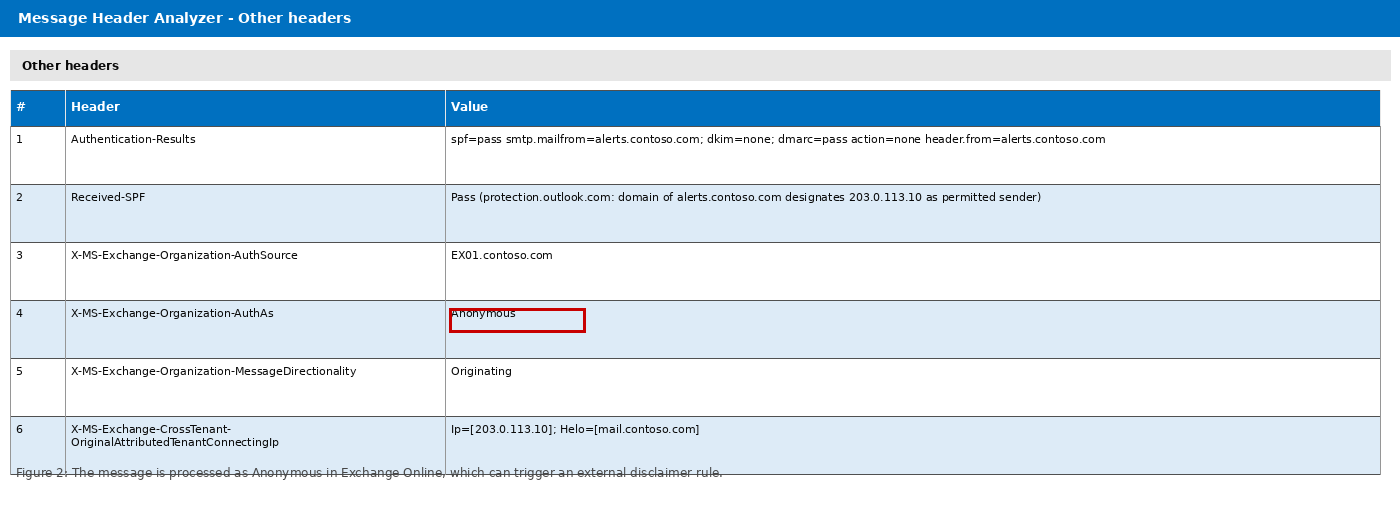
When reviewing the message headers, you may see a value similar to this:
X-MS-Exchange-Organization-AuthAs: Anonymous
This means Exchange Online processed the message as anonymous.
This is expected in many application relay scenarios. The application server submitted the message anonymously to Exchange Server on-premises. Even if Exchange routes the message to Exchange Online through the Hybrid Send Connector, the original submission was still anonymous.
So this is not always a broken Hybrid configuration. The mail flow may be working as designed. The real issue is that the external disclaimer rule cannot easily distinguish between a real external sender and a trusted internal application relay.
3. What You Should NOT Do
A tempting workaround is to exclude the internal domain from the disclaimer rule.
For example: Except if sender domain is contoso.com
This is not recommended.
The visible From address can be spoofed. If the disclaimer rule excludes messages only based on the sender domain, spoofed external messages may also bypass the external warning. That weakens the purpose of the external disclaimer rule. Instead of trusting the sender domain, use a more controlled and verifiable condition, such as the internal application relay IP address.
4. Recommended Approach
The recommended approach is:
1. Identify the trusted application relay IP addresses.
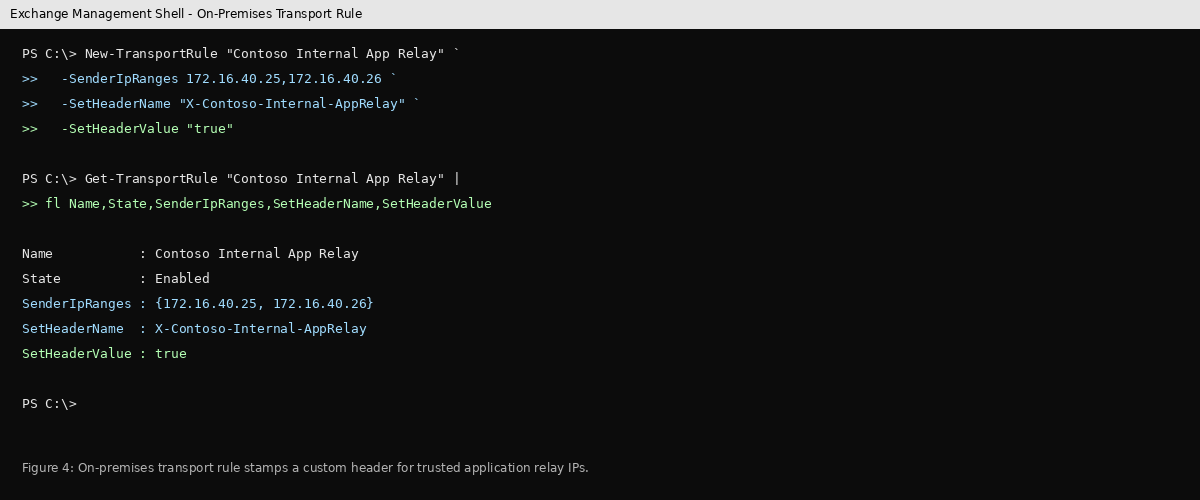
2. On Exchange Server on-premises, stamp a custom header only for those trusted IP addresses.
3. In Exchange Online, add an exception to the external disclaimer rule based on that custom header.
Example custom header:
X-Contoso-Internal-AppRelay: true
This does not convert the message into an authenticated internal user submission. It simply marks the message as coming from a trusted internal application relay. The goal is not to change the authentication state of the message. The goal is to identify trusted application relay traffic in a controlled way.
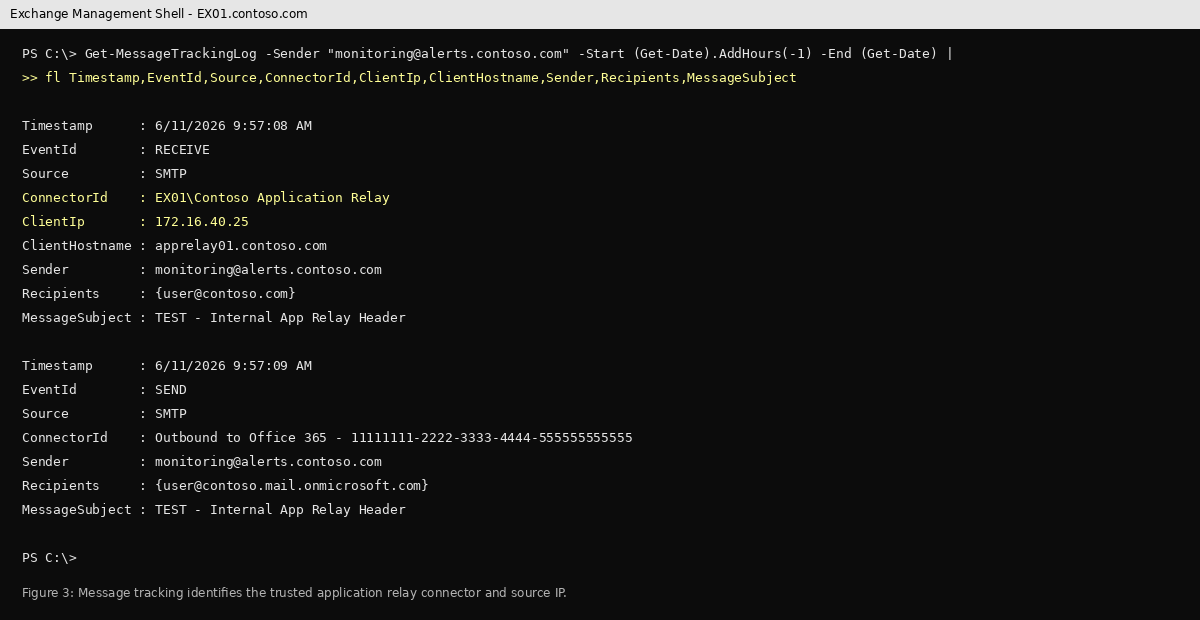
5. Step 1: Identify the Application Relay IP Address
On Exchange Server on-premises, use message tracking logs to identify the client IP address that submitted the message.
Name : Contoso Internal App Relay
State : Enabled
SenderIpRanges : {172.16.40.25, 172.16.40.26}
SetHeaderName : X-Contoso-Internal-AppRelay SetHeaderValue : true
7. Step 3: Send a Test Message
Send a new test message from the application server or monitoring system.
Example:
From: monitoring@alerts.contoso.com
To: user@contoso.com
Subject: TEST - Internal App Relay Header
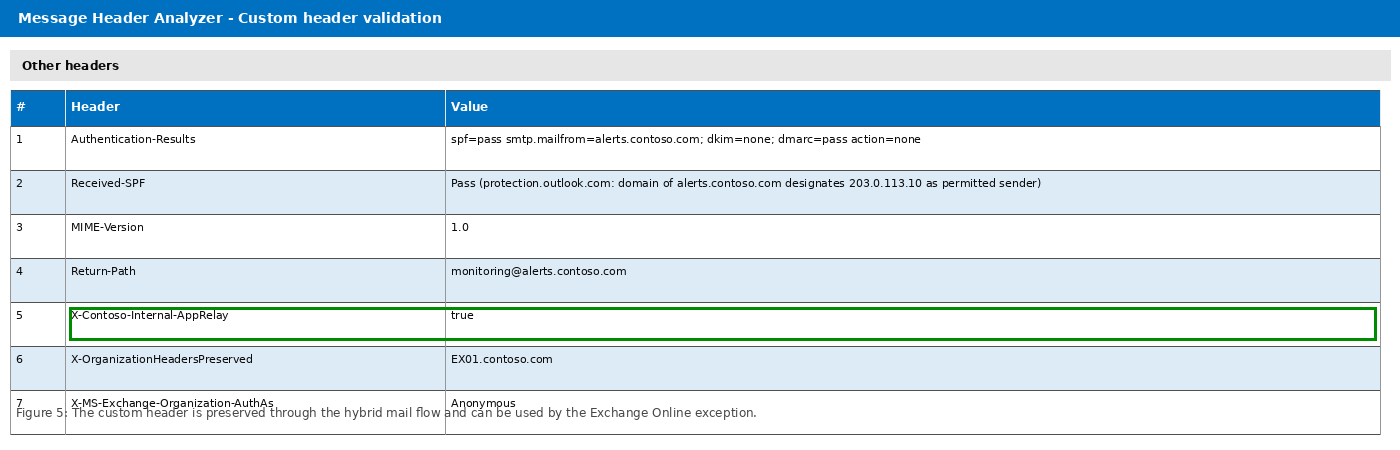
After the message arrives in the Exchange Online mailbox, review the message headers. You should see:
X-Contoso-Internal-AppRelay: true
You may still see:
X-MS-Exchange-Organization-AuthAs: Anonymous
That is expected. The custom header does not change the authentication state of the message. It only confirms that Exchange Server on-premises identified the message as coming from a trusted application relay source. At this stage, the external disclaimer may still be applied. That is expected because the Exchange Online disclaimer rule has not yet been modified.
8. Step 4: Add an Exception to the Exchange Online Disclaimer Rule
Now edit the existing Exchange Online external disclaimer rule.
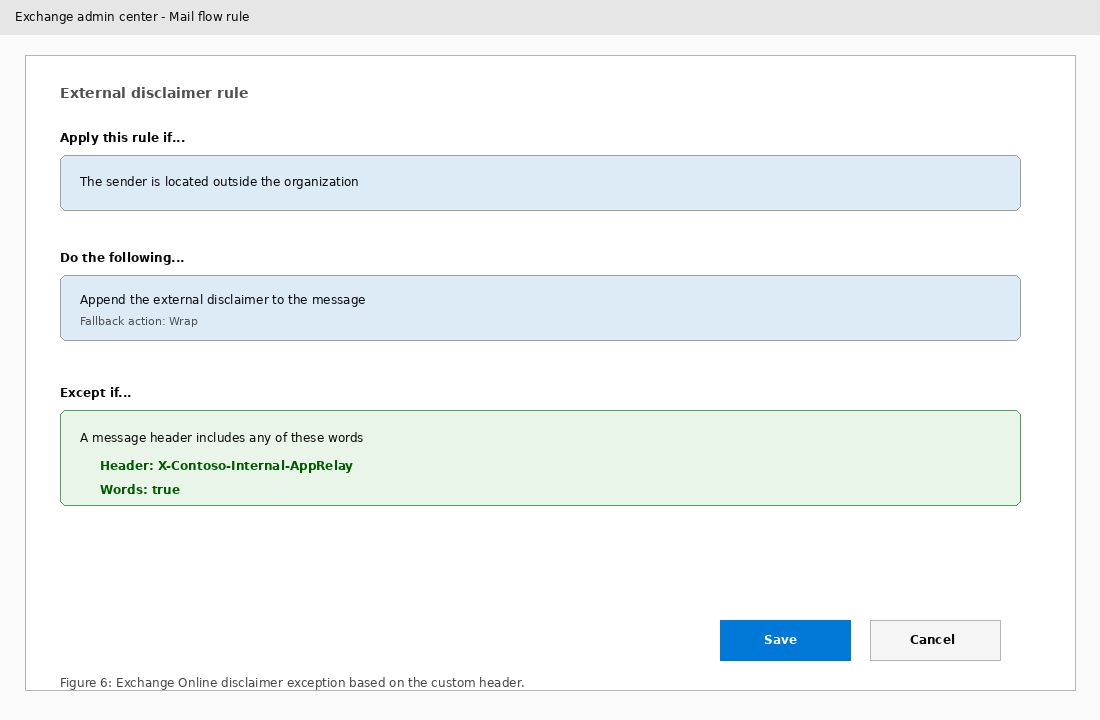
Go to: Exchange Admin Center > Mail flow > Rules and Open the existing external disclaimer rule and Add an exception:
Except if...
A message header includes any of these words

Header name:

X-Contoso-Internal-AppRelay

Word:

true

The rule logic should look like this:

Apply this rule if:
The sender is located outside the organization

Do the following:
Append the external disclaimer

Except if:
Message header X-Contoso-Internal-AppRelay contains true
9. Step 5: Test Again
Send another test message from the same application relay server.
Expected result:
X-Contoso-Internal-AppRelay: true
The external disclaimer should no longer be added.
This confirms that: The on-premises transport rule stamps the header correctly. The header is preserved through the hybrid mail flow. The Exchange Online disclaimer rule exception works as expected.
10. Security Considerations
Keep the exception as narrow as possible. Avoid broad private IP ranges such as:
10.0.0.0/8 172.16.0.0/12 192.168.0.0/16
Although these ranges are technically valid, they are usually too broad for this use case. If used, many internal systems submitting mail through anonymous relay may receive the custom header and bypass the external disclaimer.
A better approach is to include only known and trusted application relay IP addresses.
In Exchange Hybrid environments, messages submitted anonymously from internal application servers may still appear as anonymous or external in Exchange Online. This is common when systems such as Postfix, SCOM, Nagios, printers, scanners, or custom applications relay mail through Exchange Server on-premises.
Instead of excluding the entire internal domain from the external disclaimer rule, use a controlled approach:
Trusted application relay IP
        ↓
Exchange Server on-premises transport rule stamps a custom header
        ↓
Exchange Online disclaimer rule excludes messages with that header
The goal isn’t to make anonymous application relay messages look like authenticated internal user submissions — it’s to identify trusted internal application relay traffic in a controlled way, and keep it from receiving an unnecessary external disclaimer. That way the disclaimer rule stays effective for genuine external messages, while trusted internal notifications go through cleanly.
Cloud and infrastructure professional with nearly two decades of experience in enterprise IT environments, spanning public cloud, private cloud, and hybrid architectures.