How to Install Data Protection Manager 2010 on Windows Server 2008 R2 SP1

How to Install Data Protection Manager 2010 on Windows Server 2008 R2 SP1

System Center, Video Tutorials
A System Center Data Protection Manager (DPM) 2010 installation includes two primary tasks: installing the DPM prerequisite software and installing the DPM application. The DPM Setup Wizard guides you through the process of specifying the DPM installation settings, and automatically installs the prerequisite software as part of an integrated DPM installation process. Important Note: DPM 2010 is not supported on the Turkish language version of Windows Server 2008 or Windows Server 2008 R2. If the automatic installation of one or more of the DPM prerequisite software products fails, you can install the prerequisite software manually. Before installing DPM, note the following: All computers that you use for your DPM installation must meet at least the minimum hardware and software requirements. DPM Setup stops the Removable Storage service before installing DPM. After you install DPM, you…
Read More
How to Enable Local or Remote Tech Support Mode TSM from vSphere Client

How to Enable Local or Remote Tech Support Mode TSM from vSphere Client

VMware
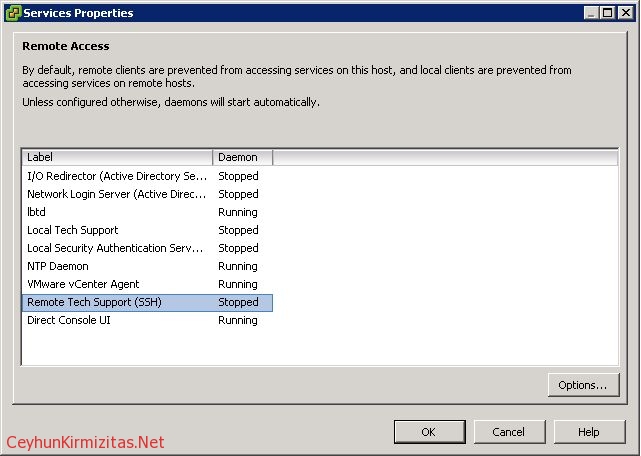
Tech Support Mode or TSM is a sort of simple version of the system console that was available on the classic versions of ESX. Except that the TSM mode is not Linux based and does not have all the capabilities that the old COS had. But you can now access Tech Support Mode locally or via SSH if you follow the instructions below to enable them. To Enable Local or Remote Tech Support Mode - TSM - From vSphere Client: Select the host and click the Configuration tab. Click Security profile > Properties. Click Local Tech Support or Remote  Tech Support (SSH) and click Options. Choose the desired startup policy and click Start,  then click OK. Verify that the daemon selected in step 3 shows as running in  the Services Properties window.…
Read More
Error 0x80092013: The revocation function was unable to check revocation because the revocation server was offline

Error 0x80092013: The revocation function was unable to check revocation because the revocation server was offline

Windows Server
Problem: You followed all steps from a Deploying SSTP Remote Access Step by Step Guide. However, when vista or windows 7 client tries to connect VPN server you get this error: " The revocation function was unable to check revocation because the revocation server was offline. " Workaround: The SSL VPN client needs to be able to download the CRL to confirm that the server certificate on the VPN server has not been revoked. You must either publish the CRL on a server that is accessible on the Internet or configure the client to not require CRL checking.. Because it exposes a private server name to the Internet, you can do the following as an alternative solution. Solution: Disable CRL Checking on VPN Client To disable CRL checking, create a…
Read More
How to Connect and Configure Iomega StorCenter NAS ix4-200d

How to Connect and Configure Iomega StorCenter NAS ix4-200d

Storage
The simplest way to configure these settings is to run the StorCenter Manager software that is included on the Solutions CD. Log into the management utility using the administrator username and password you created during the initial setup of the StorCenter device. Click on the Settings tab to begin working with the StorCenter device settings. For more information on the advanced settings, see the help system by clicking the icon. You can also enter the configuration tool by entering the IP address or device name in your web browser (e.g., http:// or http://192.168.0.55). If you have enabled security, you will be required to enter the administrator username and password. Click on the Settings tab to begin working with the StorCenter device settings. For more information on the advanced settings, see…
Read More
How to Join VMware ESXi 5.1 to Active Directory Domain

How to Join VMware ESXi 5.1 to Active Directory Domain

Video Tutorials, vSphere
It’s important to join your ESXi host to a Windows domain if there is one present in your architecture. By allowing AD to authenticate, you can simply delegate permissions based on your AD groups such as the Domain Admins’ group. Steps to enable Active Directory authentication: Log in to your ESXi hosts locally and click on Configuration. On the left side of the dialog, select Authentication Services and then click Properties. From the Select Directory Services Type drop-down, choose Active Directory. In the domain settings, you can add your domain in one of two ways: Simply add mydomain.local; this will add the computer account for ESXi in the default Computers OU. To specify a different OU where you want the ESXi computer account to be located, use this format: mydomain.local/vsphere.…
Read More
I get a “Page cannot be Displayed” or a “Bad Gateway” error when I attempt to access StorCenter Manager Iomega ix4-200d

I get a “Page cannot be Displayed” or a “Bad Gateway” error when I attempt to access StorCenter Manager Iomega ix4-200d

Storage
This error is caused by the proxy settings currently enabled for your web browser. To resolve this issue, please follow the steps for your browser: Internet Explorer: 1- Open Internet Explorer. 2- From the Tools menu, select Internet Options. 3- Select the Connections Tab. 4- Select the LAN Settings button. If you have a proxy server enabled, either: Select Bypass proxy server for local addresses. Or Un-check the Use a proxy server for your LAN checkbox. Mozilla: 1- Open Mozilla. 2- From the Edit menu, select Preferences. 3- From the Advanced category, select Proxies. If you have a manual proxy server configured, either: Add the IP address you find in StorCenter Manager to the No Proxy for list. See How do I find the device's IP address? Or Select Direct…
Read More
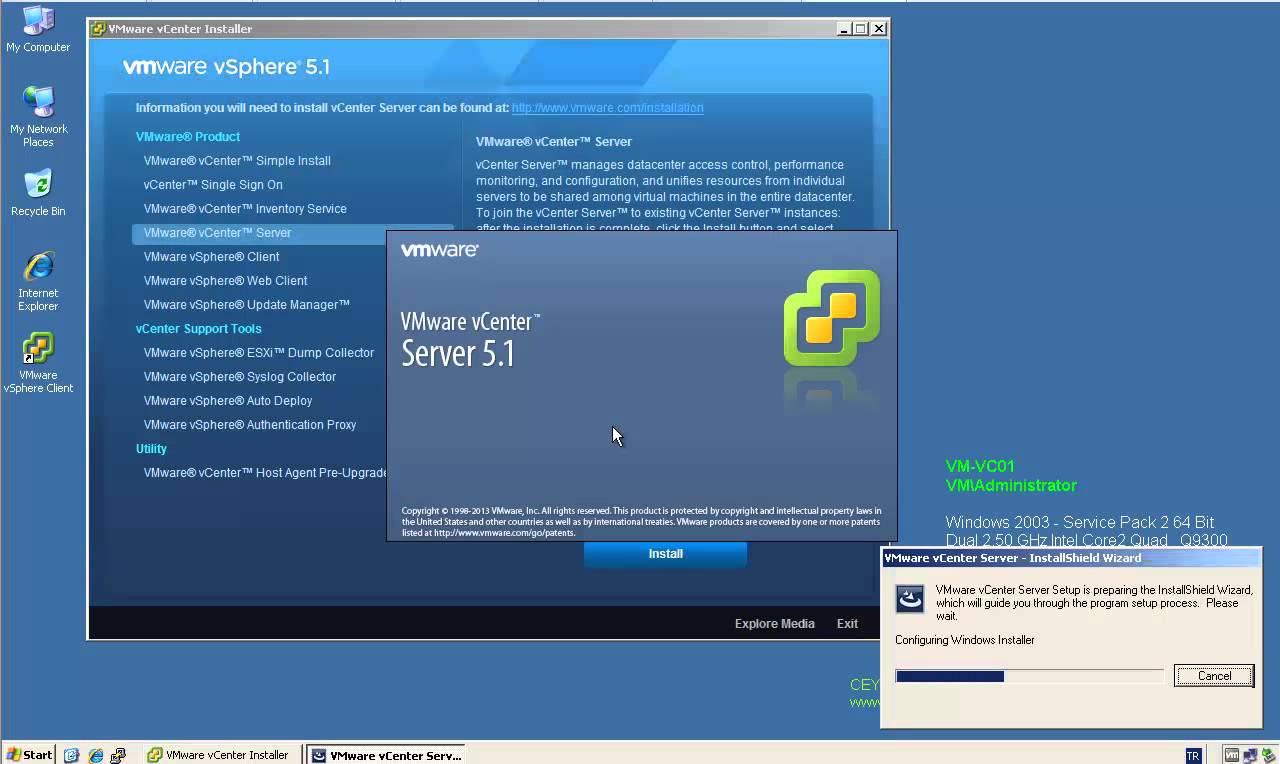
Step by Step Upgrade from VMware vCenter Server 5.1 to vCenter Server 5.1 Update 1

Step by Step Upgrade from VMware vCenter Server 5.1 to vCenter Server 5.1 Update 1

Video Tutorials, vSphere
VMware vCenter Server has been split into 4 services: Single-Sign On, Inventory Service, vCenter Server and the vSphere Web Client. That makes the update process a little bit more more complex. All vCenter Server Components have to be patched separately. The update process itself if strait forward and can usually been clicked through without answering much questions. Recommended Upgrade Sequence for VMware vCenter: Update vCenter Single Sign On Reboot Update VMware vCenter Inventory Service Update VMware vCenter Server Update VMware vSphere Web Client Update VMware vSphere Update Manager Update ESXi Hosts
Read More
How to Install PCLinuxOS KDE 2013.04 in VMware Workstation 9

How to Install PCLinuxOS KDE 2013.04 in VMware Workstation 9

Linux, Video Tutorials
Why PCLinuxOS? PCLinuxOS is based on Mandriva. PCLinuxOS aims to be a simple distribution that reaches to the masses, allowing Windows users to easily and painlessly convert. It uses Synaptic as the frontend for the APT package management system, also used in Ubuntu. On the other hand, it retains many of the GUI-oriented functions that Mandriva has, making it suitable for Linux newbies. In following video tutorial, we will see: - Installing PCLinuxOS KDE 2013.04 in VMware Workstation 9.0.2 - Installing VMware Tools Related Video: https://www.youtube.com/watch?v=o9GXjStuwiY Hope you found it useful. Any questions or comments are welcomed.
Read More
Install Fedora 19 KDE Desktop Edition in VMware Workstation 9

Install Fedora 19 KDE Desktop Edition in VMware Workstation 9

Red Hat - CentOS - Fedora, Video Tutorials, Workstation
Anaconda installer for Fedora 18 was a complete mess after its installer user-interface was redone. The Fedora 19 KDE installation is fairly simple and easy process. The Best Features Of Fedora 19 Fedora 18 is one of the first major tier-one Linux distributions shipping the GCC 4.8 compiler by default. GCC 4.8 has a whole lot of improvements from faster performance for some workloads to better instruction set coverage on new processors and full C++11 support. GNOME 3.8, KDE Plasma 4.10, and MATE 1.6 are among the Linux desktop environment options available on Fedora 19. GNOME 3.8, of course, is the default desktop environment for Fedora Linux 19. RPM 4.11 is now in use for package management and it brings better performance, lower memory usage, better file conflict detection, and…
Read More